Introduction
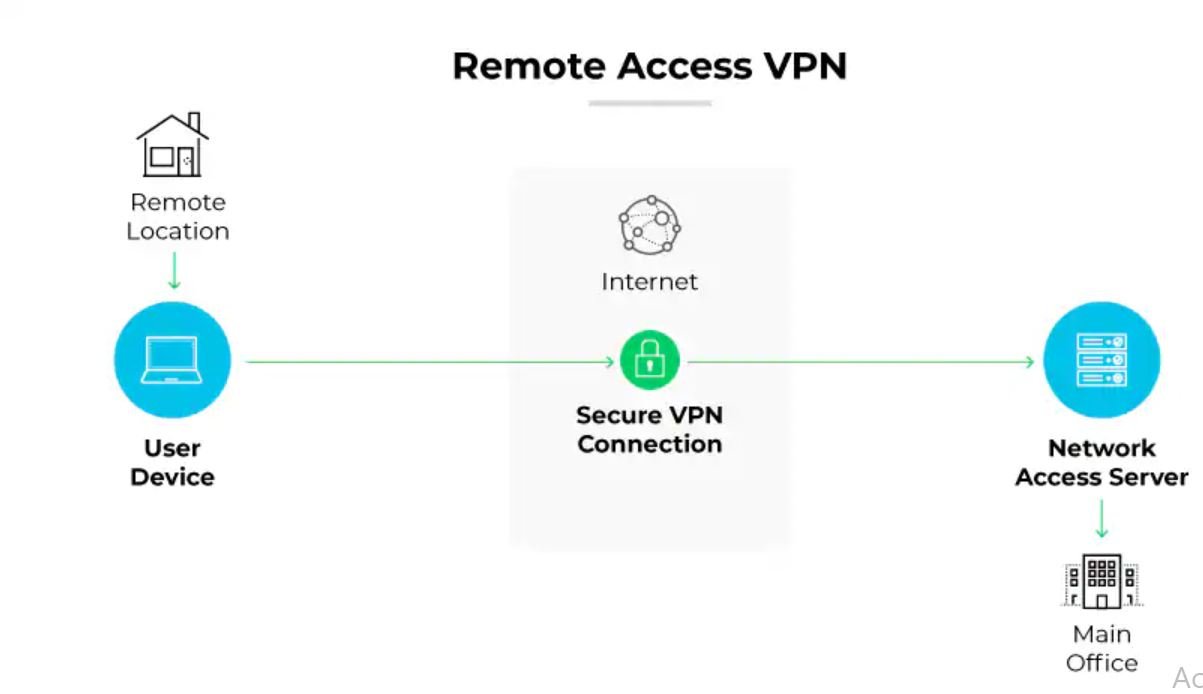
Remote access VPN configuration on Cisco IOS and ASA platforms is one of the most in-demand skills in enterprise networking today. Remote access VPN configuration enables employees, contractors, and administrators to securely connect to corporate resources from any internet-connected location, creating an encrypted tunnel that protects sensitive data in transit. As distributed workforces become the standard rather than the exception, mastering remote access VPN configuration on Cisco equipment is essential for network engineers, system administrators, and IT consultants who need to deliver reliable and secure connectivity at scale.
In this comprehensive guide you will learn how to configure remote access VPN on both Cisco IOS routers and Cisco ASA firewalls using IKEv2 with Cisco AnyConnect, SSL VPN (WebVPN), and IPsec. We cover architecture design, lab prerequisites, phase-by-phase configuration steps, a real-world enterprise case study, verification commands, five common troubleshooting scenarios, and security best practices that meet enterprise compliance requirements in 2026.
Table of Contents
- Why Remote Access VPN Configuration Matters
- Understanding Cisco Remote Access VPN Architecture
- Prerequisites and Lab Requirements
- Network Topology
- Step-by-Step Remote Access VPN Configuration
- Real-World Enterprise Example
- Verification and Testing
- Troubleshooting Common Issues
- Best Practices
- Security Considerations
- Performance Optimization
- Related Articles
- Conclusion
- Professional IT Services
- About the Author
Why Remote Access VPN Configuration Matters
Remote access VPN configuration is no longer optional for organizations of any size. With the global shift to hybrid work, employees access ERP systems, Active Directory, file servers, and cloud-hosted applications from home networks, coffee shops, hotels, and client sites — environments that offer no inherent security controls.
Without a properly deployed remote access VPN, this traffic is transmitted over unencrypted public internet connections, exposing credentials, sensitive business data, and proprietary information to interception. Regulatory frameworks including PCI-DSS, HIPAA, ISO 27001, and Pakistan’s PECA require encryption of data in transit, making VPN a compliance necessity as much as a security measure.
Cisco remains the market leader in enterprise remote access VPN solutions. The Cisco ASA (Adaptive Security Appliance) and Cisco IOS platforms power remote access VPN deployments in thousands of enterprise environments worldwide, supported by Cisco AnyConnect Secure Mobility Client — the most widely deployed VPN client in enterprise IT.
Understanding Cisco Remote Access VPN Architecture
Cisco supports three primary remote access VPN technologies. Understanding when to use each is critical to making the right design decision.
Cisco AnyConnect IKEv2 (Recommended)
AnyConnect with IKEv2 is the gold standard for enterprise remote access VPN configuration. It delivers AES-256 encryption, fast reconnection after network changes (MOBIKE), and full integration with Cisco Identity Services Engine (ISE) for posture assessment. AnyConnect requires the AnyConnect client software installed on user devices and an AnyConnect Plus or Apex license on the ASA or IOS router.
Cisco AnyConnect SSL VPN (WebVPN)
SSL VPN operates over TLS on TCP port 443, making it highly firewall-friendly since port 443 is open in virtually every network. It supports both the full AnyConnect tunnel client and a clientless WebVPN portal for browser-based access to internal web applications without requiring a VPN client installation. This is valuable for contractor and partner access scenarios.
Cisco IOS EasyVPN / IPsec Remote Access
EasyVPN is a legacy Cisco IOS feature that provides IPsec-based remote access using XAUTH authentication and group policies pushed from the server. While still found in older deployments, it is being replaced by AnyConnect IKEv2 in modern environments. Configuration knowledge remains relevant for maintaining legacy infrastructure.
Key Components
- Cisco ASA or IOS Router: The VPN headend terminating remote access connections
- Cisco AnyConnect Client: Software installed on end-user devices (Windows, macOS, Linux, iOS, Android)
- AAA Server (RADIUS/LDAP): Active Directory or Cisco ISE for user authentication
- IP Address Pool: Dedicated subnet assigned to VPN clients
- Group Policy: Defines tunnel parameters, DNS, split tunneling, and access rules per user group
- Trustpoint/Certificate: SSL certificate for AnyConnect portal and IKEv2 authentication
Prerequisites and Lab Requirements
Hardware and Virtual Environment
- Cisco ASA 5505/5506/5508/5516 (physical) or ASAv in VMware/EVE-NG/GNS3
- Cisco IOS Router (ISR 4000 series or CSR 1000v for virtual labs)
- Client workstation running Windows 10/11 or macOS for AnyConnect testing
- Minimum 4 GB RAM, 2 vCPU for ASAv virtual appliance
Software and Licenses
- Cisco ASA OS 9.8 or later (9.16+ recommended for IKEv2 AnyConnect)
- Cisco IOS 15.4(2)T or later for FlexVPN / IKEv2
- Cisco AnyConnect Secure Mobility Client 4.10 or later
- AnyConnect Plus or Apex License (required on ASA for AnyConnect)
- SSL Certificate (self-signed acceptable for lab; CA-signed required for production)
Access Requirements
- Enable-level (privileged EXEC) access to Cisco ASA or IOS device
- Static public IP address on the outside interface of the VPN headend
- Firewall rules permitting TCP 443 (SSL VPN) and UDP 500/4500 (IKEv2) inbound
- Active Directory or local user database for AAA authentication
Network Topology
Internet
|
[Cisco ASA / IOS VPN Headend]
Outside Interface: 203.0.113.10 (Public IP)
Inside Interface: 192.168.1.1/24 (Corporate LAN)
DMZ Interface: 10.10.10.1/24 (Optional DMZ)
|
|--- Corporate LAN: 192.168.1.0/24
| Active Directory: 192.168.1.10
| File Server: 192.168.1.20
| ERP Server: 192.168.1.30
|
|--- AnyConnect VPN Pool: 172.16.50.0/24
Remote User A: 172.16.50.2
Remote User B: 172.16.50.3
...up to 172.16.50.254
- Outside Interface: Faces the internet, terminates VPN connections
- Inside Interface: Corporate LAN with AD, file servers, and applications
- VPN Pool: 172.16.50.0/24 — IP range dynamically assigned to AnyConnect clients
- DNS for VPN Clients: 192.168.1.10 (internal AD DNS server)
Step-by-Step Remote Access VPN Configuration
Phase 1: Cisco ASA — AnyConnect IKEv2 Remote Access VPN
This is the recommended configuration for production deployments. Each step includes the command, an explanation of what it does, and verification guidance.
Step 1: Enable AnyConnect and IKEv2 on the Outside Interface
This enables the ASA to accept AnyConnect VPN connections and activates IKEv2 on the internet-facing interface.
! Enter global configuration mode
conf t
! Enable AnyConnect essentials (or use AnyConnect Plus/Apex license)
webvpn
enable outside
anyconnect enable
anyconnect image disk0:/anyconnect-win-4.10.xx-k9.pkg 1
anyconnect image disk0:/anyconnect-macosx-4.10.xx-k9.pkg 2
! Enable IKEv2 on outside interface
crypto ikev2 enable outside
Step 2: Create IP Address Pool for VPN Clients
This pool defines the IP addresses dynamically assigned to AnyConnect clients when they connect.
! Create VPN client IP address pool
ip local pool ANYCONNECT-POOL 172.16.50.2 172.16.50.254 mask 255.255.255.0
Step 3: Configure IKEv2 Proposal and Policy
The IKEv2 proposal defines the encryption algorithm (AES-256), integrity (SHA-256), and Diffie-Hellman group (Group 14) used for secure key exchange.
! Create IKEv2 proposal with strong encryption
crypto ikev2 proposal ANYCONNECT-PROPOSAL
encryption aes-256
integrity sha256
group 14
! Bind proposal to IKEv2 policy
crypto ikev2 policy 10
proposal ANYCONNECT-PROPOSAL
Step 4: Configure AAA Authentication (Local or Active Directory)
AAA (Authentication, Authorization, Accounting) defines how VPN users are authenticated. This example uses local user accounts; in production, replace with RADIUS pointing to Active Directory.
! Define AAA authentication using local database
aaa authentication login ANYCONNECT-AAA local
! Create local VPN users
username vpnuser1 password Str0ngP@ss!2026 privilege 0
username vpnuser2 password SecureP@ss!2026 privilege 0
! For Active Directory via RADIUS (production):
! aaa-server AD-RADIUS protocol radius
! aaa-server AD-RADIUS (inside) host 192.168.1.10
! key RadiusSharedSecret2026
! authentication-port 1812
! aaa authentication login ANYCONNECT-AAA server-group AD-RADIUS LOCAL
Step 5: Create Group Policy
The group policy defines tunnel settings for VPN users including DNS servers, split tunneling behavior, session timeout, and idle timeout. This is pushed to the AnyConnect client upon connection.
! Create group policy for AnyConnect users
group-policy ANYCONNECT-POLICY internal
group-policy ANYCONNECT-POLICY attributes
vpn-tunnel-protocol ikev2 ssl-client
dns-server value 192.168.1.10
default-domain value yourdomain.local
split-tunnel-policy tunnelspecified
split-tunnel-network-list value SPLIT-TUNNEL-ACL
vpn-session-timeout 480
vpn-idle-timeout 30
address-pools value ANYCONNECT-POOL
! Define split tunnel ACL (only corporate traffic goes through VPN)
access-list SPLIT-TUNNEL-ACL standard permit 192.168.1.0 255.255.255.0
access-list SPLIT-TUNNEL-ACL standard permit 10.10.10.0 255.255.255.0
Step 6: Create Tunnel Group (Connection Profile)
The tunnel group links authentication, address pools, and group policy together for a specific VPN connection profile. Users see this profile name in the AnyConnect client dropdown.
! Create tunnel group for remote access VPN users
tunnel-group ANYCONNECT-USERS type remote-access
tunnel-group ANYCONNECT-USERS general-attributes
address-pool ANYCONNECT-POOL
authentication-server-group ANYCONNECT-AAA
default-group-policy ANYCONNECT-POLICY
! Set tunnel group alias visible in AnyConnect client
tunnel-group ANYCONNECT-USERS webvpn-attributes
group-alias "Corporate VPN" enable
Step 7: Configure SSL Certificate (Self-Signed for Lab)
AnyConnect SSL VPN requires a certificate on the ASA outside interface. In production, use a CA-signed certificate to avoid browser warnings.
! Generate RSA key pair
crypto key generate rsa label ANYCONNECT-KEY modulus 2048
! Create self-signed trustpoint (lab only - use CA cert in production)
crypto ca trustpoint ANYCONNECT-CERT
enrollment self
subject-name CN=vpn.yourdomain.com,O=YourCompany,C=PK
keypair ANYCONNECT-KEY
crl configure
! Enroll (generate) the certificate
crypto ca enroll ANYCONNECT-CERT noconfirm
! Bind certificate to outside interface
ssl trust-point ANYCONNECT-CERT outside
Step 8: Configure NAT Exemption for VPN Traffic
This prevents the ASA from NATing VPN traffic before sending it to the inside network, which would cause routing failures.
! Create NAT exemption — VPN pool to inside LAN must not be translated
object network VPN-POOL
subnet 172.16.50.0 255.255.255.0
object network INSIDE-LAN
subnet 192.168.1.0 255.255.255.0
! NAT exemption rule (identity NAT)
nat (inside,outside) source static INSIDE-LAN INSIDE-LAN destination static VPN-POOL VPN-POOL no-proxy-arp route-lookup
Step 9: Allow VPN Traffic Through ASA Access Rules
! Allow AnyConnect clients to reach inside network
access-list OUTSIDE-IN extended permit ip 172.16.50.0 255.255.255.0 192.168.1.0 255.255.255.0
access-group OUTSIDE-IN in interface outside
! Allow sysopt — permits VPN traffic to bypass interface ACL check
sysopt connection permit-vpn
Step 10: Save Configuration
! Save running config to startup config
write memory
! Verify AnyConnect is active
show webvpn anyconnect
show run group-policy ANYCONNECT-POLICY
Phase 2: Cisco ASA — Clientless SSL WebVPN (Browser-Based)
Clientless WebVPN allows users to access internal web applications through a browser portal without installing AnyConnect. Ideal for contractor and partner access.
Step 1: Configure WebVPN Portal
! WebVPN already enabled from Phase 1
! Configure portal customization
webvpn
enable outside
http-headers
x-content-type-options nosniff
x-xss-protection 1; mode=block
strict-transport-security max-age=31536000
! Create a bookmark list for internal web apps
webvpn
customization DfltCustomization
title "Corporate Remote Access Portal"
logo file disk0:/company-logo.png
! Create URL list for internal applications
webvpn
url-list INTERNAL-APPS
heading "Corporate Applications"
webvpn-url description "Intranet" value "https://192.168.1.50/intranet"
webvpn-url description "HR Portal" value "https://192.168.1.60/hr"
webvpn-url description "IT Helpdesk" value "https://192.168.1.70/helpdesk"
Phase 3: Cisco IOS Router — FlexVPN IKEv2 Remote Access
For organizations using Cisco IOS routers as the VPN headend instead of ASA, FlexVPN with IKEv2 provides a modern, scalable remote access VPN solution.
Step 1: Configure IKEv2 Authorization Policy
! Create IKEv2 authorization policy — defines what clients receive
crypto ikev2 authorization policy FLEX-AUTH-POLICY
pool FLEX-VPN-POOL
dns 192.168.1.10
split-tunnel included 192.168.1.0 255.255.255.0
def-domain yourdomain.local
Step 2: Configure IKEv2 Keyring and Profile
! Create IKEv2 proposal
crypto ikev2 proposal FLEX-PROPOSAL
encryption aes-cbc-256
integrity sha256
group 14
! Create IKEv2 policy
crypto ikev2 policy 10
proposal FLEX-PROPOSAL
! Create keyring for remote clients using EAP
crypto ikev2 keyring FLEX-KEYRING
peer ANY
address 0.0.0.0 0.0.0.0
pre-shared-key local StrongServerKey2026
pre-shared-key remote StrongServerKey2026
! Create IKEv2 profile with EAP authentication for clients
crypto ikev2 profile FLEX-PROFILE
match identity remote any
identity local fqdn vpn.yourdomain.com
authentication local rsa-sig
authentication remote eap query-identity
pki trustpoint LOCAL-CERT
aaa authentication eap FLEX-AAA-LIST
aaa authorization user eap list FLEX-AAA-LIST FLEX-AUTH-POLICY
virtual-template 1
Step 3: Create Virtual Template Interface
! Create IP address pool
ip local pool FLEX-VPN-POOL 172.16.50.2 172.16.50.254
! Create virtual template — used to spawn virtual access interfaces per client
interface Virtual-Template1 type tunnel
ip unnumbered GigabitEthernet0/0
ip mtu 1400
ip tcp adjust-mss 1360
tunnel mode ipsec ipv4
tunnel protection ipsec profile FLEX-IPSEC-PROFILE
! Create IPsec profile referencing IKEv2 profile
crypto ipsec profile FLEX-IPSEC-PROFILE
set ikev2-profile FLEX-PROFILE
Real-World Enterprise Example
Case Study: Regional Bank — 800 Employees, 12 Branches
Company Profile: A regional bank headquartered in Lahore with 12 branch offices across Punjab. The bank processes retail transactions, loan applications, and customer data through a centralized core banking application hosted in the main data center. Regulatory requirements from the State Bank of Pakistan mandate encrypted remote access for all staff connecting to banking systems outside the corporate perimeter.
Challenge: The existing Cisco Easy VPN (legacy IPsec) solution was incompatible with modern Windows 11 devices and could not enforce device posture (checking whether antivirus and disk encryption were active before granting access). The bank needed to upgrade to AnyConnect with ISE integration for full endpoint compliance enforcement, supporting 300 concurrent remote users across 12 locations.
Solution Approach: Deployed a pair of Cisco ASA 5516-X firewalls in active/standby high-availability at the main data center, configured with AnyConnect IKEv2 and integrated with Cisco ISE for RADIUS authentication and device posture assessment. A secondary ASA pair was deployed at the disaster recovery site for geographic redundancy.
Implementation Phases:
- Week 1–2: Network assessment, IP addressing scheme, license procurement, ASA HA pair installation
- Week 3: AnyConnect IKEv2 configuration, CA certificate procurement and installation, group policy design
- Week 4: ISE RADIUS integration, posture policy configuration (antivirus + BitLocker checks)
- Week 5: Pilot rollout to 30 IT staff, testing, and issue resolution
- Week 6: Full rollout to 300 remote users, legacy EasyVPN decommission
Results Achieved:
- 100% of remote connections now enforce device posture — non-compliant devices redirected to remediation portal
- VPN availability improved from 97.2% (legacy EasyVPN) to 99.98% (ASA HA active/standby)
- AnyConnect connection time under 6 seconds on average, versus 35 seconds for legacy IPsec client
- State Bank of Pakistan compliance audit passed with zero remote-access-related findings
- Support tickets related to VPN connectivity reduced by 68% in the first quarter post-deployment
Lessons Learned: NAT exemption configuration was the most common source of errors during initial testing — always verify NAT policy before moving to authentication troubleshooting. Group policy split-tunnel ACLs must be carefully reviewed with application owners to ensure all required subnets are included before go-live.
Verification and Testing
After completing your remote access VPN configuration, use these commands to confirm everything is working correctly.
! On Cisco ASA — verify active AnyConnect sessions
show vpn-sessiondb anyconnect
! Show detailed session info for a specific user
show vpn-sessiondb detail anyconnect filter name vpnuser1
! Verify IKEv2 Security Associations are established
show crypto ikev2 sa detail
! Confirm group policy is applied to active sessions
show vpn-sessiondb anyconnect | include Group Policy
! Check SSL VPN statistics
show webvpn stats
! Verify NAT exemption is working (should show hits on NAT exemption rule)
show nat detail
! Test from AnyConnect client — ping inside hosts
! (run from client after connecting)
ping 192.168.1.10
ping 192.168.1.20
! Check that DNS resolves internal names
nslookup fileserver.yourdomain.local 192.168.1.10
! On Cisco IOS FlexVPN — show active virtual access interfaces
show interfaces virtual-access brief
! Verify IKEv2 session on IOS
show crypto ikev2 session detail
Troubleshooting Common Issues
Issue 1: AnyConnect Client Cannot Connect — “Unable to Establish VPN”
Symptoms: AnyConnect displays “Unable to establish VPN” or “Connection attempt has failed.” No IKEv2 SA appears in show crypto ikev2 sa.
Common Causes: TCP 443 or UDP 500/4500 blocked by ISP or client firewall; AnyConnect image not loaded on ASA; outside interface not enabled for WebVPN.
! Verify AnyConnect is enabled on outside
show run webvpn
! Check AnyConnect image is present on flash
dir disk0: | include anyconnect
! Enable debugging to capture connection attempt
debug crypto ikev2 protocol 5
debug webvpn anyconnect 5
! Check for blocked ports on outside ACL
show access-list OUTSIDE-IN | include 443
show access-list OUTSIDE-IN | include 4500
! Fix: Ensure these are permitted inbound on outside interface
access-list OUTSIDE-IN extended permit tcp any host 203.0.113.10 eq 443
access-list OUTSIDE-IN extended permit udp any host 203.0.113.10 eq 4500
access-list OUTSIDE-IN extended permit udp any host 203.0.113.10 eq 500
Issue 2: Authentication Failure — “Login Failed”
Symptoms: AnyConnect connects to the portal but displays “Login failed” after entering credentials. AAA debug shows authentication rejected.
! Enable AAA debugging
debug aaa authentication
! Test AAA authentication manually from ASA
test aaa-server authentication ANYCONNECT-AAA username vpnuser1 password Str0ngP@ss!2026
! Check local user exists and has correct privilege
show run username
! For RADIUS — verify RADIUS server is reachable
test aaa-server authentication AD-RADIUS username testuser password testpass
! Check RADIUS server connectivity
ping 192.168.1.10
! Fix: If using local auth and user missing
username vpnuser1 password Str0ngP@ss!2026 privilege 0
Issue 3: VPN Connected but Cannot Reach Inside Hosts
Symptoms: AnyConnect shows “Connected” but ping to 192.168.1.x fails. VPN client has an IP from 172.16.50.x pool.
Common Causes: Missing NAT exemption, split-tunnel ACL not including required subnet, inside hosts do not have a route back to the VPN pool.
! Verify client received correct IP from pool
show vpn-sessiondb anyconnect | include IP
! Check NAT exemption hits — should show non-zero count
show nat detail | include 172.16.50
! Verify split-tunnel ACL includes target subnet
show access-list SPLIT-TUNNEL-ACL
! Check routing — ASA must have a route to inside LAN
show route inside
! Fix: Add missing subnet to split-tunnel ACL
access-list SPLIT-TUNNEL-ACL standard permit 192.168.1.0 255.255.255.0
! Fix: Add static route to inside if missing
route inside 192.168.1.0 255.255.255.0 192.168.1.1
Issue 4: AnyConnect Disconnects After a Few Minutes
Symptoms: Connection drops every 5–20 minutes. AnyConnect log shows “Reconnecting” repeatedly.
Common Causes: Idle timeout set too low in group policy; ISP blocking long-lived UDP sessions; DPD (Dead Peer Detection) timeout too aggressive.
! Check current timeout settings in group policy
show run group-policy ANYCONNECT-POLICY | include timeout
! Increase idle timeout (30 minutes) and session timeout (8 hours)
group-policy ANYCONNECT-POLICY attributes
vpn-idle-timeout 30
vpn-session-timeout 480
! Adjust DPD interval to be less aggressive
crypto ikev2 profile ANYCONNECT-USERS
dpd 30 3 on-demand
! For SSL VPN — check DPD settings
webvpn
dpd-interval client 30
dpd-interval gateway 30
Issue 5: Split Tunnel Not Working — All Traffic Going Through VPN
Symptoms: Internet browsing is extremely slow when VPN is connected. All traffic (including internet) is routed through the corporate network. This overloads the VPN gateway and increases latency for users.
! Verify split-tunnel policy is set to tunnelspecified (not tunnelall)
show run group-policy ANYCONNECT-POLICY | include split-tunnel
! Fix: Change split-tunnel policy to only tunnel corporate traffic
group-policy ANYCONNECT-POLICY attributes
split-tunnel-policy tunnelspecified
split-tunnel-network-list value SPLIT-TUNNEL-ACL
! Verify the ACL contains only corporate subnets
show access-list SPLIT-TUNNEL-ACL
! Disconnect and reconnect the AnyConnect client to apply new policy
! On ASA — force re-authentication of active session
vpn-sessiondb logoff anyconnect name vpnuser1
Best Practices
Apply these best practices to every remote access VPN configuration deployment to ensure security, reliability, and operational efficiency:
1. Always Use AnyConnect IKEv2 Over Legacy Protocols: Retire Cisco EasyVPN, L2TP/IPsec, and PPTP. AnyConnect IKEv2 provides stronger encryption, faster reconnection via MOBIKE, and full support for Windows 11, macOS 14, iOS 17, and Android 14.
2. Enforce Multi-Factor Authentication: Integrate AnyConnect with Cisco Duo, Azure AD MFA, or RSA SecurID through RADIUS. Password-only authentication is insufficient for remote access VPN in 2026, given the prevalence of credential stuffing attacks.
3. Deploy ASA in Active/Standby HA: A single ASA VPN headend is a critical single point of failure. Deploy ASA pairs in active/standby failover with a shared virtual IP address. Failover time is under 10 seconds for most deployments.
4. Use CA-Signed SSL Certificates in Production: Self-signed certificates generate browser warnings that train users to click through security alerts. Purchase a certificate from a trusted CA (DigiCert, Sectigo, Let’s Encrypt) for the AnyConnect portal.
5. Implement Device Posture Assessment with Cisco ISE: Configure AnyConnect posture module to check that connecting devices have approved antivirus, up-to-date OS patches, and enabled disk encryption before granting full access. Non-compliant devices should be placed in a restricted quarantine VLAN.
6. Restrict VPN Access by Group: Use separate tunnel groups and group policies for different user types — full-time employees, contractors, and IT administrators — with different split-tunnel ACLs and session timeout values appropriate for each role.
7. Monitor VPN Sessions Continuously: Use Cisco ASDM, Cisco SecureX, or forward ASA syslog to a SIEM (Splunk, IBM QRadar) to alert on unusual login times, geographic anomalies, concurrent session attempts, and brute-force login patterns.
8. Implement Maximum Session Limits: Set maximum VPN session counts at the tunnel group level to prevent a single user group from exhausting all available VPN licenses. This also limits the blast radius of a compromised credential.
9. Rotate Pre-Shared Keys and Certificates on Schedule: Establish a 90-day pre-shared key rotation policy and a 12-month certificate renewal calendar. Store credentials in an enterprise password vault (CyberArk, HashiCorp Vault) rather than in plain-text documentation.
10. Document and Version-Control All Configurations: Maintain the full ASA running configuration in a Git repository or configuration management system. Use Ansible or Cisco NSO for change management to prevent configuration drift.
Security Considerations
Remote access VPN configuration exposes the VPN headend to the entire internet. A hardened security posture is mandatory.
Authentication Hardening
Enforce MFA for all remote access VPN users without exception. Implement account lockout after five failed authentication attempts to block brute-force attacks. Review VPN user accounts monthly and immediately disable accounts for terminated employees — credential misuse through orphaned VPN accounts is one of the most common enterprise breach vectors.
Encryption Standards
Configure IKEv2 proposals with AES-256-GCM encryption and SHA-256 integrity minimum. Use Diffie-Hellman Group 14 (2048-bit MODP) or Group 19 (256-bit ECDH) for PFS (Perfect Forward Secrecy). Disable all weak cipher suites including DES, 3DES, RC4, MD5, and DH Groups 1 and 2 using the ASA crypto ikev2 policy configuration.
Network Segmentation
Do not grant remote access VPN clients unrestricted access to all corporate subnets. Implement granular access control using ASA access rules, defining exactly which hosts and ports each VPN user group can reach. Finance department VPN users, for example, should only access finance application servers — not the entire 192.168.1.0/24 network.
Logging and Monitoring
Enable ASA syslog logging at severity level 6 (informational) and forward to a centralized SIEM. Configure alerts for: failed authentication attempts exceeding threshold, VPN connections from unusual geographic locations, simultaneous sessions from the same username, and after-hours VPN access for accounts that do not require it.
Regular Security Audits
Conduct quarterly reviews of VPN group policies, user accounts, and ACLs. Use Cisco’s Security Audit tool in ASDM to identify weak encryption settings, missing security features, and configuration best practice deviations. Annual penetration testing should include VPN headend attack surface testing.
Performance Optimization
Optimize your remote access VPN configuration for maximum throughput and minimal user-perceived latency:
ASA Hardware Acceleration: Cisco ASA 5500-X series appliances include dedicated SSL/IPsec hardware accelerators. Ensure the correct license is applied and that the show asp table classify domain permit output confirms hardware acceleration is active for VPN traffic flows.
MTU and MSS Tuning: Configure the VPN tunnel MTU to 1380 bytes to account for IPsec/IKEv2 encapsulation overhead. Apply TCP MSS adjustment on the ASA to prevent TCP session issues caused by oversized packets that require fragmentation.
! Apply TCP MSS adjustment globally on ASA
sysopt connection tcpmss 1360
DTLS (Datagram TLS) for AnyConnect: Enable DTLS on the ASA to allow AnyConnect to use UDP-based transport instead of TCP. DTLS significantly reduces latency for real-time applications like VoIP and video conferencing over the VPN tunnel.
! Enable DTLS for AnyConnect (uses UDP 443)
webvpn
dtls port 443
group-policy ANYCONNECT-POLICY attributes
webvpn
dtls enable
Correct ASA Sizing: The ASA 5506-X supports up to 50 AnyConnect sessions; the 5516-X supports up to 300 sessions. Verify your licensed session count against peak concurrent user demand. An undersized ASA is the most common performance bottleneck in growing environments.
Related Articles
Continue building your VPN knowledge with these guides on navedalam.com:
- VPN Configuration for Remote Network: Complete Setup Guide 2026 — Broader overview covering Cisco, Azure, OpenVPN, and WireGuard in a single guide. Link from the architecture section. Anchor text: “VPN configuration for remote network”.
- Azure VPN Gateway Configuration: Complete Setup Guide 2026 — For organizations extending Cisco remote access into Azure hybrid cloud environments. Link from the cloud integration section. Anchor text: “Azure VPN Gateway configuration”.
- No Internet After VPN Connect: Step-by-Step Fix Guide 2026 — Directly relevant when troubleshooting split-tunnel and routing issues after AnyConnect connects. Anchor text: “no internet after VPN connect”.
Conclusion
Remote access VPN configuration on Cisco IOS and ASA platforms remains the backbone of enterprise secure remote connectivity in 2026. This guide walked you through the complete remote access VPN configuration lifecycle — from understanding Cisco AnyConnect IKEv2, SSL WebVPN, and FlexVPN architectures, to hands-on step-by-step configurations, a real-world bank deployment case study, and comprehensive troubleshooting for the five most common Cisco VPN issues.
Key Takeaways:
AnyConnect IKEv2 is the Standard: Retire legacy EasyVPN and IPsec clients. AnyConnect IKEv2 delivers superior security, cross-platform support, and fast reconnection that legacy protocols cannot match.
MFA is Non-Negotiable: Every remote access VPN deployment must enforce multi-factor authentication. A username and password alone provides insufficient protection for corporate network access in 2026.
NAT Exemption and Split Tunneling: These two configuration areas cause the majority of post-deployment connectivity issues. Verify both carefully during testing before rolling out to production users.
Monitor Proactively: Configure SIEM integration and set up alerts for authentication anomalies from day one. VPN logs are one of the richest sources of early warning signals for account compromise and insider threats.
By following this guide’s configurations, best practices, and security hardening steps, you can deploy a production-grade remote access VPN configuration on Cisco that serves your organization reliably, securely, and at scale.
Professional IT Consulting Services
Need expert help with remote access VPN configuration on Cisco ASA or IOS? I provide professional IT consulting and deployment services for organizations across Pakistan and internationally.

Services Offered
Cisco VPN Design and Deployment
- AnyConnect IKEv2 and SSL VPN configuration
- Cisco ASA and IOS FlexVPN setup
- Cisco ISE integration and posture assessment
- ASA high-availability (active/standby) deployment
Cloud and Hybrid Networking
- Azure VPN Gateway and hybrid connectivity
- AWS Site-to-Site VPN
- Cloud migration and network re-architecture
- Cost optimization for cloud networking
Enterprise Networking Support
- Cisco routing, switching, and firewall troubleshooting
- Network security audits
- SD-WAN implementation
- 24/7 support during critical deployments
Why Choose My Services?
✅ Proven Expertise: CCNA, Azure AZ-900, and Fortinet NSE 4 certified with 3+ years of enterprise experience
✅ Zero Downtime Guarantee: Staged rollouts and tested rollback procedures protect your business
✅ 24/7 Support: Available during critical deployment phases
✅ Transparent Pricing: Clear project quotes with no hidden costs
✅ Full Documentation: Every deployment includes complete configuration documentation and team training
Contact Information
- Email: itexpert@navedalam.com
- WhatsApp: +92 311 935 8005
- Website: https://navedalam.com
- Location: Pakistan (Remote support worldwide)
Free Consultation: Schedule a 30-minute call to discuss your Cisco VPN requirements and receive a detailed project proposal.
About the Author
Naveed Alam is a certified Network and Cloud Engineer with deep hands-on expertise in Cisco ASA, Cisco IOS, and enterprise VPN architecture. He specializes in designing and deploying remote access VPN solutions for organizations ranging from SMBs to large enterprises across Pakistan and internationally.

Certifications
- Cisco Certified Network Associate (CCNA)
- Microsoft Azure Fundamentals (AZ-900)
- Fortinet NSE 4 — Network Security Professional
- CompTIA A+
Core Expertise
- Remote access VPN configuration — Cisco ASA AnyConnect, IOS FlexVPN
- Cisco routing, switching, and firewall administration
- Azure hybrid cloud networking
- Microsoft 365 administration and migrations
- Windows Server deployment and Active Directory
- Network security hardening and compliance
- PowerShell and Bash scripting for automation
- Enterprise IT consulting and project delivery
Professional Experience
Naveed has successfully delivered 50+ network infrastructure projects for clients across Pakistan and internationally, including Cisco VPN deployments for banking, manufacturing, healthcare, and government organizations. His work spans environments from 50-user SMBs to enterprises with 1,000+ seats.
Connect
- LinkedIn: https://www.linkedin.com/in/naveed-alam-164586237/
- Website: navedalam.com
- Email: itexpert@navedalam.com