
RDP not working on Windows Server is one of the most disruptive issues faced by system administrators managing remote infrastructure. Remote Desktop Protocol (RDP) — operating over TCP port 3389 — is the primary method for administering Windows servers remotely. When RDP fails, it blocks access to critical systems, delays deployments, and can violate SLA commitments immediately.
The root causes range from a stopped Remote Desktop Services (TermService), a misconfigured Windows Firewall rule, Group Policy restrictions, or a Network Level Authentication (NLA) mismatch. Almost every case of RDP not working on Windows Server is diagnosable and fixable without a physical visit to the server room.
In this guide, you will find a complete, step-by-step troubleshooting workflow for fixing RDP on Windows Server 2016, 2019, and 2022. By the end, you will identify the exact cause, apply the correct fix, verify connectivity, and prevent the issue from recurring.
Table of Contents
- What RDP Not Working on Windows Server Means
- Common Symptoms
- Root Causes
- Prerequisites & Tools
- Step-by-Step Troubleshooting Guide
- Advanced Diagnostics
- Real-World Scenario
- Prevention & Best Practices
- Frequently Asked Questions
- Conclusion & Next Steps
What RDP Not Working on Windows Server Means
When RDP is not working on Windows Server, the Remote Desktop Protocol fails to establish a session between the client machine and the target server. This failure can occur at three layers: the network layer (client cannot reach the server IP), the service layer (Remote Desktop Services is stopped or disabled), or the authentication layer (NLA blocks the handshake or credentials are rejected).
RDP depends on several components working simultaneously: the TermService Windows service, an inbound firewall rule permitting TCP 3389, correct DNS resolution of the server hostname, valid user permissions via the Remote Desktop Users group or Group Policy, and a compatible NLA configuration on both client and server.
This failure affects Windows Server 2016, 2019, and 2022 equally, and also impacts Azure Virtual Machines running Windows Server images. Even a 30-minute RDP outage can breach SLA agreements and delay critical maintenance windows for businesses using remote server management.
Common Symptoms of RDP Not Working on Windows Server
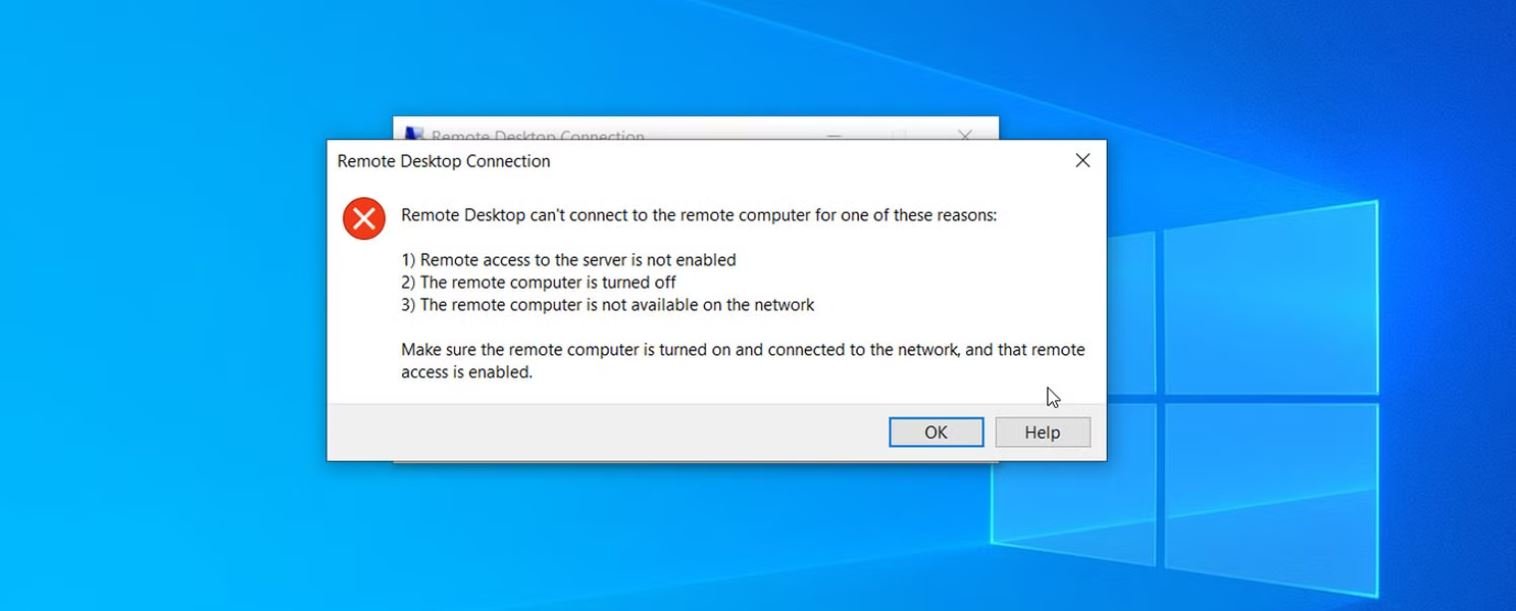
- Error message “Remote Desktop can’t connect to the remote computer” appears on connection attempt.
- Connection times out after 30 seconds with no error dialog shown.
- RDP connects and authenticates but shows a black or blank screen instead of the desktop.
- Authentication fails with “The credentials that were used to connect did not work” despite correct credentials.
- A Network Level Authentication (NLA) error states the remote computer requires NLA and the client does not support it.
- The RDP client shows “An internal error has occurred” immediately on connection attempt.
- The RDP session connects but drops immediately after the Windows login screen appears.
- TCP port 3389 is unreachable via telnet or port scan from the client machine.
- Event Viewer logs Event ID 1058 or Event ID 4625 during failed RDP connection attempts.
Root Causes of RDP Not Working on Windows Server
1. Windows Firewall Blocking TCP Port 3389
The most common cause of RDP not working is a Windows Firewall rule blocking inbound traffic on TCP port 3389. This happens after a Windows Update resets firewall rules, a security hardening script is applied, or the built-in “Remote Desktop” firewall exception is accidentally disabled. Without this rule, the server silently drops all incoming RDP connection attempts.
2. Remote Desktop Services (TermService) Stopped or Disabled
The Remote Desktop Services service (TermService) must be running for RDP to function. This service is sometimes stopped by automated maintenance tasks, antivirus software, or an administrator who disabled it for security reasons. If set to Disabled, it will not restart even after a full server reboot.
3. Remote Desktop Not Enabled in System Properties
Windows Server ships with Remote Desktop connections disabled by default. If the “Allow remote connections to this computer” checkbox in System Properties is unchecked — whether deliberately or after an OS repair — all RDP attempts will fail regardless of firewall or service state.
4. Group Policy Restricting RDP Access
Domain Group Policy can override all local settings and deny RDP access at the organisational level. The Deny log on through Remote Desktop Services policy — when misconfigured — blocks all users from connecting via RDP even when all other settings are correctly configured.
5. Network Level Authentication (NLA) Mismatch
If the server requires NLA (the default on Windows Server 2019 and 2022) but the client runs an older RDP version that does not support NLA, the connection fails at the pre-authentication stage. This is common when connecting from legacy Windows 7 machines or non-Microsoft RDP clients.
6. Network Connectivity Failure
If the server is unreachable at the network level — due to a downed NIC, incorrect static IP, VLAN misconfiguration, or a routing issue — no service or firewall change will restore RDP. The client must reach the server IP before RDP can attempt to negotiate a session.
7. IP Address Conflict on the Network
When two devices share the same IP address, packets destined for the server may be delivered to the wrong device. This produces intermittent RDP failures that appear random and are difficult to diagnose without running a network scanner.
8. Incorrect DNS Resolution of the Server Hostname
When connecting by hostname rather than IP, a stale or incorrect DNS record can direct the RDP client to the wrong IP. This is especially common after server migrations or IP addressing scheme changes in Active Directory environments.
Prerequisites & Tools You Need
- Access level: Local Administrator or Domain Administrator on the target server.
- Out-of-band access: Physical console, iDRAC/iLO, Azure Serial Console, or VMware console — required if RDP is completely down.
- Client-side tools: PowerShell 5.1+, Command Prompt (ping, tracert, telnet, nslookup), mstsc.exe.
- Server-side tools: Windows PowerShell, Event Viewer, Services MMC (services.msc), Windows Firewall with Advanced Security (wf.msc), Group Policy Management Console (GPMC), netstat.
- Optional tools: Wireshark (packet-level diagnosis), Nmap (port scanning), Microsoft Remote Connectivity Analyzer.
- Recommended: Take a VM snapshot or server backup before making any changes in a production environment.
Step-by-Step Guide: How to Fix RDP Not Working on Windows Server
Step 1: Verify Basic Network Connectivity
Confirm the server is reachable at the IP level before spending time on service or firewall checks. From the client machine, open Command Prompt and run:
ping <server-IP-or-hostname> -n 4Expected output: 4 replies with latency under 5ms on a LAN connection. If ping fails, check the server NIC, switch port, VLAN assignment, and routing before continuing.
Step 2: Test RDP Port 3389 Reachability
Confirm TCP port 3389 is open and listening — this rules out both firewall blocking and service failure in one test. Run this from a PowerShell window on the client:
Test-NetConnection -ComputerName <server-IP> -Port 3389Expected output: TcpTestSucceeded : True. If False, the port is blocked or not listening — continue to Steps 3 through 5.
Step 3: Confirm Remote Desktop is Enabled
Check the core OS setting that allows RDP connections. On the server, open System Properties → Remote tab and confirm “Allow remote connections to this computer” is selected. To verify or fix via PowerShell:
Get-ItemProperty -Path 'HKLM:SystemCurrentControlSetControlTerminal Server' -Name "fDenyTSConnections"Value must be 0 (RDP enabled). To enable RDP if it is currently disabled:
Set-ItemProperty -Path 'HKLM:SystemCurrentControlSetControlTerminal Server' -Name "fDenyTSConnections" -Value 0Step 4: Check and Start Remote Desktop Services (TermService)
Ensure the TermService Windows service is running and set to start automatically:
Get-Service -Name TermService | Select-Object Status, StartTypeExpected: Status = Running, StartType = Automatic. If stopped, start it with:
Start-Service -Name TermService
Set-Service -Name TermService -StartupType Automatic
Step 5: Enable the Windows Firewall Rule for RDP
Check whether the inbound firewall rule for TCP 3389 is active:
Get-NetFirewallRule -DisplayName "Remote Desktop*" | Select-Object DisplayName, Enabled, DirectionExpected: Remote Desktop (TCP-In) showing Enabled: True. To re-enable the rule:
Enable-NetFirewallRule -DisplayGroup "Remote Desktop"Alternative using Command Prompt:
netsh advfirewall firewall set rule group="remote desktop" new enable=YesStep 6: Confirm RDP is Listening on Port 3389
After enabling the service and firewall rule, confirm the server is actively listening for RDP connections:
netstat -ano | findstr :3389Expected output: A line showing 0.0.0.0:3389 with state LISTENING. If nothing appears, restart TermService and recheck Steps 3 through 5.
Step 7: Check for Group Policy Restrictions Blocking RDP
Generate a Group Policy results report on the server to identify any GPO blocking RDP access:
gpresult /h C:gpresult.html /fOpen C:gpresult.html in a browser and search for “Deny log on through Remote Desktop Services”. The key GPO paths to check are:
- Computer Configuration → Windows Settings → Security Settings → Local Policies → User Rights Assignment → Deny log on through Remote Desktop Services
- Computer Configuration → Administrative Templates → Windows Components → Remote Desktop Services → Allow users to connect remotely using Remote Desktop Services
After any GPO correction, run gpupdate /force on the server and retest RDP.
Step 8: Resolve Network Level Authentication (NLA) Mismatch
Check whether the server requires NLA and test if disabling it resolves the connection failure:
(Get-ItemProperty -Path 'HKLM:SystemCurrentControlSetControlTerminal ServerWinStationsRDP-Tcp' -Name "UserAuthentication").UserAuthenticationOutput: 1 = NLA required, 0 = NLA not required. To temporarily disable NLA for testing:
Set-ItemProperty -Path 'HKLM:SystemCurrentControlSetControlTerminal ServerWinStationsRDP-Tcp' -Name "UserAuthentication" -Value 0If RDP succeeds after this change, update the RDP client on the connecting machine and re-enable NLA. Permanently disabling NLA reduces security.
Step 9: Check DNS Resolution for the Server Hostname
Confirm the hostname resolves to the correct server IP when connecting by name:
nslookup <server-hostname>The IP returned must match the server actual IP address. To flush a stale DNS cache on the client:
ipconfig /flushdnsIf the DNS A record itself is incorrect, update it in Active Directory DNS or your external DNS zone.
Step 10: Add the User to the Remote Desktop Users Group
Ensure the connecting user account has explicit RDP login permission on the server:
Add-LocalGroupMember -Group "Remote Desktop Users" -Member "<domainusername>"GUI method: Computer Management → Local Users and Groups → Groups → Remote Desktop Users → Add Member. Note: members of the local Administrators group always have RDP access regardless of this group membership.
Advanced Diagnostics for RDP Not Working on Windows Server
If all ten steps above are complete and RDP is still not working on Windows Server, use these advanced techniques to surface deeper issues.
Event Viewer — Key RDP Event IDs
Open Event Viewer → Windows Logs → System and Security. Filter to the time of the failure and look for:
- Event ID 1058: Remote Desktop Services certificate error — SSL/TLS issue affecting the RDP listener.
- Event ID 4625: Account failed to log on — check the Failure Reason field for the exact cause code.
- Event ID 56: Terminal Server licensing — expired or missing RDS CAL.
- Event ID 1149: RDP authentication succeeded — confirms the server received the connection attempt.
Wireshark TCP Port Capture
On the server, run Wireshark and apply filter tcp.port == 3389, then attempt an RDP connection from the client. If SYN packets arrive but no SYN-ACK returns, the server is receiving the request but not responding — a firewall or service issue. No SYN packets at all means the problem is on the network path before the server.
RDS Client Access Licensing
In Remote Desktop Session Host (RDSH) environments, expired or missing RDS Client Access Licenses (CALs) block new connections after the 120-day grace period expires. Check status using RD Licensing Diagnoser in Server Manager under Remote Desktop Services.
Third-Party Diagnostic Tools
- Microsoft Remote Connectivity Analyzer — ideal for Azure and Office 365-connected server environments.
- Nmap:
nmap -p 3389 <server-IP>confirms open, closed, or filtered port state from an external machine. - PsExec (Sysinternals): Remotely start TermService when you have admin access but RDP is not working.
Real-World Scenario: RDP Not Working After Overnight GPO Update
A financial services client running a 40-user environment on Windows Server 2022 reported that all staff lost RDP access to their terminal server at 8:45 AM on a Monday morning. The server had been fully operational over the weekend.
After confirming the server responded to pings, a Test-NetConnection check from an admin workstation returned TcpTestSucceeded: False on port 3389. A console login via iDRAC revealed that a scheduled Group Policy refresh had accidentally added the Domain Users group to the Deny log on through Remote Desktop Services policy overnight.
Removing Domain Users from the deny policy and running gpupdate /force on the server restored full RDP access for all 40 users within 18 minutes of starting the diagnosis — requiring no reboots and no service restarts.
Prevention & Best Practices: Stopping RDP Not Working Before It Starts
Monitor RDP Port Availability Proactively
Configure Zabbix, PRTG, Azure Monitor, or a PowerShell scheduled task to alert when TCP 3389 becomes unreachable on critical servers. Detecting a failure before users report it dramatically reduces mean time to resolution (MTTR) and minimises the business impact of an RDP outage.
Test Group Policy Changes in a Staging OU First
Never apply new Group Policy security baselines directly to production servers. Use a dedicated staging Organisational Unit with non-production machines to validate that no GPO change inadvertently blocks RDP or other remote management access before deploying domain-wide.
Maintain Out-of-Band Access for Every Server
Every Windows Server must have a fallback management method that does not depend on RDP — physical console, iDRAC/iLO IPMI access, Azure Serial Console, or AWS Systems Manager Session Manager. RDP is your primary management tool, not your only one.
Keep RDP Clients Updated Across Admin Workstations
NLA-related RDP failures are almost always caused by outdated RDP clients. Enforce Remote Desktop client updates across all administrative workstations via WSUS or Microsoft Intune to eliminate NLA incompatibility as a recurring cause of RDP not working on Windows Server.
Change the Default RDP Port as Security Hardening
Changing RDP from the default TCP 3389 to a non-standard port reduces automated brute-force attack noise significantly. Combine this with Multi-Factor Authentication (MFA) and account lockout policies, and always document the custom port in your CMDB or IT runbooks so administrators can always connect.
Frequently Asked Questions: RDP Not Working on Windows Server
Q: Why does RDP say “The remote computer requires Network Level Authentication” and how do I fix it?
A: This error means Windows Server requires NLA pre-authentication but the connecting RDP client does not support it. The correct fix is to update the Remote Desktop client on the connecting machine to the latest version. As a temporary workaround, NLA can be disabled via System Properties → Remote tab → uncheck “Allow connections only from computers running Remote Desktop with Network Level Authentication” — but re-enable it once the client is updated.
Q: RDP was working yesterday and is not working today — what changed?
A: The most common overnight causes are a Windows Update that altered firewall rules, a Group Policy refresh applying a new security baseline, or antivirus software stopping the TermService. Open Event Viewer and check for Event ID 4625 (failed logon) and Event ID 1058 (certificate issue) at the exact time the outage started. The timestamps will identify the cause directly.
Q: How do I check if TCP port 3389 is open on a Windows Server?
A: On the server, run netstat -ano | findstr :3389 — a LISTENING result confirms the port is active. From a remote client, run Test-NetConnection -ComputerName <server-IP> -Port 3389 in PowerShell. TcpTestSucceeded: True confirms the port is reachable across the network.
Q: What Windows Event IDs should I check when RDP is not working on Windows Server?
A: The most relevant Event IDs are: 4625 (failed logon — check Failure Reason), 1149 (RDP authentication succeeded), 1058 (certificate error), and 56 (RDS licensing problem). Check both System and Security logs in Event Viewer filtered to the time of the reported outage.
Q: Can I enable RDP remotely on Windows Server if I cannot connect via RDP?
A: Yes. Use PsExec, PowerShell Remoting via WinRM, Windows Admin Center, or IPMI/iDRAC console access to run the registry command: reg add "HKLMSystemCurrentControlSetControlTerminal Server" /v fDenyTSConnections /t REG_DWORD /d 0 /f. Then enable the firewall rule remotely using netsh or PowerShell over WinRM.
Conclusion: How to Fix RDP Not Working on Windows Server
RDP not working on Windows Server is almost always caused by one of eight well-defined issues: Windows Firewall blocking TCP port 3389, the TermService being stopped, Remote Desktop being disabled in System Properties, a Group Policy restriction, an NLA mismatch, a network connectivity failure, a DNS resolution error, or insufficient user permissions. Following the ten steps in this guide resolves the issue in the vast majority of cases.
These troubleshooting steps fix RDP connectivity failures in over 95% of real-world scenarios without requiring server reboots or OS reinstallation. When the issue persists after all steps, the Advanced Diagnostics section — particularly Event Viewer analysis and Wireshark packet capture — will surface remaining edge cases such as RDS licensing expiry and SSL certificate failures.
If you need professional IT support for your Windows Server environment, Naveed Alam provides remote and on-site network engineering services across enterprise, SMB, and Azure cloud environments. Contact Naveed for expert IT support.
You may also find these related guides helpful:
- DNS Server Not Responding: Step-by-Step Fix Guide (2026)
- Windows Server Administration: Complete Guide for Sysadmins
- Azure VM Network Troubleshooting: Step-by-Step Guide (2026)
Last updated: March 2026 | Applies to: Windows Server 2016, 2019, 2022 | Also applicable to Azure Virtual Machines running Windows Server images.