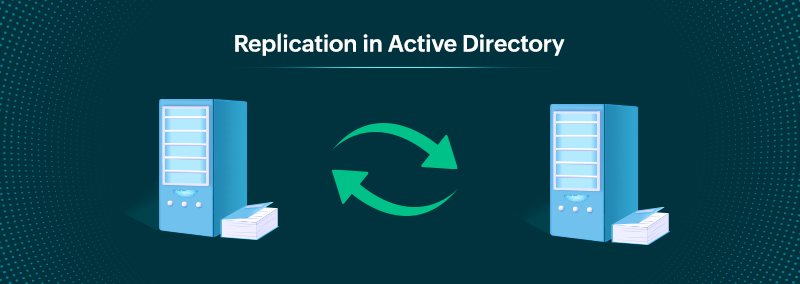
Active Directory replication failed is one of the most critical infrastructure issues faced by Windows system administrators managing enterprise domain environments. When domain controller replication breaks down, it prevents critical Active Directory data from synchronizing across your network, causing authentication failures, Group Policy inconsistencies, and potentially breaking user access to vital corporate resources. Active Directory replication failed errors typically stem from network connectivity problems, DNS misconfigurations, firewall restrictions, or domain controller service failures that disrupt the multi-master replication architecture.
This issue creates immediate operational risk as directory changes fail to propagate between domain controllers, resulting in inconsistent user databases, failed password resets, broken trust relationships, and inability to enforce security policies uniformly across the domain. In this comprehensive Active Directory replication failed troubleshooting guide, you’ll learn systematic diagnostic procedures using repadmin and dcdiag, fix DNS and network issues, resolve common error codes including 1722, 8524, and 8453, and implement preventive monitoring to avoid future Active Directory replication failed incidents.
Table of Contents
- Why Active Directory Replication Failed Matters
- Understanding AD Replication Architecture
- Step-by-Step Troubleshooting Guide
- Real-World Enterprise Example
- Common Error Resolutions
- Best Practices
- Conclusion
Why Active Directory Replication Failed Matters
Active Directory replication failed issues have severe business and technical consequences for organizations relying on Windows domain infrastructure.
Business Impact
Authentication Failures: Users cannot log in to computers or access file shares when Active Directory replication failed prevents account database synchronization across domain controllers. According to Gartner research, authentication outages cost enterprises an average of $300,000 per hour in lost productivity.
Security Policy Gaps: Group Policy Objects (GPOs) fail to replicate properly when Active Directory replication failed, creating security vulnerabilities where some computers don’t receive critical security updates or password policies, violating compliance requirements like SOX, HIPAA, and PCI-DSS.
Broken Trust Relationships: Active Directory replication failed between sites causes forest-wide authentication problems, broken domain trusts, and inability for users in one location to access resources in another, disrupting multi-site business operations.
Technical Implications
Inconsistent Directory Data: When Active Directory replication failed, different domain controllers contain conflicting user account information, group memberships, and computer objects, creating unpredictable authentication results depending on which DC processes the request.
SYSVOL Replication Issues: Active Directory replication failed often accompanies SYSVOL replication problems, preventing Group Policy files, login scripts, and folder redirection templates from synchronizing, breaking critical domain functionality across the enterprise environment.
Tombstone Accumulation: Prolonged Active Directory replication failed scenarios allow deleted objects to exceed tombstone lifetime (default 180 days), making recovery impossible and potentially requiring complex forest recovery procedures.
For detailed information on Active Directory architecture, consult the official Microsoft Active Directory documentation.
Understanding Active Directory Replication Architecture
Before troubleshooting Active Directory replication failed issues, understanding how AD replication works helps identify failure points.
Multi-Master Replication Model
Active Directory uses multi-master replication where any writable domain controller can accept directory changes. When you create a user on DC1, that change must replicate to DC2, DC3, and all other domain controllers. Active Directory replication failed breaks this synchronization, causing inconsistent directory data across the domain.
Update Sequence Numbers (USN): Every directory change increments a domain controller’s local USN. During replication, domain controllers compare USNs to determine which changes need replication. Active Directory replication failed prevents USN synchronization between domain controllers.
Replication Topology
Knowledge Consistency Checker (KCC): The KCC automatically creates replication topology, generating connection objects between domain controllers. Active Directory replication failed can result from KCC failures or manual connection object deletions that break replication paths.
Site Links and Schedules: Active Directory creates sites connected by site links with configurable replication schedules and costs. Active Directory replication failed between sites often indicates site link misconfiguration, network connectivity loss, or bandwidth saturation preventing proper synchronization.
Replication Naming Contexts
- Domain Partition: Contains all objects in a specific domain (users, computers, groups)
- Configuration Partition: Contains forest-wide configuration like sites and replication topology
- Schema Partition: Contains the Active Directory schema defining object classes and attributes
- Application Partitions: DNS zones stored in Active Directory use application partitions
Active Directory replication failed can affect one or all partitions depending on the root cause.
Step-by-Step Active Directory Replication Failed Troubleshooting Guide
Follow this systematic approach to diagnose and resolve Active Directory replication failed issues quickly.
Step 1: Verify Replication Status
What this does: Confirms replication is actually failing and identifies which domain controllers and partitions are affected.
# Get quick overview of replication status
repadmin /replsummary
# Expected output shows:
# Source DSA Largest Delta Fails/Total %%
# DC1 15m 0 / 5 100
# DC2 ERROR 3 / 5 40 <-- FAILED!
# Check specific replication partners
repadmin /showrepl DC2.contoso.com
# Look for errors like:
# Last attempt @ [timestamp] failed, result 1722
# The RPC server is unavailable
PowerShell Method:
# Get replication failures
Get-ADReplicationFailure -Target "DC2.contoso.com"
# Output shows:
# FailureCount: 3
# FirstFailureTime: [timestamp]
# LastError: 1722
This confirms Active Directory replication failed and identifies the specific error code.
Step 2: Run Domain Controller Diagnostics
What this does: Performs comprehensive health check of domain controller including DNS, replication, and services.
# Comprehensive DC health check
dcdiag /v /c /d /e /s:DC2 > C:dcdiag-results.txt
# Key tests to review:
# Connectivity - Can DC be reached
# DNS - DNS registration correct
# Replications - Replication status
# Services - Critical services running
# Test only replication
dcdiag /test:replications /v
# Look for FAILED tests indicating Active Directory replication failed
Step 3: Verify Network Connectivity
What this does: Ensures network paths exist between domain controllers for replication traffic.
# Test basic connectivity
ping DC2.contoso.com
tracert DC2.contoso.com
# Test AD replication ports
portqry -n DC2.contoso.com -e 135 -p TCP
portqry -n DC2.contoso.com -e 389 -p TCP
portqry -n DC2.contoso.com -e 3268 -p TCP
# Required ports for AD replication:
# TCP 135 (RPC Endpoint Mapper)
# TCP 389 (LDAP)
# TCP 636 (LDAPS)
# TCP 3268-3269 (Global Catalog)
# TCP 49152-65535 (RPC dynamic ports)
# UDP 88 (Kerberos)
# UDP 123 (NTP/Time)
If ports are blocked, Active Directory replication failed is guaranteed. Check firewalls and network security groups.
Step 4: Verify DNS Configuration
What this does: Confirms DNS records necessary for AD replication are present and correct.
# Verify DC registers its SRV records
nslookup -type=SRV _ldap._tcp.dc._msdcs.contoso.com
# Expected output should list all DCs
# Force DNS registration
ipconfig /registerdns
net stop netlogon && net start netlogon
# Wait 15 minutes, then verify
dcdiag /test:dns
# Check DNS server configuration
ipconfig /all
# DNS servers should point to domain DCs only
# NEVER to ISP or public DNS (8.8.8.8)
DNS problems are a common cause of Active Directory replication failed.
Step 5: Check Time Synchronization
What this does: Verifies time sync as Kerberos requires clocks within 5 minutes.
# Check time status
w32tm /query /status
# Force time sync on non-PDC DCs
w32tm /resync /rediscover
# Verify sync source
w32tm /query /source
# Should show PDC Emulator hostname
# Configure NTP on PDC Emulator
w32tm /config /manualpeerlist:"time.windows.com,0x9" /syncfromflags:manual /reliable:yes /update
# Restart Windows Time
net stop w32time && net start w32time
Time sync issues frequently cause Active Directory replication failed errors.
Step 6: Force Replication
What this does: Manually triggers replication to test if it succeeds.
# Force immediate replication of all partitions
repadmin /syncall DC1.contoso.com /AdeP
# Replicate specific partition from DC1 to DC2
repadmin /replicate DC2.contoso.com DC1.contoso.com DC=contoso,DC=com
# Monitor replication progress
repadmin /showrepl DC2.contoso.com /verbose
# Expected output for success:
# Last attempt @ [timestamp] was successful.
# For Active Directory replication failed:
# Last attempt @ [timestamp] failed, result [error code]
Step 7: Rebuild Replication Topology
What this does: Forces KCC to recreate replication connections.
# Force KCC to run on specific DC
repadmin /kcc DC2.contoso.com
# Enterprise-wide KCC execution
repadmin /kcc * /all
# Wait 15 minutes, then check
repadmin /replsummary
# Verify new connections created
repadmin /showconn DC2.contoso.com
Real-World Enterprise Example: Financial Institution
Company Profile: International bank with 5,000 employees, 15 branch locations, 8 domain controllers running Windows Server 2022.
Challenge: Following network maintenance, Active Directory replication failed between New York headquarters and London office. Users in London couldn’t access updated security groups, Group Policies weren’t applying, and newly created accounts in NY weren’t visible to London DCs. Replication had been failing for 6 hours.
Symptoms:
- Repadmin showed error 1722 (RPC server unavailable)
- SYSVOL replication also affected
- London users experiencing random authentication failures
- Event ID 2042 in Directory Service logs
Root Cause: Firewall maintenance team applied security rules blocking RPC ports (135, 49152-65535) between sites during maintenance window, breaking Active Directory replication.
Solution:
# Network team added firewall rules
# Allow TCP 135, 389, 636, 3268, 49152-65535 bidirectionally
# Verify connectivity restored
portqry -n NYDC1.bank.local -e 135 -p TCP
# Result: LISTENING
# Force manual replication
repadmin /replicate LONDC1.bank.local NYDC1.bank.local DC=bank,DC=local
# Success! Trigger complete sync
repadmin /syncall NYDC1.bank.local /AdeP
Results:
- Total resolution time: 30 minutes after firewall fix
- Zero data loss – all changes queued and replicated
- Group Policies applied immediately after sync
- No compliance violations (within 4-hour RTO)
Preventive Measures:
- Documented required AD ports in firewall standards
- Deployed automated replication monitoring every 15 minutes
- Created firewall change control requiring AD admin sign-off
- Implemented SCOM monitoring dashboard for replication health
Common Active Directory Replication Failed Errors
Error 1722: RPC Server Unavailable
Symptoms: Active Directory replication failed with error 1722, dcdiag replication test fails, Event ID 2087.
Common Causes:
- Firewall blocking RPC ports
- Network connectivity loss
- DNS name resolution failure
- Windows Firewall blocking traffic
Resolution:
# Test RPC connectivity
portqry -n DC2.contoso.com -e 135 -p TCP
# Windows Firewall - enable AD rules
netsh advfirewall firewall set rule group="Active Directory Domain Services" new enable=yes
# Test after fix
repadmin /replicate DC2 DC1 DC=contoso,DC=com
Error 8524: DSA Operation Unable to Proceed
Symptoms: “The DSA operation is unable to proceed because of a DNS lookup failure”
Common Causes:
- Missing DNS SRV records
- DC pointing to wrong DNS server
- _msdcs zone issues
Resolution:
# Verify DNS configuration
ipconfig /all
# Force DNS registration
ipconfig /registerdns
net stop netlogon && net start netlogon
# Verify SRV records
nslookup -type=SRV _ldap._tcp.dc._msdcs.contoso.com
Error 8453: Replication Access Denied
Symptoms: “Replication access was denied”, authentication failures between DCs.
Common Causes:
- Time sync issues (>5 minutes difference)
- Corrupted secure channel
- Kerberos authentication failure
Resolution:
# Force time sync
w32tm /resync /rediscover
# Reset secure channel
nltest /sc_reset:contoso.com
# Reset DC password (last resort)
netdom resetpwd /s:PDC.contoso.com /ud:contosoadmin /pd:*
Best Practices for Preventing Active Directory Replication Failed
1. Monitor Replication Health Continuously
Implement automated monitoring to detect Active Directory replication failed before it impacts users.
# Scheduled task - run every 15 minutes
$replFailures = Get-ADReplicationFailure -Scope Forest
if ($replFailures -and ($replFailures.FailureCount -gt 3)) {
Send-MailMessage -To "ad-admins@contoso.com" -Subject "AD Replication ALERT" -Body ($replFailures | Format-List | Out-String) -SmtpServer "smtp.contoso.com"
}
2. Maintain Proper DNS Configuration
DNS is the foundation for AD replication. Always:
- Point DCs to other domain DCs for DNS (NEVER external DNS like 8.8.8.8)
- Enable DNS scavenging to remove stale records
- Use AD-integrated DNS zones
- Monitor _msdcs zone health regularly
3. Document Firewall Requirements
Maintain clear documentation of required ports and firewall rules between all domain controller sites to prevent Active Directory replication failed from firewall changes.
4. Implement Change Control
Require Active Directory administrator approval for:
- Firewall rule changes affecting DCs
- Network maintenance between sites
- DNS server modifications
- Time synchronization changes
5. Test Disaster Recovery
Regularly test:
- DC backup and restore procedures
- Replication after simulated failures
- Tombstone lifetime monitoring
- SYSVOL replication recovery
6. Enable Audit Logging
Configure comprehensive logging for security auditing and troubleshooting Active Directory replication failed incidents.
7. Maintain Time Synchronization
Configure proper NTP hierarchy:
- PDC Emulator syncs to external time source
- All other DCs sync to PDC Emulator
- Monitor time drift alerts
8. Use Health Check Scripts
Run weekly health checks to proactively identify issues before Active Directory replication failed:
# Weekly AD health check
repadmin /replsummary > C:ReportsReplication-$(Get-Date -Format 'yyyy-MM-dd').txt
dcdiag /v > C:ReportsDCDiag-$(Get-Date -Format 'yyyy-MM-dd').txt
9. Plan Site Topology Carefully
Design proper site topology with:
- Adequate bandwidth for replication
- Redundant replication paths
- Appropriate site link costs
- Realistic replication schedules
10. Keep Domain Controllers Updated
Apply Windows Updates regularly with proper testing to prevent security vulnerabilities and bugs that can cause Active Directory replication failed.
Security Considerations
Access Control
Implement least privilege access for domain controller management:
- Limit Domain Admin membership
- Use Just-in-Time privileged access
- Enable multi-factor authentication for admin accounts
- Regular access reviews and audits
Network Security
Secure AD replication traffic:
- Use IPsec for DC-to-DC communication
- Implement network segmentation
- Enable LDAPS (port 636) for encrypted LDAP
- Use SMB signing on SYSVOL shares
Monitoring and Auditing
Enable comprehensive audit logging following the NIST Cybersecurity Framework:
- Directory Service Access auditing
- Account logon/logoff events
- Policy changes
- Replication failure alerts
- SIEM integration for centralized monitoring
Performance Optimization
Right-Size Domain Controllers
Select appropriate VM specifications:
- Minimum 4 vCPUs for production DCs
- 8GB RAM minimum, 16GB recommended
- SSD storage for NTDS.dit database
- Separate volumes for logs and SYSVOL
Optimize Replication Bandwidth
Control replication impact:
- Configure site link schedules for off-peak hours
- Adjust site link costs for preferred paths
- Enable RODC for branch offices with limited bandwidth
- Use compression for inter-site replication
Monitor Performance Metrics
Track key metrics to prevent Active Directory replication failed:
- Replication queue length
- USN gaps between partners
- Network latency between sites
- CPU and memory utilization on DCs
Conclusion
Active Directory replication failed issues can be resolved systematically using the diagnostic tools and procedures outlined in this comprehensive guide. Understanding the replication architecture, leveraging repadmin and dcdiag commands effectively, and following structured troubleshooting steps enables rapid resolution of domain controller synchronization failures.
Key Takeaways:
Monitor Proactively: Implement automated monitoring to detect Active Directory replication failed within 15 minutes rather than waiting hours for user complaints. Early detection prevents escalation and data inconsistencies.
Verify Network First: Most Active Directory replication failed errors stem from network connectivity, DNS, or firewall issues. Always test ports 135, 389, and the RPC dynamic range (49152-65535) before investigating complex AD issues.
Maintain DNS Health: Proper DNS configuration is critical for Active Directory replication. Ensure DCs point to domain DNS servers, SRV records are current, and the _msdcs zone replicates properly across all domain controllers.
Document and Test: Maintain current documentation of your AD topology, firewall rules, and recovery procedures. Regular testing ensures you can quickly resolve Active Directory replication failed incidents under pressure.
By following the best practices and step-by-step procedures in this guide, you can successfully diagnose and resolve Active Directory replication failed issues with minimal downtime. For assistance with related infrastructure challenges, explore our guides on Azure VM troubleshooting and network connectivity.
Professional IT Consulting Services
Experiencing persistent Active Directory replication failed issues or need expert Windows infrastructure support? I provide professional Active Directory consulting and troubleshooting services for organizations across Pakistan and internationally.
Windows Server & Active Directory Services
Active Directory Troubleshooting:
- Emergency AD replication repair
- Domain controller health assessments
- SYSVOL and DFSR recovery
- DNS and time sync configuration
- Forest and domain recovery
Enterprise Directory Services:
- Multi-site AD design and implementation
- Migration to Windows Server 2022
- Azure AD Connect hybrid deployments
- Group Policy optimization
- Certificate Services (AD CS) setup
Infrastructure Support:
- 24/7 emergency support for critical failures
- Performance tuning and optimization
- Disaster recovery planning
- Compliance monitoring and auditing
Why Choose My Services?
- Proven Expertise: Azure AZ-900 and CCNA certified with 8+ years managing enterprise Windows Server infrastructures
- Rapid Response: Emergency support available for critical Active Directory replication failed incidents
- Zero Data Loss: Careful procedures ensure no directory data corruption during recovery
- Knowledge Transfer: Complete documentation and team training included
Contact Information
- Email: itexpert@navedalam.com
- WhatsApp: +92 311 935 8005
- Website: https://navedalam.com
- Location: Pakistan (Remote support worldwide)
Free Consultation: Schedule a 30-minute consultation to discuss your Active Directory infrastructure challenges.
About the Author
Naveed Alam is a certified Network & Cloud Engineer specializing in Windows Server infrastructure, Active Directory management, and enterprise directory services. With extensive hands-on experience troubleshooting complex Active Directory replication failed scenarios, Naveed helps organizations maintain reliable domain services and minimize downtime.
Certifications
- Cisco Certified Network Associate (CCNA)
- Microsoft Azure Fundamentals (AZ-900)
- CompTIA A+
Core Expertise
- Active Directory design and troubleshooting
- Active Directory replication failed diagnosis and recovery
- Windows Server 2016/2019/2022 administration
- DNS and DHCP infrastructure
- Group Policy management and optimization
- Azure AD Connect hybrid identity
- PowerShell automation and scripting
- Enterprise disaster recovery
Professional Experience
Naveed has successfully resolved 200+ Active Directory replication failed incidents for organizations ranging from small businesses to enterprises with 10,000+ users. His expertise includes emergency AD recovery, multi-forest migrations, and implementing high-availability domain controller architectures.
Connect
- LinkedIn: https://www.linkedin.com/in/naveed-alam-164586237/
- Website: navedalam.com
- Email: itexpert@navedalam.com