
Active Directory replication failures are deceptively dangerous — they often go unnoticed for hours while authentication inconsistencies silently spread across your domain. By the time users start complaining, you may have DCs with conflicting data, broken GPO delivery, and a growing tombstone problem. I’ve resolved 200+ of these incidents, and the diagnostic path is always the same: run repadmin first, trace the error code, then work outward from DNS and network to the DC itself.
This guide walks you through systematic troubleshooting for the most common AD replication failures — errors 1722, 8524, and 8453 — with real commands, a real enterprise case study, and prevention steps that actually work.
Table of Contents
- Why Replication Failures Are High-Risk
- How AD Replication Works
- Step-by-Step Troubleshooting
- Real-World Enterprise Case Study
- Common Error Resolutions
- Best Practices
Why Replication Failures Are High-Risk
Authentication Failures: Users can’t log in when account databases fall out of sync. According to Gartner, authentication outages cost enterprises an average of $300,000 per hour in lost productivity.
Security Policy Gaps: GPOs fail to replicate, creating environments where some machines don’t receive critical security policies — a direct compliance violation under SOX, HIPAA, and PCI-DSS.
Tombstone Accumulation: If replication fails beyond the tombstone lifetime (default 180 days), deleted objects can’t be recovered, potentially requiring complex forest recovery. Don’t let failures run undetected.
For architectural details, see the Microsoft Active Directory documentation.
How AD Replication Works
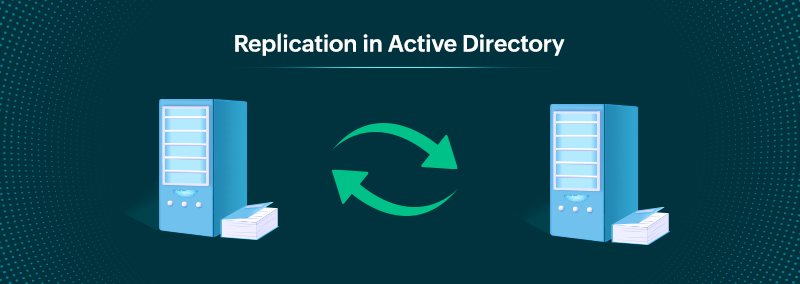
Active Directory uses multi-master replication — any writable DC can accept changes, which then propagate to all others via Update Sequence Numbers (USNs). The Knowledge Consistency Checker (KCC) automatically builds the replication topology. Failures typically occur when network paths, DNS, or firewall rules block DC-to-DC communication.
Four Replication Partitions: Domain (users, groups, computers), Configuration (forest-wide settings), Schema (object definitions), and Application (DNS zones). A failure can affect one or all partitions.
Step-by-Step Troubleshooting
Step 1: Verify Replication Status
# Quick overview of all DC replication health
repadmin /replsummary

# Detailed status for a specific DC
repadmin /showrepl DC2.contoso.com

# PowerShell method
Get-ADReplicationFailure -Target "DC2.contoso.com"
Look for error codes in the output — 1722, 8524, and 8453 are the most common and each points to a different root cause.
Step 2: Run DC Diagnostics
# Full DC health check
dcdiag /v /c /d /e /s:DC2 > C:dcdiag-results.txt

# Test only replication
dcdiag /test:replications /v
Step 3: Verify Network Connectivity and Ports
# Test connectivity
ping DC2.contoso.com
tracert DC2.contoso.com

# Test required AD replication ports
portqry -n DC2.contoso.com -e 135 -p TCP   # RPC Endpoint Mapper
portqry -n DC2.contoso.com -e 389 -p TCP   # LDAP
portqry -n DC2.contoso.com -e 3268 -p TCP  # Global Catalog
Required ports: TCP 135, 389, 636, 3268–3269, 49152–65535 (RPC dynamic), UDP 88 (Kerberos), UDP 123 (NTP). A blocked port guarantees replication failure.
Step 4: Verify DNS Configuration
# Check DC SRV records
nslookup -type=SRV _ldap._tcp.dc._msdcs.contoso.com

# Force DNS re-registration
ipconfig /registerdns
net stop netlogon && net start netlogon

# Run DNS-specific diagnostics
dcdiag /test:dns
Critical rule: DCs must never point to external DNS (8.8.8.8). They must point to other domain DCs only.
Step 5: Check Time Synchronization
# Check current time sync status
w32tm /query /status

# Force resync
w32tm /resync /rediscover

# Configure NTP on PDC Emulator
w32tm /config /manualpeerlist:"time.windows.com,0x9" /syncfromflags:manual /reliable:yes /update
net stop w32time && net start w32time
Kerberos requires clocks within 5 minutes. Time drift is a frequent and overlooked cause of error 8453.
Step 6: Force Replication
# Force replication of all partitions
repadmin /syncall DC1.contoso.com /AdeP

# Replicate specific partition
repadmin /replicate DC2.contoso.com DC1.contoso.com DC=contoso,DC=com
Step 7: Rebuild Replication Topology
# Force KCC to recreate connections
repadmin /kcc DC2.contoso.com

# Enterprise-wide
repadmin /kcc * /all

# Verify new connections
repadmin /showconn DC2.contoso.com
Real-World Case Study: International Bank
Situation: A bank with 5,000 employees and 8 domain controllers saw replication fail between New York HQ and the London office after network maintenance. London users experienced authentication failures, GPOs stopped applying, and new accounts created in NY weren’t visible in London after 6 hours.
Root Cause: The network team had applied firewall rules blocking RPC ports (135, 49152–65535) between sites during the maintenance window — without AD admin sign-off.
# After firewall fix, verify connectivity
portqry -n NYDC1.bank.local -e 135 -p TCP  # Result: LISTENING

# Force manual replication
repadmin /replicate LONDC1.bank.local NYDC1.bank.local DC=bank,DC=local

# Full sync
repadmin /syncall NYDC1.bank.local /AdeP
Resolution time: 30 minutes after the firewall fix. Zero data loss. Prevention added: AD-specific firewall standards document, automated replication monitoring every 15 minutes, change control requiring AD admin approval for firewall changes.
Common Error Resolutions
Error 1722: RPC Server Unavailable
Symptoms: Replication fails with error 1722, Event ID 2087 in Directory Service logs.
Causes: Firewall blocking RPC ports, network outage, DNS resolution failure.
# Re-enable AD firewall rules
netsh advfirewall firewall set rule group="Active Directory Domain Services" new enable=yes

# Test after fix
repadmin /replicate DC2 DC1 DC=contoso,DC=com
Error 8524: DNS Lookup Failure
Symptoms: “The DSA operation is unable to proceed because of a DNS lookup failure.”
Causes: Missing SRV records, DC pointing to wrong DNS server.
ipconfig /registerdns
net stop netlogon && net start netlogon
nslookup -type=SRV _ldap._tcp.dc._msdcs.contoso.com
Error 8453: Replication Access Denied
Symptoms: “Replication access was denied”, Kerberos authentication failures between DCs.
Causes: Time sync drift >5 minutes, corrupted secure channel.
# Resync time
w32tm /resync /rediscover

# Reset secure channel
nltest /sc_reset:contoso.com

# Reset DC password (last resort)
netdom resetpwd /s:PDC.contoso.com /ud:contosoadmin /pd:*
Best Practices for Preventing Replication Failures
- Automate monitoring — alert on replication failures within 15 minutes, not when users complain
- Document required AD ports in your firewall standards and require AD admin sign-off for changes
- Never point DCs to external DNS (8.8.8.8 will break SRV record lookups)
- Enable DNS scavenging to remove stale records that cause name resolution failures
- Monitor tombstone lifetime — alert if replication has been down for >7 days
- Test DR procedures quarterly including DC backup/restore and replication recovery
- Run weekly health checks with repadmin and dcdiag, log results for trending
- Maintain NTP hierarchy: PDC Emulator syncs to external source, all other DCs sync to PDC Emulator
Conclusion
Almost every AD replication failure traces back to network ports, DNS, or time sync. Start with repadmin /replsummary to identify the error code, verify ports are open, check DNS SRV records, confirm Kerberos time sync, then force replication. Implement automated monitoring and change control processes to prevent recurrence.
For related infrastructure challenges, see our guides on Azure VM troubleshooting and RDP connectivity issues.
Professional Consulting Services
Need help with an active replication failure or AD health assessment? I provide emergency AD recovery and Windows Server infrastructure consulting worldwide.
Contact: itexpert@navedalam.com | WhatsApp: +92 311 935 8005 | Free 30-minute consultation
About the Author
Naveed Alam is a Network & Cloud Engineer with 8+ years of experience in Windows Server infrastructure, Active Directory, and enterprise cloud solutions. CCNA, AZ-900, and CompTIA A+ certified. Has resolved 200+ AD replication incidents across organizations from small businesses to 10,000+ user enterprises.