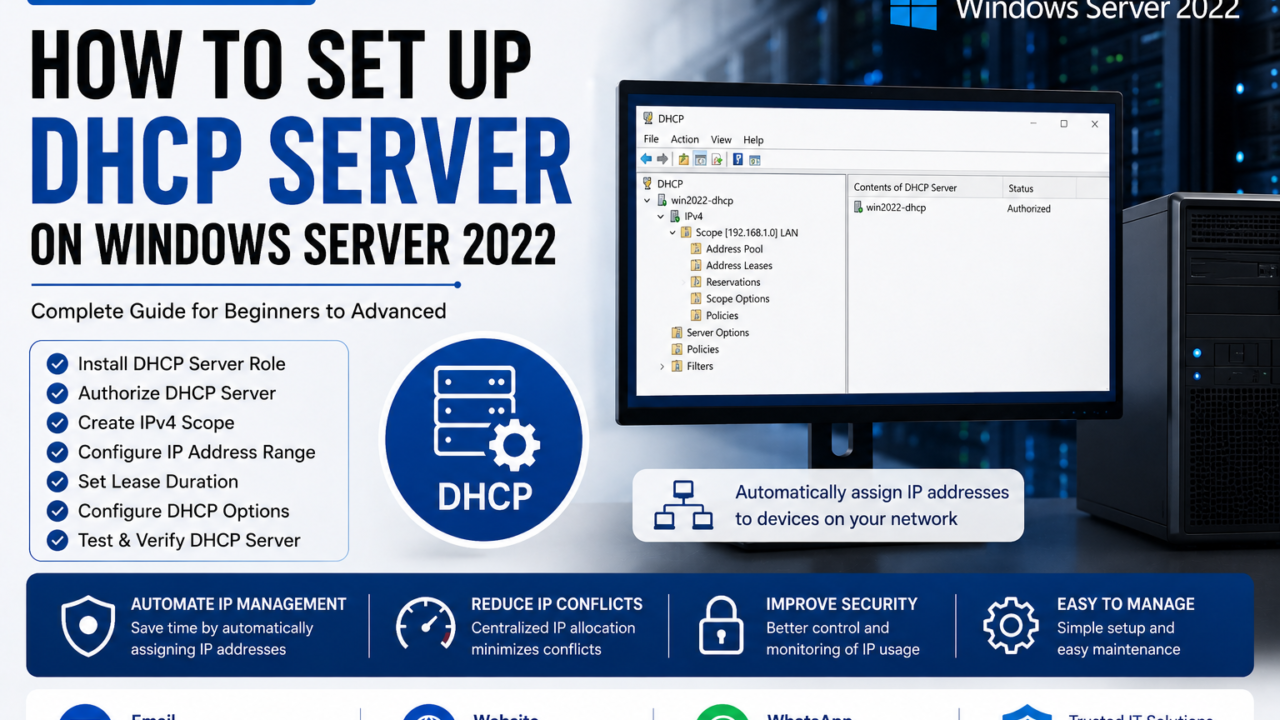
Install-WindowsFeature DHCP -IncludeManagementTools, create a scope with your IP range, configure options 3 (default gateway) and 6 (DNS server), then authorise the server in Active Directory using Add-DhcpServerInDC. The entire process takes under 20 minutes. This guide covers every step including IP reservations, DHCP failover, and the most common errors.Table of Contents
- Why Learning How to Set Up DHCP Server on Windows Server 2022 Matters
- Understanding DHCP Server Architecture on Windows Server 2022
- Prerequisites and Lab Setup
- How to Set Up DHCP Server on Windows Server 2022: Step-by-Step Guide
- DHCP Scope vs DHCP Reservation vs Static IP — Comparison
- Real-World Case Study: DHCP for a 200-User Office Network
- Verification and Testing
- Troubleshooting Common DHCP Issues on Windows Server 2022
- Best Practices
- Security Considerations
- People Also Ask — FAQ
- Conclusion
Why Learning How to Set Up DHCP Server on Windows Server 2022 Matters
How to set up DHCP server on Windows Server 2022 is one of the most essential skills every Windows Server administrator needs. DHCP — Dynamic Host Configuration Protocol — is the service responsible for automatically assigning IP addresses, subnet masks, default gateways, and DNS server addresses to every device that joins your network. Without a properly configured DHCP server on Windows Server 2022, every workstation, printer, phone, and server in your organisation would need to be manually configured with a static IP address.
In a 200-user office, that means 200 manual configuration tasks — each one a potential typo that creates an IP conflict, breaks connectivity, or causes a device to fall outside the correct subnet. Knowing how to set up DHCP server on Windows Server 2022 correctly eliminates this entirely and ensures every device gets the right network settings automatically within seconds of connecting.
Beyond convenience, a correctly configured Windows Server 2022 DHCP server is also a foundation for network security and management. DHCP reservations let you assign consistent IP addresses to servers and printers by MAC address. DHCP failover ensures IP assignment continues even if your primary server goes offline. And authorising the DHCP server in Active Directory prevents rogue DHCP servers from poisoning your network with incorrect address assignments.
This guide walks through the complete DHCP server setup on Windows Server 2022 — using both Server Manager (GUI) and PowerShell, at a pace that works whether this is your first DHCP deployment or your tenth.
Understanding DHCP Server Architecture on Windows Server 2022
How DHCP Works — The DORA Process
Every time a device requests an IP address from your Windows Server 2022 DHCP server, it goes through a four-step process called DORA:
- Discover: The client broadcasts a DHCPDISCOVER packet — “is there a DHCP server on this network?”
- Offer: The DHCP server responds with a DHCPOFFER — “here is an available IP address from my scope.”
- Request: The client accepts with a DHCPREQUEST — “I want that IP address, please confirm.”
- Acknowledge: The server confirms with a DHCPACK — “confirmed, the lease is yours for [lease duration].”
Key DHCP Concepts You Must Know Before Setup
- Scope: The range of IP addresses the Windows Server 2022 DHCP server can assign (e.g. 192.168.1.100 – 192.168.1.200)
- Exclusion range: IPs within the scope reserved for static assignment (e.g. 192.168.1.100 – 192.168.1.110 for printers and servers)
- Reservation: A specific IP-to-MAC address mapping that ensures a device always gets the same IP
- Lease duration: How long a client holds its IP before renewing (default: 8 days)
- Options: Network settings delivered with the IP — Option 3 (default gateway), Option 6 (DNS servers), Option 15 (domain name)
- Authorisation: In Active Directory environments, the Windows Server 2022 DHCP server must be authorised in AD DS — unauthorised servers are blocked from leasing IPs
Network Topology for This Guide
Windows Server 2022 (DHCP Server)
IP: 192.168.1.10 (static)
Subnet: 192.168.1.0/24

DHCP Scope: 192.168.1.100 – 192.168.1.200
Exclusions: 192.168.1.100 – 192.168.1.110 (printers, servers)
Leases assigned: 192.168.1.111 – 192.168.1.200

Option 3 (Gateway): 192.168.1.1
Option 6 (DNS): 192.168.1.10 (DC/DNS server)

Domain Controller / DNS: 192.168.1.10 (same server or separate)
Prerequisites and Lab Setup
- Operating system: Windows Server 2022 Standard or Datacenter (fully patched)
- Static IP on the server: Before you set up DHCP server on Windows Server 2022, the server itself must have a static IP — it cannot use DHCP to get its own address
- Domain membership: If Active Directory is present, the server must be domain-joined before DHCP can be authorised in AD
- Administrator access: Local Administrator or Domain Admin credentials
- Network information ready: Know your subnet range, gateway IP, DNS server IP, and desired lease pool before starting
- Firewall: UDP ports 67 and 68 must be open between clients and the DHCP server (Windows Firewall handles this automatically when the role is installed)
How to Set Up DHCP Server on Windows Server 2022: Step-by-Step Guide
Phase 1: Set a Static IP on the Server
The first step when you set up DHCP server on Windows Server 2022 is assigning a static IP to the server itself. A DHCP server cannot lease addresses to clients if its own address can change.
# Set static IP via PowerShell (replace values for your environment)
New-NetIPAddress -InterfaceAlias "Ethernet" `
    -IPAddress "192.168.1.10" `
    -PrefixLength 24 `
    -DefaultGateway "192.168.1.1"

# Set DNS servers
Set-DnsClientServerAddress -InterfaceAlias "Ethernet" `
    -ServerAddresses ("192.168.1.10", "8.8.8.8")

# Verify
Get-NetIPAddress -InterfaceAlias "Ethernet"
# Expected output:
# IPAddress      : 192.168.1.10
# PrefixLength   : 24
# AddressFamily  : IPv4
Common mistake here: Assigning the static IP to the wrong network adapter. Run Get-NetAdapter first to confirm the correct interface alias before applying the static address.
Phase 2: Install the DHCP Server Role on Windows Server 2022
The second step to set up DHCP server on Windows Server 2022 is installing the DHCP Server role. You can do this via Server Manager (GUI) or PowerShell.
Method A — Server Manager (GUI):
- Open Server Manager → Manage → Add Roles and Features
- Click Next through the wizard until Server Roles
- Check DHCP Server → click Add Features when prompted
- Click Next through Features and DHCP pages → click Install
- Wait for installation to complete → click Close
Method B — PowerShell (recommended for automation):
# Install DHCP Server role on Windows Server 2022
Install-WindowsFeature DHCP -IncludeManagementTools

# Verify installation
Get-WindowsFeature DHCP
# Expected: Install State = Installed

# Expected installation output:
# Success Restart Needed Exit Code Feature Result
# True    No             Success   {DHCP Server, Remote Server Tools...}
Phase 3: Authorise the DHCP Server in Active Directory
A critical step when you set up DHCP server on Windows Server 2022 in a domain environment is AD authorisation. An unauthorised DHCP server is automatically suppressed and cannot issue leases. See the Active Directory Explained guide for background on how AD DS manages server authorisation.
# Authorise the Windows Server 2022 DHCP server in Active Directory
Add-DhcpServerInDC -DnsName "server2022.yourdomain.com" -IPAddress 192.168.1.10

# Verify authorisation
Get-DhcpServerInDC
# Expected output:
# IPAddress        DnsName
# ---------        -------
# 192.168.1.10    server2022.yourdomain.com

# Notify Server Manager that post-install configuration is complete
Set-ItemProperty -Path registry::HKEY_LOCAL_MACHINESOFTWAREMicrosoftServerManagerRoles12 `
    -Name ConfigurationState -Value 2
Common mistake here: Skipping AD authorisation on a domain-joined server. The DHCP service starts and scopes appear active, but no leases are issued. The event log shows Event ID 1046: “The DHCP/BINL service on the local machine has determined that it is not authorized to start.”
Phase 4: Create a DHCP Scope on Windows Server 2022
# Create the DHCP scope
Add-DhcpServerv4Scope -Name "Office Network" `
    -StartRange 192.168.1.100 `
    -EndRange 192.168.1.200 `
    -SubnetMask 255.255.255.0 `
    -Description "Main office workstation pool" `
    -LeaseDuration "8.00:00:00"

# Verify scope was created
Get-DhcpServerv4Scope
# Expected:
# ScopeId         SubnetMask      Name           State   StartRange     EndRange
# -------         ----------      ----           -----   ----------     --------
# 192.168.1.0    255.255.255.0   Office Network Active  192.168.1.100  192.168.1.200
Phase 5: Configure Scope Options (Gateway and DNS)
When you set up DHCP server on Windows Server 2022, scope options are what tell client devices where their gateway and DNS servers are. Without these, devices get an IP but cannot route traffic or resolve names.
# Set Option 3 — Default Gateway
Set-DhcpServerv4OptionValue -ScopeId 192.168.1.0 `
    -OptionId 3 `
    -Value 192.168.1.1

# Set Option 6 — DNS Servers
Set-DhcpServerv4OptionValue -ScopeId 192.168.1.0 `
    -OptionId 6 `
    -Value 192.168.1.10, 8.8.8.8

# Set Option 15 — DNS Domain Name (recommended for AD environments)
Set-DhcpServerv4OptionValue -ScopeId 192.168.1.0 `
    -OptionId 15 `
    -Value "yourdomain.com"

# Verify all options
Get-DhcpServerv4OptionValue -ScopeId 192.168.1.0
# Expected:
# OptionId  Name               Type      Value
# --------  ----               ----      -----
# 3         Router             IPv4Addr  {192.168.1.1}
# 6         DNS Servers        IPv4Addr  {192.168.1.10, 8.8.8.8}
# 15        DNS Domain Name    String    {yourdomain.com}
Phase 6: Add an Exclusion Range
Reserve addresses at the start of your scope for static devices — servers, printers, network equipment. These IPs are within your DHCP scope range but will never be dynamically assigned.
# Exclude 192.168.1.100 to 192.168.1.110 for static devices
Add-DhcpServerv4ExclusionRange -ScopeId 192.168.1.0 `
    -StartRange 192.168.1.100 `
    -EndRange 192.168.1.110

# Verify exclusion
Get-DhcpServerv4ExclusionRange -ScopeId 192.168.1.0
# Expected:
# ScopeId       StartRange      EndRange
# -------       ----------      --------
# 192.168.1.0  192.168.1.100  192.168.1.110
Phase 7: Create IP Reservations on Windows Server 2022 DHCP
A DHCP reservation ties a specific IP address to a device’s MAC address. This is the correct approach for printers, network cameras, and access points that need a consistent address without a fully static configuration.
# Create a reservation for a network printer
Add-DhcpServerv4Reservation -ScopeId 192.168.1.0 `
    -IPAddress 192.168.1.101 `
    -ClientId "AA-BB-CC-DD-EE-FF" `
    -Description "HP LaserJet - Reception" `
    -Name "Printer-Reception"

# Verify reservation
Get-DhcpServerv4Reservation -ScopeId 192.168.1.0
# Expected:
# IPAddress       ClientId          Name               Description
# ---------       --------          ----               -----------
# 192.168.1.101  AA-BB-CC-DD-EE-FF Printer-Reception  HP LaserJet - Reception
Phase 8: Configure DHCP Failover for High Availability
After you set up DHCP server on Windows Server 2022, the next step for any production environment is configuring failover. This requires a second Windows Server 2022 server with the DHCP role installed but no scopes configured — the failover relationship replicates them automatically.
# Configure DHCP failover between primary and secondary Windows Server 2022
Add-DhcpServerv4Failover `
    -Name "DHCP-Failover" `
    -PartnerServer "dhcp-secondary.yourdomain.com" `
    -ScopeId 192.168.1.0 `
    -Mode HotStandby `
    -ServerRole Active `
    -StandbyPercent 20 `
    -AutoStateTransition $true `
    -MaxClientLeadTime 01:00:00

# Verify failover configuration
Get-DhcpServerv4Failover
# Expected:
# Name          Mode        PartnerServer              State
# ----          ----        -------------              -----
# DHCP-Failover HotStandby  dhcp-secondary.domain.com  Normal
Common mistake here: Creating the scope manually on the partner server before configuring failover. The Add-DhcpServerv4Failover command replicates the scope automatically — do not create it on the partner first or you will get a conflict error.
DHCP Scope vs DHCP Reservation vs Static IP — Comparison
| Feature | DHCP Scope (Dynamic) | DHCP Reservation | Static IP |
|---|---|---|---|
| IP address consistency | Changes at lease expiry | Always the same | Always the same |
| Configuration location | DHCP server only | DHCP server only | On each device |
| Options (gateway, DNS) | Delivered automatically | Delivered automatically | Manual per device |
| MAC address required | No | Yes | No |
| Best for | Workstations, laptops, phones | Printers, cameras, access points | Servers, domain controllers |
| IP conflict risk | Low (managed by server) | Low (managed by server) | High (human error) |
| Survives server reboot | Yes (lease stored in DB) | Yes (permanently stored) | Yes |
Real-World Case Study: DHCP Server Setup for a 200-User Office
A logistics company in Peshawar asked us to set up DHCP server on Windows Server 2022 as part of a new domain environment build for their head office of 200 staff across three floors. They had been running without a centralised DHCP server — every workstation had a manually configured static IP, and IP conflicts were causing connectivity issues every few weeks.
We deployed DHCP on their new domain controller as a combined role (DC + DHCP is acceptable at this scale) and designed three scopes: one per floor with a dedicated subnet (192.168.1.0/24, 192.168.2.0/24, 192.168.3.0/24). Each scope had a 20-IP exclusion range at the bottom for printers, access points, and IP phones — all configured as reservations using the devices’ MAC addresses.
The failover configuration was the part that surprised the team most. They had assumed DHCP failover on Windows Server 2022 required a third-party load balancer. We set up hot-standby failover to a second VM in under 15 minutes — the partner server now automatically takes over DHCP responsibilities within 60 minutes of the primary going offline, without any manual intervention.
Results after deployment: zero IP conflicts in the first three months, 45 minutes saved per new device deployment, and the ops team could identify any device on the network by name through the DHCP lease table in under 30 seconds.
Verification and Testing Your Windows Server 2022 DHCP Setup
# 1. Check DHCP service is running
Get-Service DHCPServer
# Expected: Status = Running

# 2. Check scope is active
Get-DhcpServerv4Scope
# Expected: State = Active

# 3. View active leases
Get-DhcpServerv4Lease -ScopeId 192.168.1.0
# Shows all current IP assignments with client hostname and MAC

# 4. Verify server is authorised in AD
Get-DhcpServerInDC

# 5. Check DHCP statistics
Get-DhcpServerv4Statistics
# Shows: Discovers, Offers, Requests, Acks, Nacks, TotalScopes, etc.
Client-side verification (run on a Windows workstation):
# Release and renew IP to test Windows Server 2022 DHCP assignment
ipconfig /release
ipconfig /renew

# Verify the new IP is within your scope range
ipconfig /all
# Check: IP Address, Subnet Mask, Default Gateway, DNS Servers, DHCP Server, Lease Obtained

# If IP starts with 169.254.x.x — client is not reaching DHCP server (APIPA)
# See troubleshooting section below
Troubleshooting Common DHCP Issues on Windows Server 2022
Issue 1: Windows Server 2022 DHCP Not Assigning IP Addresses (Clients Get 169.254.x.x)
Symptoms: Workstations receive an APIPA address (169.254.x.x) instead of a scope address. No internet connectivity.
Root cause: DHCP service not running, scope not active, server not authorised in AD, or a firewall blocking UDP 67/68.
# Check DHCP service
Get-Service DHCPServer
Start-Service DHCPServer   # If stopped

# Verify scope is active
Get-DhcpServerv4Scope
# If State = InActive:
Set-DhcpServerv4Scope -ScopeId 192.168.1.0 -State Active

# Check AD authorisation
Get-DhcpServerInDC
# If empty — run:
Add-DhcpServerInDC -DnsName "yourserver.domain.com" -IPAddress 192.168.1.10

# Check Windows Firewall
Get-NetFirewallRule | Where-Object { $_.DisplayName -like "*DHCP*" }
Prevention: Monitor DHCP service status via SNMP or monitoring alerts. Event ID 1046 in the System event log indicates an authorisation failure.
Issue 2: DHCP Scope Active but No Leases Issued
Symptoms: DHCP scope is active, service is running, but Get-DhcpServerv4Lease returns no entries and clients get APIPA.
Root cause: DHCP broadcast from clients is not reaching the Windows Server 2022 DHCP server. Common in routed environments without a DHCP relay.
# Check if DHCP is receiving any Discover packets
Get-DhcpServerv4Statistics | Select Discovers
# If Discovers = 0 — packets are not arriving at the server

# On a Cisco router acting as relay (if clients are on a different subnet):
# interface GigabitEthernet0/0
#  ip helper-address 192.168.1.10   ! Points to your Windows Server 2022 DHCP server

# Verify the scope subnet matches the network
Get-DhcpServerv4Scope
Prevention: In multi-subnet environments, always configure ip helper-address on your router or L3 switch before testing client connectivity.
Issue 3: DHCP Server Fails to Authorise in Active Directory
Symptoms: Add-DhcpServerInDC returns an access denied error. Event ID 1046 in System log.
Root cause: The account running the command is not a member of the Domain Admins or Enterprise Admins group.
# Verify current user's group membership
whoami /groups | findstr "Domain Admin"

# Authorise with explicit credentials
$cred = Get-Credential
Add-DhcpServerInDC -DnsName "yourserver.domain.com" -IPAddress 192.168.1.10 -Credential $cred
Prevention: Always perform DHCP authorisation while logged in with Domain Admin credentials. Standard admin accounts are insufficient for this step.
Issue 4: IP Conflict After DHCP Deployment on Windows Server 2022
Symptoms: Some devices report IP address conflicts shortly after DHCP is enabled. Event ID 1063 in the System log.
Root cause: Existing static IP devices have IPs within your new DHCP scope range — the Windows Server 2022 DHCP server leased those same IPs to other clients.
# Check for conflicts in the DHCP lease table
Get-DhcpServerv4Conflict -ScopeId 192.168.1.0

# Remove conflict records after fixing the underlying cause
Remove-DhcpServerv4Conflict -ScopeId 192.168.1.0 -IPAddress 192.168.1.150

# Create exclusion range to prevent recurrence
Add-DhcpServerv4ExclusionRange -ScopeId 192.168.1.0 -StartRange 192.168.1.100 -EndRange 192.168.1.120
Prevention: Before you set up DHCP server on Windows Server 2022 in production, audit all existing static IP assignments. Your scope’s dynamic range must not overlap with any manually assigned addresses.
Issue 5: DHCP Failover Configuration Error
Symptoms: Add-DhcpServerv4Failover fails with “The specified scope already exists on the partner server.”
Root cause: The scope was manually created on the partner server before configuring failover.
# On the partner server — remove the conflicting scope
Remove-DhcpServerv4Scope -ScopeId 192.168.1.0 -Force

# Then re-run failover on the primary Windows Server 2022 DHCP server
Add-DhcpServerv4Failover `
    -Name "DHCP-Failover" `
    -PartnerServer "dhcp-secondary.yourdomain.com" `
    -ScopeId 192.168.1.0 `
    -Mode HotStandby `
    -AutoStateTransition $true
Prevention: Never create scopes on the partner server manually — let the failover configuration replicate them from the primary.
Best Practices When You Set Up DHCP Server on Windows Server 2022
Scope Design
- Leave at least 20% of your scope unused. A scope that is 100% allocated has no headroom for new devices. If a scope fills up, clients start failing to get IPs and APIPA addresses appear.
- Use exclusions, not reservations, for ranges of static devices. If you have 20 printers all using static IPs in 192.168.1.100–.120, exclude that range rather than creating 20 individual reservations.
- Set appropriate lease durations. The default 8-day lease works well for most environments. Decrease to 1–2 days for guest networks and conference rooms. Increase to 30+ days for stable office environments.
Reliability and High Availability
- Always configure DHCP failover in production. A single Windows Server 2022 DHCP server is a single point of failure — when it goes down, no new devices can join the network.
- Do not put DHCP on your only domain controller. If the combined DC/DHCP server is rebooted for updates, both AD authentication and DHCP are unavailable simultaneously.
- Back up the DHCP database weekly. Use
Backup-DhcpServerto export the full configuration including scopes, reservations, and options.
Documentation
- Export your DHCP configuration after setup.
Export-DhcpServer -File "C:DHCP-Backup.xml" -Leasescreates a complete exportable snapshot. - Name your reservations descriptively. “HP-LaserJet-Reception” is findable in 2 years. “Printer1” is not.
- Log DHCP events. Enable DNS dynamic update logging so the lease table is correlated with DNS records for forensic investigation.
Security Considerations for Windows Server 2022 DHCP
DHCP has no native authentication mechanism — any device on the network can request an IP address and receive one. This makes rogue device control a key security consideration when you set up DHCP server on Windows Server 2022.
DHCP Snooping on your Cisco managed switches prevents untrusted ports from responding to DHCP requests — this stops rogue DHCP servers from operating on your network at the switch layer. Dynamic ARP Inspection (DAI) builds on DHCP snooping to prevent ARP poisoning attacks using the DHCP binding table.
Always authorise your Windows Server 2022 DHCP server in Active Directory. This is not just an administrative step — it is a security mechanism that prevents unauthorised DHCP servers from leasing addresses. Combine AD authorisation with DHCP Snooping on your Cisco switches for full protection.
For environments subject to audit requirements, DHCP lease history is a key forensic data source. Windows Server 2022 DHCP server writes lease events to C:WindowsSystem32dhcp as daily log files — retain these for at least 90 days and feed them to your SIEM solution.
People Also Ask — FAQ
How do I install and configure a DHCP server on Windows Server 2022?
To set up DHCP server on Windows Server 2022, run Install-WindowsFeature DHCP -IncludeManagementTools in PowerShell, then create a scope with Add-DhcpServerv4Scope, configure options 3 and 6 for gateway and DNS, add any exclusion ranges, and authorise the server in Active Directory using Add-DhcpServerInDC. The complete DHCP server setup on Windows Server 2022 takes under 20 minutes.
Why is my Windows Server 2022 DHCP server not assigning IP addresses?
The four most common causes are: the DHCP service is stopped (run Start-Service DHCPServer), the scope is inactive (run Set-DhcpServerv4Scope -State Active), the Windows Server 2022 DHCP server is not authorised in Active Directory (Add-DhcpServerInDC), or DHCP broadcast packets are not reaching the server because there is no DHCP relay configured on your router for multi-subnet environments.
Do I need to authorise a DHCP server in Active Directory?
Yes, if your Windows Server 2022 DHCP server is domain-joined. Any Windows DHCP server in an Active Directory domain must be authorised using Add-DhcpServerInDC before it will issue leases. Without authorisation, the DHCP service starts but silently refuses to respond to client requests — clients receive APIPA addresses (169.254.x.x). Workgroup servers (not domain-joined) do not require authorisation.
What is the difference between a DHCP scope and a DHCP reservation?
When you set up DHCP server on Windows Server 2022, a scope is the full range of IP addresses available for dynamic assignment to any device. A reservation is a permanent IP-to-MAC mapping that ensures a specific device always receives the same IP — still delivered via DHCP, not configured manually on the device. Use scopes for workstations and laptops; use reservations for printers, cameras, and access points.
Related Articles
- Active Directory Explained: Beginner to Advanced Guide 2026 — DHCP authorisation in AD DS is mandatory for domain-joined Windows Server 2022; understand how AD DS works before deploying DHCP.
- Windows Server 2025 Upgrade Guide: Migration from 2016/2019 — Migrating DHCP between server versions requires exporting and importing the DHCP database.
- Active Directory Replication Failed: Complete Fix Guide 2026 — DHCP authorisation failures often accompany AD replication issues; diagnose AD health here if authorisation fails.
- Network Troubleshooting Guide: Complete & Proven Fix 2026 — APIPA addresses (169.254.x.x) are a network connectivity symptom; use this guide for systematic diagnosis when DHCP is suspected.
Conclusion
Now that you know how to set up DHCP server on Windows Server 2022, you have one of the most impactful infrastructure skills in Windows Server administration. The first time you add a device to a properly configured network and watch it come online with the right IP, gateway, and DNS settings automatically, the value is immediately obvious.
Static IP first. Before you set up DHCP server on Windows Server 2022, assign a static IP to the server itself — a DHCP server cannot ask another server for its own address.
Authorise in AD — always. In any domain environment, skipping AD authorisation is the single most common reason Windows Server 2022 DHCP appears to be working but isn’t assigning any leases.
Exclusions before activation. Audit your existing static IPs and create exclusion ranges before activating the scope to prevent IP conflicts on day one.
Failover is not optional in production. A single-server DHCP configuration is a single point of failure. DHCP failover on Windows Server 2022 takes 15 minutes to configure and eliminates that risk entirely.
Use reservations, not static IPs, for printers and fixed devices. Reservations give you centralised management — change the gateway for 30 printers in one PowerShell command instead of touching each device.
Need DHCP and DNS Configured for Your Organisation?
I provide professional Windows Server administration and network infrastructure services for businesses across Pakistan and internationally — including how to set up DHCP server on Windows Server 2022, DNS deployment, and Active Directory builds from scratch.
- Windows Server 2022 DHCP and DNS deployment
- Active Directory design and deployment
- Server migration from 2016 / 2019 to 2022
- Network infrastructure planning and implementation
- DHCP failover and high-availability configuration
Email: itexpert@navedalam.com
WhatsApp: +92 311 935 8005
Website: navedalam.com
Free 30-minute consultation — no obligation.
About the Author — Naveed Alam
Naveed Alam is a certified Network and Cloud Engineer specialising in Windows Server infrastructure, Active Directory, and enterprise network design. He holds CCNA, AZ-900, and CompTIA A+ certifications and has deployed Windows Server 2022 DHCP environments for organisations ranging from 10-user small businesses to 1,500-user enterprise networks across Pakistan and internationally.
Specialisations: Windows Server 2022, Active Directory, DHCP/DNS, Azure cloud networking, Cisco switching, and Microsoft 365.
LinkedIn · navedalam.com · itexpert@navedalam.com