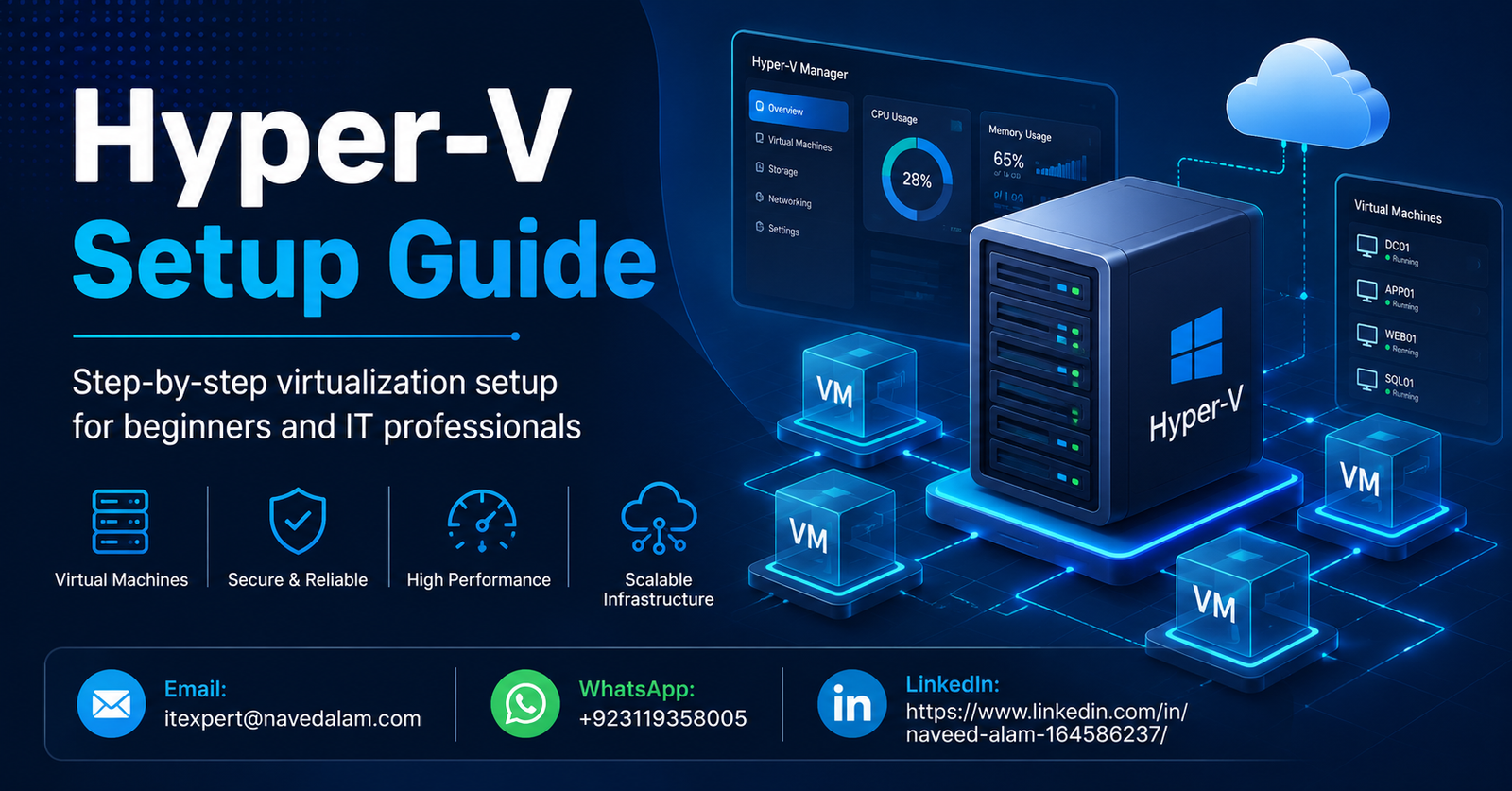

This Hyper-V setup guide starts with one important clarification: Hyper-V is not a third-party tool you install — it is a built-in hypervisor baked into Windows Server and Windows 10/11 Pro and Enterprise.
Enabling it correctly from day one determines whether your virtual machines run with enterprise-grade stability or constant headaches.
After following this Hyper-V setup guide across 40+ real deployments — from single-server SMB setups to multi-host clusters with 200+ VMs — the same configuration mistakes appear every time. This guide is written specifically to help you avoid them.
Whether you are using this Hyper-V setup guide to build a home lab, deploy production workloads on Windows Server 2022, or evaluate Hyper-V vs VMware for your organisation, this walkthrough covers every step: system requirements, role installation, virtual switch configuration, VM creation, storage setup, and production best practices.
Table of Contents
- Why Hyper-V Matters for Modern IT Infrastructure
- System Requirements for Hyper-V
- Understanding Hyper-V Architecture
- How to Enable Hyper-V: Step-by-Step
- Hyper-V Virtual Switch Configuration
- How to Create a Virtual Machine in Hyper-V
- Hyper-V Storage Configuration
- Real-World Enterprise Example
- Verification and Testing
- Troubleshooting Common Issues
- Hyper-V Best Practices
- Hyper-V vs VMware Comparison
- Frequently Asked Questions
- Conclusion
Why This Hyper-V Setup Guide Matters
Server consolidation is no longer optional for cost-conscious IT departments.
Running one workload per physical server wastes 70–85% of available compute capacity. Hyper-V solves this by running multiple isolated virtual machines on a single host, with each VM receiving dedicated CPU, memory, network, and storage resources.
For Windows-centric environments, Hyper-V offers three advantages no competing hypervisor can match:
- Zero additional licensing cost on Windows Server
- Deep native integration with Active Directory and System Center
- No compatibility layer required for Windows Server VMs
Organisations already running Windows Server 2019 or 2022 are leaving money on the table by paying VMware licensing fees for workloads that Hyper-V handles equally well.
Beyond cost, Hyper-V is the underlying virtualisation platform for Microsoft Azure. The skills you build following this Hyper-V setup guide translate directly to managing Azure VMs.
According to Microsoft’s official Hyper-V documentation, Hyper-V supports up to 1,024 active virtual machines per host on Windows Server 2022 — making it a genuinely enterprise-class platform.
System Requirements for This Hyper-V Setup Guide
Before starting this Hyper-V setup guide, verify your hardware meets these minimum requirements.
Attempting installation on unsupported hardware produces cryptic errors that are difficult to diagnose later.
Hardware Requirements
| Component | Minimum | Recommended (Production) |
|---|---|---|
| CPU | 64-bit with SLAT support | Intel Xeon / AMD EPYC, 8+ cores |
| Virtualisation | Intel VT-x or AMD-V in BIOS/UEFI | Same — must be enabled |
| RAM | 4 GB | 32–64 GB for multiple production VMs |
| Storage | HDD, any speed | NVMe SSD or SAS — critical for VM I/O |
| Network | 1 GbE NIC | 2x 10 GbE NICs (management + VM traffic) |
| Operating System | Windows 10 Pro/Enterprise (64-bit) | Windows Server 2019/2022 Standard or Datacenter |
BIOS/UEFI Verification
Confirm virtualisation extensions are enabled before starting this Hyper-V setup guide.
Reboot, enter BIOS setup (F2, Del, or F10 depending on manufacturer), and look for “Intel Virtualization Technology (VT-x)”, “AMD-V”, or “SVM Mode”. Set it to Enabled.
Without this step, Hyper-V installation will either fail or fall back to software emulation with severe performance penalties.
You can also verify SLAT support from within Windows before installing:
# Check SLAT support (run as Administrator)
Get-WmiObject -Class Win32_Processor | Select-Object SecondLevelAddressTranslationExtensions
# Expected: True

# Check if a hypervisor is already present
systeminfo | findstr /i "Hyper-V"
Understanding Hyper-V Architecture
Before applying this Hyper-V setup guide, understanding the architecture prevents configuration mistakes that are hard to undo.
Hyper-V is a Type-1 (bare-metal) hypervisor. It sits between the hardware and the operating systems — including the Windows host itself.
When you enable Hyper-V on Windows, the Windows OS you are running becomes a special privileged VM called the “parent partition”. All other VMs run as “child partitions”.
┌─────────────────────────────────────────────────────────┐
│                    PHYSICAL HARDWARE                    │
│         (CPU with VT-x/AMD-V, RAM, NIC, Storage)       │
└─────────────────────┬───────────────────────────────────┘
                      │
┌─────────────────────▼───────────────────────────────────┐
│                   HYPER-V HYPERVISOR                    │
│              (Thin layer -- Ring -1)                    │
└──────┬──────────────────────────────────┬───────────────┘
       │                                  │
┌──────▼──────────┐              ┌────────▼────────────┐
│  Parent Partition│              │  Child Partitions   │
│  (Windows Host)  │              │  VM1 | VM2 | VM3   │
│  Management OS   │              │  (Guest VMs)       │
└─────────────────┘              └─────────────────────┘
Key Components
- Hyper-V Hypervisor: Thin kernel-mode layer managing hardware access and VM isolation
- VMMS (Virtual Machine Management Service): Windows service handling VM lifecycle operations
- Virtual Switch: Software-defined switch connecting VMs to each other and the physical network
- VHDX: Virtual hard disk format — supports up to 64 TB per disk
- Integration Services: Guest drivers installed inside VMs for optimised hardware access
- Hyper-V Manager: GUI console for local and remote VM management
How to Enable Hyper-V: Step-by-Step
This section of the Hyper-V setup guide covers installation on both Windows 10/11 and Windows Server.
Phase 1: Enable Hyper-V on Windows 10 / Windows 11
Windows 10 and 11 Pro and Enterprise include Hyper-V as an optional Windows feature.
Windows Home editions do not support Hyper-V — you will need to upgrade to Pro or use Windows Sandbox as a limited alternative.
Method 1 — PowerShell (recommended):
# Run PowerShell as Administrator
Enable-WindowsOptionalFeature -Online -FeatureName Microsoft-Hyper-V -All

# Expected output:
# Path          : Microsoft-Hyper-V
# Online        : True
# RestartNeeded : True

Restart-Computer
Verification after reboot:
# Confirm Hyper-V is enabled
Get-WindowsOptionalFeature -Online -FeatureName Microsoft-Hyper-V
# Expected: State = Enabled

# Verify hypervisor is active
(Get-CimInstance Win32_ComputerSystem).HypervisorPresent
# Expected: True
Method 2 — Windows Features GUI: Control Panel → Programs → Turn Windows features on or off → check Hyper-V (all sub-components) → OK → Restart.
Phase 2: Install Hyper-V Role on Windows Server 2019/2022
On Windows Server, Hyper-V is a server role. This is the most common use of this Hyper-V setup guide in production environments.
# Install Hyper-V role with management tools
Install-WindowsFeature -Name Hyper-V -IncludeManagementTools -Restart

# Verify role installation
Get-WindowsFeature -Name Hyper-V
# Expected: Install State = Installed
Common mistake: Skipping
-IncludeManagementToolsinstalls the hypervisor without Hyper-V Manager and the PowerShell module. Always include it.
Phase 3: Configure Default Storage Paths
Before creating any VMs, set your default storage locations away from the C: drive.
The default path stores VM files on your system drive — a common cause of host OS performance issues in production.
# Set default VM configuration path
Set-VMHost -VirtualMachinePath "D:Hyper-VVMs"

# Set default virtual hard disk path
Set-VMHost -VirtualHardDiskPath "D:Hyper-VVHDs"

# Verify settings
Get-VMHost | Select-Object VirtualMachinePath, VirtualHardDiskPath
# Expected:
# VirtualMachinePath   : D:Hyper-VVMs
# VirtualHardDiskPath  : D:Hyper-VVHDs
Hyper-V Virtual Switch Configuration
The virtual switch is the most critical networking decision in any Hyper-V setup guide.
Getting it wrong means VMs cannot reach the network, cannot talk to each other, or your host loses internet access. The Microsoft virtual switch documentation covers all three switch types.
Phase 4: Create Virtual Switches
| Switch Type | VM-to-VM | VM-to-Host | VM-to-Internet | Use Case |
|---|---|---|---|---|
| External | Yes | Yes | Yes | Production VMs needing full network access |
| Internal | Yes | Yes | No | Test labs, isolated app tiers |
| Private | Yes | No | No | Fully isolated sandboxes |
# List available physical NICs
Get-NetAdapter | Where-Object {$_.Status -eq "Up"} | Select-Object Name, InterfaceDescription

# Create External virtual switch (replace "Ethernet" with your NIC name)
New-VMSwitch -Name "External-Switch" `
             -NetAdapterName "Ethernet" `
             -AllowManagementOS $true

# Create Internal virtual switch for lab traffic
New-VMSwitch -Name "Internal-Lab" -SwitchType Internal

# Verify switches were created
Get-VMSwitch | Select-Object Name, SwitchType, NetAdapterInterfaceDescription
Common mistake: Setting
-AllowManagementOS $falseon your only external switch cuts the host off from the physical network. Only use$falseif the host has a dedicated management NIC.
How to Create a Virtual Machine in Hyper-V
Creating VMs correctly is the core of this Hyper-V setup guide. Use Generation 2 for all modern 64-bit operating systems.
Gen 1 is only required for legacy 32-bit OS or older Linux distributions without UEFI support.
Phase 5: Create a New Virtual Machine
# Create a Generation 2 VM
New-VM -Name "WebServer-01" `
       -Generation 2 `
       -MemoryStartupBytes 4GB `
       -SwitchName "External-Switch" `
       -NewVHDPath "D:Hyper-VVHDsWebServer-01.vhdx" `
       -NewVHDSizeBytes 80GB

# Assign 4 virtual processors
Set-VMProcessor -VMName "WebServer-01" -Count 4

# Enable Dynamic Memory for dev/test environments
Set-VMMemory -VMName "WebServer-01" `
             -DynamicMemoryEnabled $true `
             -MinimumBytes 2GB `
             -MaximumBytes 8GB `
             -StartupBytes 4GB

# Verify VM configuration
Get-VM -Name "WebServer-01" | Select-Object Name, State, Generation, MemoryAssigned, ProcessorCount
# Expected:
# Name         State  Generation  MemoryAssigned  ProcessorCount
# WebServer-01 Off    2           4294967296      4
Phase 6: Attach ISO and Configure Boot Order
# Add DVD drive and attach ISO
Add-VMDvdDrive -VMName "WebServer-01"
Set-VMDvdDrive -VMName "WebServer-01" -Path "D:ISOsWindowsServer2022.iso"

# Set boot order — DVD first
$DVDDrive = Get-VMDvdDrive -VMName "WebServer-01"
$HDD      = Get-VMHardDiskDrive -VMName "WebServer-01"
Set-VMFirmware -VMName "WebServer-01" -BootOrder $DVDDrive, $HDD

# Enable Secure Boot for Windows guests
Set-VMFirmware -VMName "WebServer-01" `
               -EnableSecureBoot On `
               -SecureBootTemplate "MicrosoftWindows"

# Start VM and open console
Start-VM -Name "WebServer-01"
VMConnect localhost "WebServer-01"
Common mistake: Installing Linux on a Gen 2 VM with the default Windows Secure Boot template will fail. Change SecureBootTemplate to
"MicrosoftUEFICertificateAuthority"for Linux guests.
Hyper-V Storage Configuration
Storage decisions are the single biggest performance variable in any Hyper-V setup guide.
Choosing the wrong VHDX type directly causes the slow VM performance that most troubleshooting calls are about.
Phase 7: VHDX Types and When to Use Each
| VHDX Type | Description | Performance | Best For |
|---|---|---|---|
| Fixed | Pre-allocates full disk space | Best | Production SQL, Exchange, I/O-heavy workloads |
| Dynamic | Expands as data is written | Good | Dev/test VMs, variable-size workloads |
| Differencing | Child disk linked to parent VHDX | Variable | VM templates, rapid provisioning |
| Pass-through | VM accesses physical disk directly | Native | Maximum I/O — storage servers, databases |
# Convert dynamic VHDX to fixed for production (VM must be off)
Convert-VHD -Path "D:Hyper-VVHDsWebServer-01.vhdx" `
            -DestinationPath "D:Hyper-VVHDsWebServer-01-Fixed.vhdx" `
            -VHDType Fixed

# Verify the conversion
Get-VHD -Path "D:Hyper-VVHDsWebServer-01-Fixed.vhdx" | `
  Select-Object VhdFormat, VhdType, FileSize
# Expected: VhdType = Fixed
Real-World Enterprise Example
Case Study: Server Consolidation Using This Hyper-V Setup Guide
A mid-sized manufacturing company in Lahore running 14 physical servers approached us with a clear problem.
Their hardware lease renewals were due, server room power costs had doubled in two years, and their IT team was managing 14 machines running at an average 12% CPU utilisation. Classic over-provisioned physical infrastructure.
Challenge: Consolidate 14 physical servers to 3 Dell PowerEdge R750s running Hyper-V, with zero downtime during migration for production ERP and file server workloads.
Budget constraints eliminated VMware licensing. Hyper-V on Windows Server 2022 Datacenter — which includes unlimited Windows Server guest licences — was the clear commercial choice.
What we implemented: Three standalone Hyper-V hosts with Windows Server 2022 Datacenter, each configured with 256 GB RAM and dual 10 GbE NICs.
A dedicated NVMe SSD handled the host OS, separate from the RAID-6 array holding VM storage. Virtual switches used NIC teaming for redundancy. Differencing disks off a sysprepped master image provisioned 11 Windows VMs in under 90 minutes.
Results: Physical server count reduced from 14 to 3. Power consumption dropped by 68%. Average host CPU utilisation sits at 35–45% — healthy headroom for growth.
The migration completed across two weekends with 4 hours total downtime, against a 16-hour budget.
Lesson learned: Dynamic Memory on the SQL Server VM caused erratic behaviour. SQL Server pre-allocates its own memory pool at startup and does not respond well to Hyper-V reclaiming RAM.
Fixed memory allocation on database VMs is non-negotiable. If you are running SQL on Azure, the same principle applies — see our Azure VM troubleshooting guide for memory-related startup failures.
Verification and Testing
After completing this Hyper-V setup guide, run these verification commands before handing any VM to production.
# Verify all VMs are running
Get-VM | Select-Object Name, State, CPUUsage, MemoryAssigned, Uptime

# Test network connectivity from inside the VM
Test-NetConnection -ComputerName 8.8.8.8 -InformationLevel Detailed

# Check virtual switch and adapter assignment
Get-VMNetworkAdapter -VMName "WebServer-01" | `
  Select-Object VMName, SwitchName, MacAddress, IPAddresses

# Verify VHDX health and fragmentation
Get-VHD -Path "D:Hyper-VVHDsWebServer-01.vhdx" | `
  Select-Object VhdType, FileSize, FragmentationPercentage

# Check Integration Services (all should show PrimaryStatusDescription = OK)
Get-VMIntegrationService -VMName "WebServer-01"
Troubleshooting Common Hyper-V Issues
These are the five issues most frequently encountered when following any Hyper-V setup guide in production.
Issue 1: “A hypervisor is already running” Error
Symptoms: Enable-WindowsOptionalFeature returns an error, or Hyper-V installs but reports a conflicting hypervisor.
Root cause: VMware Workstation, VirtualBox, or WSL2 has acquired the VT-x/AMD-V hardware lock.
# Check which hypervisor is active
bcdedit /enum | findstr hypervisorlaunchtype

# Disable the competing hypervisor
bcdedit /set hypervisorlaunchtype off
# Restart, then re-enable Hyper-V

# Re-enable Hyper-V launch
bcdedit /set hypervisorlaunchtype auto
Prevention: Commit to one hypervisor per host. VMware Workstation 15.5.5+ can run inside an active Hyper-V environment if you genuinely need both.
Issue 2: VM Fails to Start — “Not Enough Memory”
Symptoms: VM stays in Off state; event log shows insufficient memory error.
Root cause: Total startup memory across all VMs exceeds physical RAM minus host OS reservation.
# Check host available memory (KB)
(Get-CimInstance Win32_OperatingSystem).FreePhysicalMemory

# Review all VM memory allocations
Get-VM | Select-Object Name, MemoryAssigned, MemoryStartupBytes

# Reduce startup memory on non-critical VMs
Set-VMMemory -VMName "TestVM-01" -StartupBytes 1GB
Prevention: Reserve at least 2–4 GB for the host OS. Never allocate 100% of RAM across your VMs.
Issue 3: VM Has No Network Connectivity
Symptoms: VM shows a connected adapter but cannot ping the gateway or reach the internet.
Root cause: Virtual switch bound to the wrong NIC, or the NIC was renamed after switch creation.
# Check virtual switch binding
Get-VMSwitch | Select-Object Name, NetAdapterInterfaceDescription

# Check if physical NIC is up
Get-NetAdapter | Where-Object {$_.Status -ne "Up"}

# Rebind switch to correct adapter
$NIC = Get-NetAdapter -Name "Ethernet 2"
Set-VMSwitch -Name "External-Switch" -NetAdapterName $NIC.Name
Prevention: Rename NICs before creating switches: Rename-NetAdapter -Name "Ethernet" -NewName "Mgmt-NIC"
Issue 4: Slow VM Performance — High Disk Latency
Symptoms: Applications run sluggishly, disk I/O bottleneck visible in Performance Monitor.
Root cause: Dynamic VHDX fragmentation, VMs stored on the host OS drive, or missing Integration Services.
# Check VHDX fragmentation
Get-VHD -Path "D:Hyper-VVHDsWebServer-01.vhdx" | Select-Object FragmentationPercentage

# Compact and optimise (VM must be off)
Optimize-VHD -Path "D:Hyper-VVHDsWebServer-01.vhdx" -Mode Full

# Confirm Integration Services are enabled
Get-VMIntegrationService -VMName "WebServer-01" | Where-Object {$_.Enabled -eq $false}
Issue 5: VMConnect Error — Cannot Connect to Console
Symptoms: VMConnect returns “The virtual machine connection was lost” or hangs on connection.
Root cause: VMMS service stopped, or Enhanced Session Mode is disabled.
# Restart VM Management Service
Restart-Service -Name vmms

# Enable Enhanced Session Mode
Set-VMHost -EnableEnhancedSessionMode $true

# Confirm VMMS is running
Get-Service -Name vmms | Select-Object Status
# Expected: Running
Hyper-V Best Practices for Production
These best practices reflect the lessons most frequently learnt the hard way when deploying the steps in this Hyper-V setup guide at scale.
Security Best Practices
- Use Generation 2 VMs for all modern OS. Gen 2 supports Secure Boot and UEFI, eliminating boot-level malware. Per Microsoft’s guidance, Generation 2 is the recommended default for all new VMs.
- Enable Shielded VMs for sensitive workloads. Shielded VMs encrypt VM state and restrict who can run them, protecting against rogue Hyper-V host administrators.
- Isolate management traffic. Use a dedicated management NIC for host access — never mix VM traffic and management traffic on the same interface.
- Restrict Hyper-V Manager access via RBAC. Use Active Directory groups to control VM create, modify, and delete permissions rather than granting broad local administrator access.
Performance Best Practices
- Use fixed VHDX for production workloads. Dynamic disks add write overhead from size expansion checks. Pre-allocate with fixed VHDX for SQL Server, Exchange, and any I/O-intensive workload.
- Enable NUMA topology awareness. Configure VMs with
Set-VM -NumaAligned $trueon multi-socket servers to prevent cross-NUMA memory access penalties. - Allocate no more than 80% of physical CPU cores to VMs. Leave 20% for host OS and hypervisor overhead — over-commitment causes unpredictable latency.
- Store VHDs on NVMe or high-IOPS SAS — never on the OS drive. This is the single highest-impact storage decision in any Hyper-V deployment.
Operational Best Practices
- Use checkpoints for pre-change rollback only. Long-running checkpoints fragment AVHD files and degrade performance significantly over time.
- Document your virtual switch topology. Undocumented switch configurations cause major troubleshooting bottlenecks when staff changes occur.
- Use Windows Admin Center for 5+ hosts. Hyper-V Manager works for single hosts — centralised management is essential at scale.
- Schedule quarterly VHDX optimisation. Run
Optimize-VHDpasses during maintenance windows to maintain consistent performance on dynamic disks.
Hyper-V vs VMware: Which Should You Choose?
This Hyper-V setup guide focuses on Hyper-V, but the right tool depends on your environment. Here is an honest side-by-side comparison.
| Factor | Hyper-V | VMware vSphere |
|---|---|---|
| Cost | Free with Windows Server / Windows Pro | Per-socket licensing — up 200–300% post-Broadcom |
| Performance | Comparable for Windows workloads | Stronger for mixed Linux/Windows environments |
| Windows Integration | Native — AD, SCCM, Azure built in | Requires VMware Tools and vCenter plugins |
| Cloud Migration | Direct path to Azure via Azure Migrate | VMware Cloud on Azure — more complex |
| Best For | SMBs, Windows-only shops, Azure-bound workloads | Large enterprises with existing VMware investment |
If your environment is 80%+ Windows workloads and you already pay for Windows Server, Hyper-V is the right choice.
The post-Broadcom VMware pricing changes have pushed many SMBs to migrate. For large enterprises with deep VMware tooling investment, migration cost and risk often outweigh the licensing savings.
Frequently Asked Questions
How do I set up Hyper-V step by step?
To follow this Hyper-V setup guide step by step: run Enable-WindowsOptionalFeature -Online -FeatureName Microsoft-Hyper-V -All on Windows 10/11, or Install-WindowsFeature -Name Hyper-V -IncludeManagementTools -Restart on Windows Server. After rebooting, create a virtual switch, create a Generation 2 VM, attach an ISO, and start the VM.
What are the system requirements for Hyper-V?
Hyper-V requires a 64-bit CPU with SLAT, Intel VT-x or AMD-V enabled in BIOS, at least 4 GB RAM, and Windows 10/11 Pro or Enterprise, or any Windows Server edition from 2012 R2 onwards. Windows Home editions do not support Hyper-V.
Is Hyper-V free with Windows Server?
Yes — Hyper-V is included at no additional cost in all Windows Server editions. Windows Server 2022 Datacenter also includes unlimited Windows Server guest VM licences, making it highly cost-effective for Windows-heavy virtualisation environments.
What is the difference between Hyper-V and VMware?
Hyper-V is free with Windows Server and integrates natively with Microsoft tools and Azure. VMware vSphere requires per-socket licensing — significantly more expensive following Broadcom’s 2024 price increases — but offers stronger performance benchmarks for mixed Linux/Windows environments and a larger third-party ecosystem.
How do I create and configure a virtual machine in Hyper-V?
In Hyper-V Manager, click New → Virtual Machine, choose Generation 2, assign RAM and storage, select your virtual switch, attach an OS ISO, set DVD as the first boot device, enable Secure Boot, and start the VM. Via PowerShell, use New-VM for creation and Set-VMProcessor, Set-VMMemory, and Set-VMFirmware for configuration.
Conclusion: Your Hyper-V Setup Guide Summary
Completing this Hyper-V setup guide gives you a production-ready virtualisation environment built on the same hypervisor that powers Microsoft Azure.
The steps and decisions in this Hyper-V setup guide reflect real-world deployments — not documentation rewrites.
Key Takeaways from This Hyper-V Setup Guide:
- Verify hardware first: Confirm VT-x/AMD-V is enabled in BIOS before starting installation.
- Virtual switch design is critical: Use External for production VMs, Internal for labs. Document every switch.
- Fixed VHDX for production: Dynamic disks are a performance liability for SQL Server, Exchange, and I/O-heavy workloads.
- Fixed memory for self-managing apps: SQL Server and Exchange conflict with Dynamic Memory — always assign fixed RAM to database VMs.
- Hyper-V is a genuine enterprise platform: For Windows-centric environments it delivers enterprise-grade virtualisation at zero additional licensing cost.
For complex multi-host deployments or VMware migration projects, professional scoping prevents expensive mistakes. A structured assessment typically pays for itself in the first month of avoided downtime.
Related reading on navedalam.com:
- Azure VPN Gateway Configuration — connect your Hyper-V environment to Azure over a secure IPsec tunnel
- Azure VM Not Starting: Troubleshooting Guide — extends this Hyper-V setup guide to cloud-hosted VM issues
- Remote IT Support Services — get expert help with Hyper-V deployment and configuration
External references:
- Microsoft Hyper-V on Windows Server — Official Documentation
- Create a Virtual Switch for Hyper-V — Microsoft Learn
- NIST Guide to Server Virtualization Technologies (SP 800-125)
Need Expert Help with Hyper-V Implementation?
I provide professional IT consulting and deployment services for businesses across Pakistan and internationally.
Whether you need a full Hyper-V environment built from scratch, a VMware-to-Hyper-V migration, or emergency troubleshooting support — I can help remotely, on your schedule.
Services Offered
- Hyper-V planning, deployment, and configuration
- VMware to Hyper-V migration
- Windows Server infrastructure design
- Azure and hybrid cloud networking
- Cisco routing, switching, and security
- Microsoft 365 and hybrid identity
- Network troubleshooting and performance tuning
Why Work With Me?
- ✅ Certified: CCNA, AZ-900, CompTIA A+, Fortinet NSE 4
- ✅ Proven: 50+ infrastructure projects completed across Pakistan and internationally
- ✅ Zero downtime focus: Careful planning and staged migrations protect your production environment
- ✅ Transparent pricing: Fixed-price quotes with no hidden costs
- ✅ Knowledge transfer: Full documentation and team training on every project
Email: itexpert@navedalam.com
WhatsApp: +92 311 935 8005
Website: navedalam.com
Free 30-minute consultation — no obligation.
About the Author
Naveed Alam is a certified Network and Cloud Engineer specialising in enterprise IT infrastructure, virtualisation, and secure connectivity solutions.
With 3+ years of hands-on experience and 50+ completed projects across Pakistan and internationally, Naveed helps organisations design, deploy, and optimise their network and server infrastructure — from Hyper-V and Windows Server deployments to Azure cloud migrations and Cisco network design.
Certifications: Cisco CCNA · Microsoft Azure Fundamentals (AZ-900) · CompTIA A+ · Fortinet NSE 4
Core Expertise: Hyper-V and VMware virtualisation · Azure cloud networking · Cisco routing and switching · Windows Server · Microsoft 365 · VPN design · PowerShell automation · Enterprise IT consulting
LinkedIn · navedalam.com · itexpert@navedalam.com