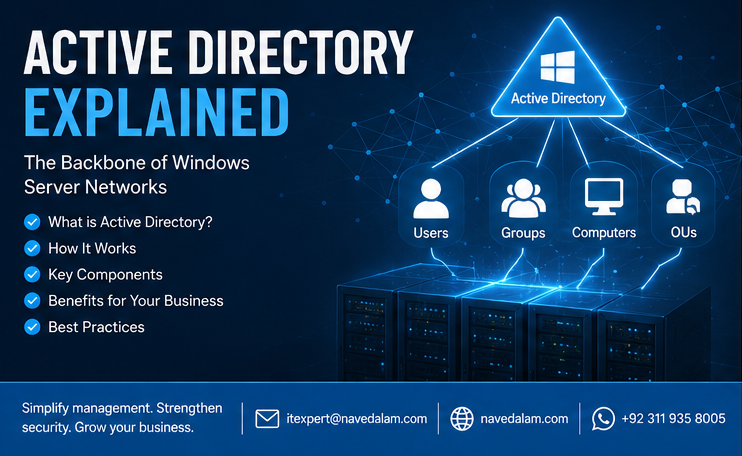

Active directory explained in one sentence: it is the single master list of every person, computer, printer, and application in your organisation — with rules defining who can access what, when, and from where.
When you log into a work laptop, access a shared drive, print to the office printer, or connect to your company VPN — Active Directory is authenticating you, enforcing security policies on your device, and deciding whether to grant or deny access.
Understanding active directory explained properly is one of the most valuable skills a Windows IT professional can develop. It is not just a login service — it is the identity and policy backbone that every other Microsoft technology depends on.
This guide covers active directory explained from foundation to advanced operations: what it is, how Kerberos authentication works, how domain controllers operate, how Group Policy enforces settings, how it compares to Azure Active Directory, how to install it on Windows Server, and how to resolve the most common AD problems engineers face in production every day.
Table of Contents
- What is Active Directory and What is it Used For?
- How Active Directory Works — Logical and Physical Structure
- What is a Domain Controller in Active Directory?
- Kerberos Authentication Active Directory Explained
- Active Directory Group Policy Explained
- Active Directory OU Structure Best Practices
- Active Directory vs Azure Active Directory Difference
- How to Install Active Directory on Windows Server
- Active Directory Users and Computers Guide
- Active Directory Troubleshooting Common Issues
- Frequently Asked Questions
- Conclusion
Active Directory Explained — What is it and What is it Used For?
Active directory explained at its core: it is a directory service developed by Microsoft, first introduced with Windows 2000 Server and now a standard component of Windows Server 2019 and 2022.
A directory service is a hierarchical database — a structured system for storing information about network resources and the rules governing access to them.
With active directory explained in concrete terms, it stores and manages:
- Users — usernames, password hashes, email addresses, phone numbers, department assignments, and group memberships
- Computers — device names, operating system versions, and the hardware policies applied to each machine
- Groups — collections of users or computers that share the same access permissions to specific resources
- Printers, shared folders, and published applications available across the domain
- Policies — Group Policy Objects that control device configuration and user behaviour automatically across every domain-joined machine
Organisations use active directory domain services explained through what it practically delivers: centralised single login so one username and password works on every company device, automatic security policy enforcement across all machines without manual configuration, precise control over which users can reach which file shares and applications, software deployment to specific departments without visiting each machine physically, and automatic delivery of mapped network drives and printers at login.
According to Microsoft’s official Active Directory Domain Services documentation, AD DS is one of the most widely deployed enterprise identity solutions globally, with the majority of Fortune 500 companies running Active Directory-based infrastructure for identity management.
How Active Directory Works — Logical and Physical Structure
To have active directory explained fully, you need to understand its logical structure and physical structure as two distinct layers. Most beginner confusion in what is active directory and how does it work questions comes from mixing these two together.
Logical Structure
Domain: The foundational unit of Active Directory. A domain — for example company.local or company.com — is an administrative boundary. All objects inside a domain share a common database, a common policy framework, and a common trust relationship.
Tree: A collection of domains sharing a contiguous namespace. For example, company.com as the root domain, with europe.company.com and asia.company.com as child domains forming a single tree with automatic two-way trust between parent and child.
Forest: The top-level container in Active Directory — a collection of one or more trees sharing a common schema, configuration partition, and Global Catalog. The forest is the ultimate security boundary in Active Directory. Two separate forests have no inherent trust between them by default.
Organisational Units: Containers within a domain used to organise users, computers, and groups into logical groupings — and to apply Group Policy at a granular level to specific sets of objects without affecting the entire domain.
Physical Structure
Domain Controllers: Windows Server machines running the Active Directory Domain Services role. They store a full replica of the AD database and handle all authentication requests. This is the physical heart of active directory explained in infrastructure terms.
The AD Database NTDS.dit: The actual database file stored on every domain controller. When an administrator creates a user or changes a password, the change writes to this file and then replicates to all other domain controllers automatically.
Sites and Subnets: Physical groupings within Active Directory that route authentication requests to the nearest domain controller — critical for multi-site organisations where WAN latency would otherwise slow every user login significantly.
Replication: Changes made on any domain controller replicate automatically to all other DCs in the domain. This is how Active Directory achieves fault tolerance. When replication breaks silently, it causes inconsistent authentication results that are difficult to trace. See our Active Directory replication failed fix guide for the complete diagnostic and resolution process.
What is a Domain Controller in Active Directory?
With active directory explained in structural terms above, the domain controller is the physical server that makes it all work. A domain controller is a Windows Server running the AD DS role — it stores the full AD database, handles all Kerberos authentication requests, distributes Group Policy, and answers LDAP queries from every application and service in the domain.
The domain controller performs four primary functions in the active directory authentication how it works process:
- Authentication: Verifies user credentials using Kerberos as the primary protocol, or NTLM as a fallback, issuing tickets granting access to network resources
- Authorisation: Determines what each authenticated user is permitted to access based on group memberships and Access Control Lists
- Directory queries: Responds to LDAP queries from applications and services looking up user attributes, group memberships, and computer object properties
- Policy distribution: Delivers Group Policy Objects to client computers and user sessions at login and at regular background refresh intervals
Every Active Directory environment must have at least two domain controllers for redundancy. A single-DC environment means one hardware failure simultaneously removes authentication for every user in the organisation — every login fails, every file server becomes unreachable, every AD-dependent application stops working at the same instant.
One domain controller holds the FSMO roles — Flexible Single Master Operations. The PDC Emulator handles password changes and time synchronisation. The RID Master allocates unique security identifiers for new AD objects. The Schema Master controls any changes to the Active Directory schema structure. These roles are transferable but only one DC holds each role at any moment.
Kerberos Authentication Active Directory Explained
The kerberos authentication active directory explained section is where active directory explained moves from conceptual to mechanistic. Understanding how Kerberos actually works removes the mystery from login failures, ticket expiry errors, and the clock skew problem that causes authentication to break silently.
Kerberos is a network authentication protocol based on time-limited cryptographic tickets rather than password transmission. The user’s password never travels across the network in any form — tickets prove identity without exposing credentials.
The active directory authentication how it works process unfolds in three stages:
Stage 1 — AS Exchange with the Authentication Service: The user enters their password at the Windows login screen. The client derives a cryptographic key from the password and uses it to encrypt a timestamp, then sends this to the Key Distribution Centre on the domain controller. The KDC decrypts the message using its own copy of the user’s password hash — if decryption succeeds and the timestamp is within the acceptable window, the user is genuine. The KDC issues a Ticket Granting Ticket valid for 10 hours by default.
Stage 2 — TGS Exchange with the Ticket Granting Service: When the authenticated user tries to access a resource such as a file server or SharePoint, the client presents the TGT to the KDC and requests a Service Ticket for that specific resource. The KDC issues the Service Ticket without the user needing to re-enter their password — this is the seamless single sign-on experience that makes active directory explained so powerful in practice.
Stage 3 — Service Access: The client presents the Service Ticket to the target server. The server decrypts it using its own service account key, extracts the user’s identity and group memberships, and grants or denies access according to the resource permissions.
The critical dependency for Kerberos: all domain controllers, servers, and client computers must have their clocks synchronised within five minutes of each other. Clock skew exceeding five minutes causes the KDC to reject tickets as potentially replayed attacks — and users experience authentication failures with no obvious error message at the login screen. Time synchronisation is the single most overlooked dependency in any active directory explained deployment discussion.
Active Directory Group Policy Explained
Active directory group policy explained simply: Group Policy is how Active Directory enforces settings automatically across all computers and users in the domain — without manual machine-by-machine configuration and without relying on users to configure their own devices correctly.
A Group Policy Object is a collection of configuration settings. Real-world examples from production deployments include requiring a 14-character password with complexity requirements, locking the screen after five minutes of inactivity, disabling USB storage on all company computers, mapping the Finance shared drive for Finance department users at login, deploying endpoint protection software to all laptops, and restricting which applications can execute on specific device types.
GPOs are linked to the domain, to sites, or to Organisational Units. A GPO linked at domain level applies to every user and computer in the entire domain. A GPO linked to the Finance OU applies only to objects inside that specific OU — enabling precise, targeted policy application without affecting other departments. This OU-level targeting is one of the most powerful aspects of active directory explained for enterprise environments.
Policy processing order follows the acronym LSDOU — Local, Site, Domain, then OU. Policies applied later in this sequence override earlier ones for conflicting settings. An OU-level GPO overrides a domain-level GPO for the same setting, allowing department-specific exceptions without breaking the organisation-wide policy baseline.
Group Policy settings refresh every 90 minutes on client computers with a random additional offset up to 30 minutes. Computer policy applies at system startup. User policy applies at user login. Administrators can force an immediate policy refresh from the command line without requiring a system restart.
Active Directory OU Structure Best Practices
The active directory ou structure best practices you establish determine how easy or difficult it will be to apply Group Policy, delegate administration safely, and scale the environment as the organisation grows. This is a frequently underestimated aspect of active directory explained for new deployments.
The single most important principle: design your OU structure around administration and Group Policy requirements — not around the organisational chart. Org charts change constantly. Your OU structure should be stable and change rarely.
A proven baseline OU structure for 50 to 500 user organisations following active directory explained deployment standards:
- Users OU containing sub-OUs by department such as Sales, Finance, IT, and HR. Apply user-specific GPOs here — mapped drives, desktop wallpaper, software restrictions by role.
- Computers OU containing sub-OUs by device type such as Laptops, Desktops, and Servers. Apply computer-specific GPOs here — Windows Update settings, BitLocker enforcement, screen lock timers.
- Groups OU containing all security and distribution groups. No GPOs are typically linked at this level.
- Service Accounts OU as a dedicated container for application service accounts with stricter access controls and enhanced auditing for privileged accounts.
- Disabled Objects OU for moving disabled user accounts and decommissioned computers before permanent deletion. Retaining objects here for 30 to 90 days provides a recovery net for accidental disablements.
Never place user and computer objects in the same OU if you want to apply different GPOs to each type. Computer policy and user policy both apply at the OU level — mixing object types forces the same policies onto both regardless of whether the settings are appropriate for each.
Active Directory vs Azure Active Directory — Key Differences
The active directory vs azure active directory difference is one of the most confused topics in modern IT. With active directory explained as the on-premises foundation, Azure AD represents the cloud evolution — but they are genuinely different products solving different problems, not simply cloud and on-premises versions of the same thing.
| Factor | Active Directory (AD DS) | Azure Active Directory / Entra ID |
|---|---|---|
| Location | On-premises Windows Server domain controllers | Microsoft cloud infrastructure in Azure |
| Authentication protocol | Kerberos and NTLM | OAuth 2.0, OpenID Connect, and SAML |
| Primary use case | Managing domain-joined Windows computers and on-premises resources | Managing cloud apps, Microsoft 365, SaaS, and remote users |
| Group Policy | Full GPO support for all Windows settings | No GPOs — uses Microsoft Intune and Conditional Access instead |
| Device management | Traditional domain join for Windows devices | Azure AD Join and Intune MDM for cloud-native device management |
| Infrastructure required | Dedicated Windows Server domain controllers on-premises | No on-premises infrastructure — pure cloud service |
| Best for | Traditional on-premises or hybrid enterprise environments | Cloud-first organisations, Microsoft 365 users, remote workforces |
Most modern organisations run both in a hybrid configuration — on-premises Active Directory synchronised to Azure Active Directory using Azure AD Connect. This hybrid model lets users authenticate to domain-joined Windows computers and cloud applications like Microsoft 365, Teams, and SharePoint using the same single set of credentials. Understanding this hybrid model is essential for any complete active directory explained discussion in 2026.
For organisations managing cloud-only devices through Azure AD without on-premises infrastructure, see our Microsoft Intune setup guide for device enrolment and policy management through Intune as a replacement for traditional Group Policy.
How to Install Active Directory on Windows Server
With active directory explained at the conceptual level, the installation process on Windows Server 2019 or 2022 follows consistent steps regardless of environment size. The steps below create a new forest — the correct path for a greenfield deployment.
Prerequisites before starting: Windows Server 2019 or 2022 with a static IP address on the server’s NIC. A planned domain name — use a domain you own or an internal suffix like company.local. A strong DSRM password documented and stored securely. Plan for a minimum of two domain controllers before going live with any dependent services.
Step 1 — Install the AD DS role. Open Server Manager, click Add Roles and Features, select Active Directory Domain Services, and complete the wizard. This installs the binaries but does not configure Active Directory yet.
Step 2 — Promote the server to domain controller. Click the notification flag in Server Manager and select Promote this server to a domain controller. Choose Add a new forest, enter your root domain name, set the Forest and Domain Functional Level to Windows Server 2016 or higher, set the DSRM password, and complete the wizard. The server reboots as a domain controller with active directory explained now running in your environment.
Step 3 — Verify the installation after reboot. Open Active Directory Users and Computers and confirm the domain structure is present. Open DNS Manager and verify the forward lookup zone for your domain exists with correct SRV records. Run the built-in AD diagnostics to confirm replication and all services are healthy.
Step 4 — Install a second domain controller immediately. Join a second Windows Server to the domain, install AD DS, and promote it by choosing Add a domain controller to an existing domain. Two domain controllers eliminate the single point of failure. See our Windows Server 2025 upgrade guide for the latest server capabilities and migration path.
Active Directory Users and Computers — Essential Administration Tasks
The active directory users and computers guide for daily administration is where active directory explained becomes hands-on practice. ADUC is the primary GUI tool and every AD administrator needs to be fully comfortable with it.
Creating a new user account: Right-click the target OU, select New, then User. Enter first name, last name, and user logon name. Set the initial password and configure whether the user must change it at first login. Enable the account. The user can immediately log in to any domain-joined computer.
Creating and managing security groups: Right-click the Groups OU, select New, then Group. Choose the scope — Domain Local for access to resources in the same domain, Global for collecting users from the same domain, Universal for cross-domain assignments in a multi-domain forest. Add members through the group’s Properties dialog.
Resetting a user password: Right-click the user object, select Reset Password, enter and confirm the new password, and tick Unlock account if the account is locked. This is the single most frequent helpdesk task in any environment where active directory explained is the identity backbone.
Moving objects between OUs: Right-click any object and select Move, then choose the destination OU. Group Policy from the destination OU applies at the next refresh cycle without requiring a restart.
Finding objects efficiently: Right-click the domain root and select Find to search across the entire domain by name, attribute, or last logon date. Essential in large Active Directory environments with thousands of objects across deep OU hierarchies.
Active Directory Troubleshooting Common Issues
With active directory explained from design through to daily administration, troubleshooting is where the knowledge becomes most valuable. These are the five active directory troubleshooting common issues encountered most frequently in production environments.
Issue 1: Users Cannot Log In — Domain Unavailable Error
Symptoms: Users receive an error stating the domain is not available or no logon servers could be found.
Root cause: The domain controller is unreachable — either the AD DS service has stopped, network connectivity between client and DC is broken, or DNS is failing to resolve the domain controller’s hostname.
Diagnostic steps and resolution: Ping the domain controller by IP address first to confirm network connectivity, then by hostname to confirm DNS resolution. Run the domain controller locator command to identify which DC the client is targeting. Check the DC’s System and Directory Service event logs for service errors. If AD DS has stopped, restart the service and identify the root cause before closing the incident.
Issue 2: Account Lockout — User Repeatedly Locked Out
Symptoms: A user account locks out within minutes of being unlocked. The user confirms they are entering the correct password at their workstation.
Root cause: A background process, Windows service, scheduled task, or saved credential on another device is using the old password and repeatedly failing authentication, triggering the lockout threshold automatically.
Diagnostic steps and resolution: Enable logon failure auditing through Group Policy. Review the Security event log on the PDC Emulator for Event ID 4740 which records the lockout source machine name. Log into that machine and check Windows Credential Manager for saved credentials using the old password, review scheduled tasks, and check services configured with that user’s credentials. This is one of the most common scenarios where active directory troubleshooting common issues knowledge saves significant helpdesk time.
Issue 3: Group Policy Not Applying
Symptoms: A GPO is linked to an OU and visible in the GPMC console, but the settings are not appearing on target computers or affecting target users.
Root cause: Security filtering is blocking the GPO, a WMI filter is excluding specific hardware configurations, the GPO link is disabled rather than enabled, or replication has not yet delivered the GPO to the DC the affected client authenticated against.
Diagnostic steps and resolution: Run the Group Policy Results wizard targeting the affected computer or user to generate a detailed report showing which GPOs applied, which were filtered, and why. Confirm the GPO’s Delegation tab shows Authenticated Users with both Read and Apply Group Policy permissions. Verify the GPO link is enabled.
Issue 4: Active Directory Replication Failures
Symptoms: Password changes on one DC are not reflected on others. Users experience inconsistent authentication results. New user accounts are not visible from all domain controllers.
Root cause: Network connectivity failures between DCs, DNS resolution failures preventing DCs from locating each other, or RPC service errors blocking replication traffic. This is a critical issue in any environment where active directory explained and operational resilience are priorities.
Diagnostic steps and resolution: See our Active Directory replication failed fix guide which covers the full diagnostic and resolution process for Event ID 1722, 8524, and 8453 replication errors.
Issue 5: Kerberos Authentication Failure — Clock Skew
Symptoms: Users receive authentication errors referencing time differences, or experience generic login failures that disappear temporarily after a system restart.
Root cause: The client computer’s system clock is more than five minutes out of synchronisation with the domain controller. Kerberos rejects tickets outside this window as a replay-attack prevention measure — this is by design.
Resolution: Ensure all domain members synchronise time through the AD hierarchy. Member computers sync from any domain controller. Domain controllers sync from the PDC Emulator. The PDC Emulator syncs from a reliable external NTP source. Correct the clock on the affected client and re-test authentication. Understanding this dependency is a core part of having active directory explained correctly for operations teams.
Frequently Asked Questions About Active Directory Explained
What is Active Directory and what is it used for?
Active directory explained for beginners: Active Directory is Microsoft’s centralised directory service that manages all users, computers, groups, and security policies across a Windows domain network. Organisations use it to centralise authentication so one set of credentials works across all company devices, enforce security configurations automatically on every domain-joined machine through Group Policy, and control precisely which users can access which resources — all managed from a single administrative interface.
What is the difference between Active Directory and Azure Active Directory?
The active directory vs azure active directory difference is fundamental. Active Directory Domain Services runs on on-premises Windows Server domain controllers using Kerberos for managing domain-joined Windows computers. Azure Active Directory — now rebranded as Microsoft Entra ID — is a cloud-based identity service using OAuth 2.0 and SAML that manages access to cloud applications and Microsoft 365. Having active directory explained as the on-premises foundation helps clarify that Azure AD is a different product solving a different problem, not simply a cloud version of the same service.
How does Active Directory authentication work?
With kerberos authentication active directory explained: when a user logs in, the client encrypts a timestamp with a key derived from their password and sends it to the Key Distribution Centre on the domain controller. The KDC verifies the user and issues a Ticket Granting Ticket. When the user accesses a resource, the client exchanges the TGT for a resource-specific Service Ticket — without transmitting the user’s password across the network at any stage.
What is a domain controller in Active Directory?
A domain controller is a Windows Server running the Active Directory Domain Services role that stores the full AD database, handles all Kerberos authentication, distributes Group Policy, and answers LDAP directory queries. Every production environment where active directory explained principles are applied correctly must have a minimum of two domain controllers for redundancy — a single DC represents a complete single point of failure for the entire organisation’s authentication.
How do I troubleshoot Active Directory login problems?
For active directory troubleshooting common issues with login failures: confirm the domain controller is reachable by pinging it by IP then by hostname separately. Verify the client’s DNS points to the domain controller’s IP address. Check the Security event log on the PDC Emulator for Event ID 4625 for the specific failure reason code. Verify the user account is enabled and unlocked. Confirm clock synchronisation — Kerberos fails silently when any device clock differs from the domain controller by more than five minutes.
Conclusion: Active Directory Explained — What to Do Next
Having active directory explained from foundation through advanced operations gives you the context to deploy it correctly, administer it efficiently, and troubleshoot it systematically when problems arise in production environments.
The key principles from this active directory explained guide to carry forward:
- Active directory explained as the identity backbone: Every login, file access, printer connection, and application authentication in a Windows domain flows through Active Directory. Its health is the health of your entire network infrastructure.
- Domain controllers must be redundant from day one: Two domain controllers is the absolute minimum for any production deployment. A single DC is a single point of failure for the entire organisation.
- Kerberos depends critically on time synchronisation: Clock skew greater than five minutes breaks authentication silently and is one of the most frequently missed root causes of intermittent login failures.
- OU structure should follow administration needs, not the org chart: Design for Group Policy application and delegation of control — not for how the company draws its reporting lines on an organisational chart.
- Azure AD is a different product for a different problem: It manages cloud identity and SaaS application access, not on-premises domain computers. Most modern organisations need both in a hybrid configuration.
Related reading on navedalam.com:
- Active Directory Replication Failed — Complete Fix Guide
- Windows Server 2025 Upgrade Guide
- RDP Not Working on Windows Server — Fix Guide
- Microsoft Intune Setup Guide
- Remote IT Support Services
External references:
- Microsoft — Active Directory Domain Services Overview
- Microsoft — What is Azure Active Directory (Entra ID)?
- NIST — Guide to Enterprise Network Security
Need Help with Active Directory Setup or Troubleshooting?
I provide professional Active Directory deployment, migration, and troubleshooting services for businesses across Pakistan and internationally. Whether you need active directory explained and implemented from scratch, or an existing environment remediated — I can help remotely.
Active Directory Services
- New Active Directory forest design and deployment
- Domain controller installation, promotion, and FSMO role assignment
- Group Policy design, implementation, and troubleshooting
- Azure AD Connect hybrid identity configuration
- Active Directory health assessment and remediation
- Replication failure diagnosis and resolution
- Account lockout investigation and root cause elimination
Email: itexpert@navedalam.com
WhatsApp: +92 311 935 8005
Website: navedalam.com
Free 30-minute consultation — no obligation, no commitment.
About the Author
Naveed Alam is a certified Network and Cloud Engineer specialising in Windows Server infrastructure, Active Directory, and Microsoft cloud identity solutions.
With 50+ completed infrastructure projects across Pakistan and internationally, Naveed helps organisations understand active directory explained in practical terms — designing, deploying, and troubleshooting AD environments from greenfield installations through complex hybrid Azure AD Connect configurations.
Certifications: Cisco CCNA · Microsoft Azure Fundamentals AZ-900 · CompTIA A+ · Fortinet NSE 4
LinkedIn · navedalam.com · itexpert@navedalam.com