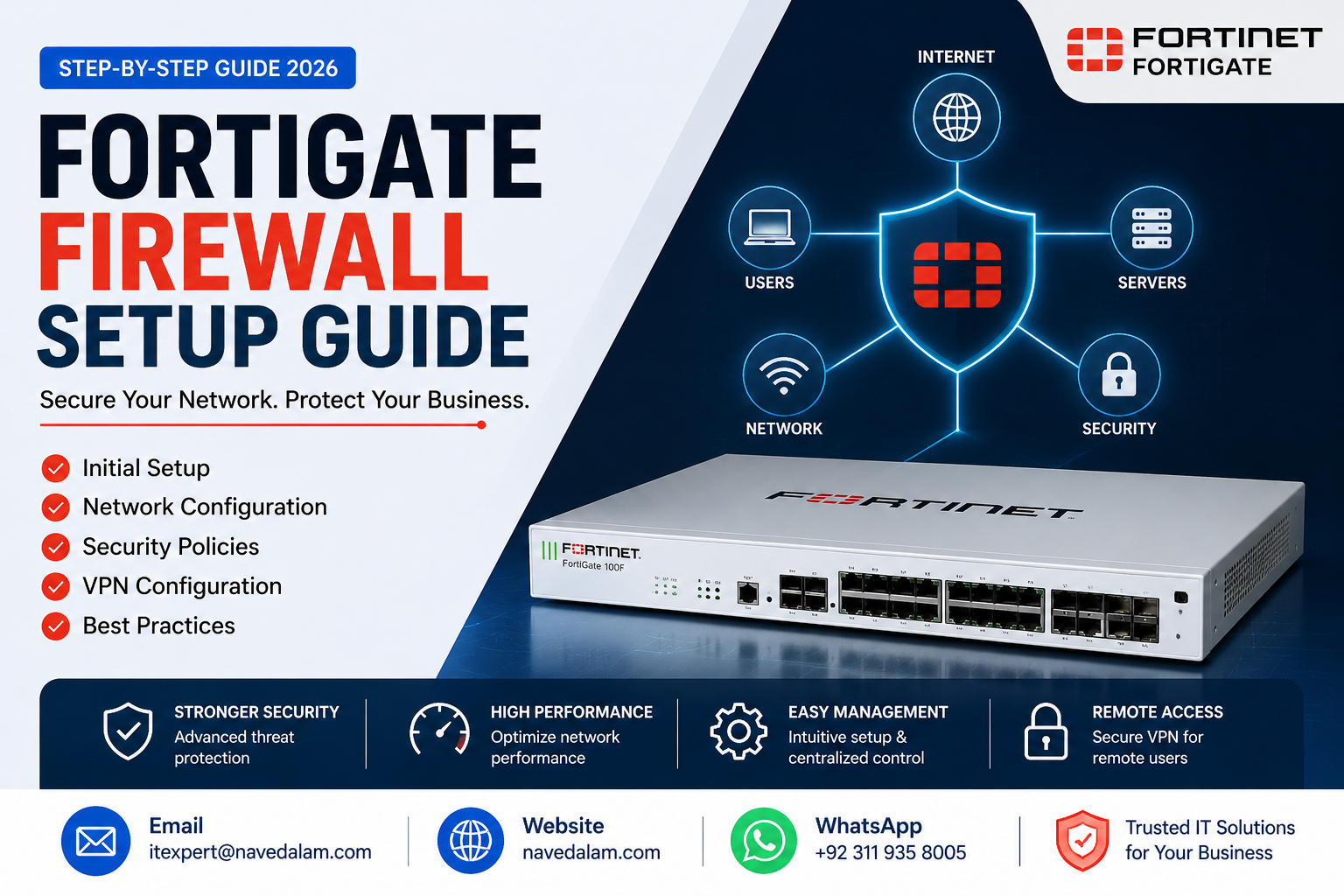

The fortigate firewall setup guide every network engineer needs starts before the appliance arrives: choosing the wrong model for your throughput requirements or user count is the most expensive mistake in any Fortinet deployment.
After deploying FortiGate firewalls across 30+ sites — from 10-user branch offices to 500-user headquarters with full UTM inspection enabled — the same questions come up every time. Which model, what policy order, how to configure SSL VPN without breaking split tunnelling, and whether FortiGate genuinely beats Cisco ASA for the money.
This fortigate firewall setup guide answers all of them. It is written for network engineers evaluating FortiGate for the first time, administrators inheriting an existing deployment, and anyone studying for the Fortinet NSE 4 certification who needs a practical configuration reference.
Table of Contents
- Why FortiGate Is the Dominant SMB Firewall in 2026
- FortiGate 60F vs 80F: Which Model Should You Buy?
- FortiGate Firewall Price 2026
- FortiGate vs Cisco ASA: Honest Comparison
- FortiGate Initial Setup and WAN Interface Configuration
- Basic Firewall Policy Configuration
- FortiGate SSL VPN Setup Guide
- FortiGate Site-to-Site VPN Configuration
- Security Profiles and UTM Configuration
- Real-World Deployment Example
- Troubleshooting Common FortiGate Issues
- FortiGate Best Practices for Small Business
- Frequently Asked Questions
- Conclusion
Why FortiGate Is the Dominant SMB Firewall in 2026
Fortinet displaced Cisco as the SMB firewall market leader because of one fundamental advantage: FortiGate delivers enterprise-grade Next-Generation Firewall capabilities at a price point that Cisco ASA and Palo Alto Networks simply cannot match at the 50 to 300 user scale.
FortiOS — the operating system running on every FortiGate — provides application control, intrusion prevention, antivirus, web filtering, SSL inspection, and SD-WAN in a single integrated platform.
Competing vendors charge separately for each capability as add-on licences. Fortinet bundles all of them in the Unified Threat Management licence, making the total cost of ownership substantially lower over a 3-year deployment cycle.
According to Fortinet’s official NGFW documentation, FortiGate appliances use purpose-built security processing units rather than general-purpose CPUs — delivering 3 to 10 times the throughput of software-based firewalls at equivalent price points. This hardware acceleration is what makes full UTM inspection practical on SMB-class appliances without throughput degradation.
For businesses replacing Cisco ASA, this fortigate firewall setup guide makes the transition structured and predictable. For new deployments starting fresh, FortiGate is the clear recommendation for any organisation under 300 users in 2026.
FortiGate 60F vs 80F vs 100F: Which Model Should You Buy?
The fortigate 60f vs 80f which to buy decision is the most common question in any FortiGate evaluation. The answer depends on user count, throughput requirements, and whether you need built-in Wi-Fi or additional SFP uplink ports.
| Specification | FortiGate 60F | FortiGate 80F | FortiGate 100F |
|---|---|---|---|
| Recommended users | Up to 50 | Up to 80 | Up to 200 |
| Firewall throughput | 10 Gbps | 10 Gbps | 20 Gbps |
| UTM / NGFW throughput | 700 Mbps | 900 Mbps | 1 Gbps |
| SSL inspection throughput | 630 Mbps | 715 Mbps | 1 Gbps |
| GE RJ45 LAN ports | 10 ports | 8 ports + 2 SFP | 22 ports + 4 SFP+ |
| Built-in Wi-Fi variant | 60F-WiFi available | Not available | Not available |
| SD-WAN | Included | Included | Included |
The honest recommendation for this fortigate firewall setup guide: For most small businesses with under 50 users, the FortiGate 60F is the correct choice. The 10 Gbps firewall throughput exceeds what virtually any SMB internet connection delivers, and 700 Mbps UTM throughput handles full deep inspection at typical SMB traffic volumes without performance degradation.
Choose the 80F only if you need the additional SFP uplink ports for fibre connectivity or are planning to grow beyond 50 users within the next 12 months. The 60F-WiFi variant adds dual-band 802.11ac Wi-Fi, eliminating the need for a separate access point in small single-site deployments.
FortiGate Firewall Price 2026
Understanding fortigate firewall price 2026 requires separating hardware cost from the mandatory subscription cost. A FortiGate appliance without an active FortiGuard subscription is a basic stateful firewall — the UTM and NGFW capabilities require current FortiGuard threat intelligence.
| Model | Hardware Cost (approx.) | UTP Bundle 1 Year | Total Year 1 |
|---|---|---|---|
| FortiGate 60F | $595 – $750 | $450 – $600 | $1,050 – $1,350 |
| FortiGate 80F | $795 – $950 | $550 – $750 | $1,350 – $1,700 |
| FortiGate 100F | $1,800 – $2,200 | $900 – $1,200 | $2,700 – $3,400 |
The UTP (Unified Threat Protection) bundle covers FortiGuard IPS, antivirus, web filtering, application control, antispam, and FortiCare 24/7 support. Always purchase a 3-year UTP bundle rather than annual renewals — multi-year pricing is substantially discounted and removes the risk of licence expiry causing security gaps.
FortiGate vs Cisco ASA: Honest Comparison
The fortigate vs cisco asa comparison is not as close as Cisco’s sales materials suggest. After deploying both extensively across SMB and mid-market environments, here is the honest assessment.
| Factor | FortiGate | Cisco ASA |
|---|---|---|
| NGFW features included | Full UTM in base licence | Requires FirePOWER module add-on |
| Total cost of ownership (SMB) | Significantly lower over 3 years | Higher — especially with FirePOWER and AnyConnect |
| SSL VPN client | FortiClient — free, no per-user licence | AnyConnect — requires per-user licence purchase |
| SD-WAN | Built-in, no additional licence | Not native — requires separate Viptela platform |
| Management interface | Modern web GUI — intuitive policy management | ASDM — Java-dependent, dated interface |
| CLI familiarity | FortiOS CLI — moderate learning curve | IOS-style CLI — familiar to CCNA-trained engineers |
| Best for | SMB to mid-market, value-focused new deployments | Cisco-centric enterprises with existing investment |
The verdict: for 90% of SMB deployments starting fresh in 2026, FortiGate is the better choice. The only strong reason to choose Cisco ASA is if your organisation has deep existing Cisco infrastructure and a team with Cisco-specific expertise where retraining cost outweighs the TCO savings.
If you are coming from a Cisco environment, see our Cisco ASA VPN configuration guide to understand what you are migrating away from before starting this fortigate firewall setup guide on your new appliance.
FortiGate Initial Setup and WAN Interface Configuration
This section of the fortigate firewall setup guide covers first-boot configuration. Connect your management computer directly to any LAN port. The default management IP is 192.168.1.99 — navigate to https://192.168.1.99 in a browser and log in with username admin and no password.
Step 1 — Change the admin password immediately. Go to System, then Administrators, edit the admin account, and set a strong password. FortiGate appliances left on default credentials and exposed to the internet are compromised within hours. This is not optional.
Step 2 — Configure the WAN interface. Go to Network, then Interfaces, and select WAN1. Set the addressing mode to DHCP for standard broadband connections, or Static for dedicated fibre circuits. If static, enter your ISP-provided IP, subnet mask, and gateway. Temporarily enable ping on the WAN interface for connectivity verification, then disable administrative access on WAN after confirming internet connectivity.
Step 3 — Configure the LAN interface. Select the Internal interface under Network, then Interfaces. Set a static IP matching your internal network scheme, for example 192.168.10.1 with a /24 subnet mask. Enable the DHCP server on this interface if FortiGate will serve IP addresses to your LAN clients. Set the DHCP range, subnet mask, and DNS server fields appropriately.
Step 4 — Configure DNS. Go to Network, then DNS. Set the primary DNS to 8.8.8.8 and secondary to 8.8.4.4, or use your organisation’s internal DNS servers if running Active Directory. If your AD DNS servers are internal, point FortiGate DNS to those addresses so the firewall resolves internal hostnames correctly for security profile inspection.
Step 5 — Set system time. Go to System, then Settings, and configure NTP to use ntp.fortinet.com or pool.ntp.org. Incorrect system time breaks SSL certificate validation, VPN authentication, and log timestamp correlation — causing difficult-to-diagnose secondary failures. Always confirm time is accurate before proceeding with the rest of this fortigate firewall setup guide.
FortiGate Basic Firewall Policy Configuration
FortiGate firewall policies control all traffic passing through the appliance. This is the most critical section of any fortigate firewall setup guide — a misconfigured policy order creates either security gaps or blocks legitimate business traffic.
FortiGate policy logic: Policies are matched top-to-bottom. The first matching policy wins and no further policies are evaluated. Always place more specific policies above general ones.
To create your baseline outbound policy, go to Policy and Objects, then Firewall Policy, and select Create New. Configure the following settings for your LAN-to-WAN outbound rule:
- Name: LAN-to-WAN-Outbound
- Incoming Interface: Internal (your LAN interface)
- Outgoing Interface: WAN1
- Source: all
- Destination: all
- Service: ALL
- Action: ACCEPT
- NAT: Enable (required for internet access from private IP addresses)
- Security Profiles: Enable Antivirus, Web Filter, Application Control, and IPS
Critical fortigate basic firewall policy configuration rules:
- Deny policies must sit above permit policies for the same traffic direction
- VPN policies for SSL-VPN and IPsec must sit above the general outbound policy
- Never use an all-to-all-to-all-ACCEPT policy as your only rule — it permits unrestricted outbound traffic including malware command-and-control communications
FortiGate SSL VPN Setup Guide
SSL VPN is one of the most requested features in any fortigate firewall setup guide. The fortigate ssl vpn setup guide process allows remote users to connect securely using FortiClient without requiring site-to-site IPsec infrastructure.
Step 1 — Create user and user group. Go to User and Authentication, then User Definition, and create a new Local User. Set the username and password, then enable the account. Create a User Group — for example SSL-VPN-Users — and add the newly created user to the group.
Step 2 — Create an SSL VPN portal. Go to VPN, then SSL-VPN Portals, and create a new portal. Select tunnel mode. For split-tunnel configurations, specify which subnets should route through the VPN tunnel — typically your LAN range only — allowing internet traffic to flow directly from the client without going through the FortiGate.
Step 3 — Configure SSL VPN settings. Go to VPN, then SSL-VPN Settings. Set the listen interface to WAN1. Choose a port — the default is 443, but port 10443 avoids conflicts if you also run a web server or reverse proxy on port 443. Assign the Server Certificate field — use a trusted certificate signed by a commercial CA in production environments, not the default self-signed certificate. Map the SSL-VPN-Users group to the portal you created.
Step 4 — Create the SSL VPN firewall policy. Go to Policy and Objects, then Firewall Policy, and create a new policy with these settings: Incoming Interface set to the SSL-VPN tunnel interface (ssl.root), Outgoing Interface set to your Internal LAN interface, Source set to the SSL-VPN-Users group, Destination set to your internal subnets, and Action set to ACCEPT. Place this policy above your general outbound policy in the policy list.
Step 5 — Test the connection from a remote client. Install FortiClient on the remote machine, create a new SSL-VPN connection using your FortiGate’s WAN IP address and the configured port, enter the username and password, and connect. A successful connection assigns a virtual IP from the SSL VPN IP pool and routes traffic through the tunnel according to your split-tunnel routing settings.
For site-to-site VPN connectivity between your FortiGate and Azure, see our Azure VPN Gateway configuration guide which covers the FortiGate-to-Azure IPsec interoperability settings in detail.
FortiGate Site-to-Site VPN Configuration
The fortigate site-to-site vpn configuration connects two FortiGate appliances at different locations — or FortiGate to a third-party device — using IPsec IKEv2.
Use the IPsec Wizard under VPN for guided configuration. For manual Phase 1 settings, configure the remote gateway IP, set the authentication method to Pre-Shared Key using a minimum 32-character random string, select IKEv2 (preferred over IKEv1), and set encryption to AES256 with SHA256 hashing and Diffie-Hellman Group 14 or 19.
For Phase 2, set the local subnet to your LAN range, the remote subnet to the remote site’s LAN range, and use the same AES256 and SHA256 settings as Phase 1. Enable auto-negotiate and autokey keep-alive to maintain the tunnel continuously.
Create firewall policies permitting traffic from your LAN subnet to the remote subnet through the IPsec tunnel interface, and a matching reverse policy. Without both direction policies, traffic flows in only one direction and applications appear to connect but not respond.
Security Profiles and UTM Configuration
Security profiles are what separate a FortiGate from a basic stateful firewall — and applying them is the most important step in this fortigate firewall setup guide for organisations that care about actual threat prevention rather than checkbox compliance.
Antivirus: Enable flow-based inspection on your LAN-to-WAN policy. Flow-based is faster than proxy-based and catches the vast majority of threats. Use proxy-based only if you have specific compliance requirements calling for it, as it adds latency to all traffic.
Web Filtering: Apply the default web filter profile and adjust category blocks to match your organisation’s acceptable use policy. At minimum, block Malicious Sites, Phishing, and known Command and Control categories. Review the block log weekly for the first month to identify legitimate sites miscategorised and requiring URL exceptions.
Application Control: The default profile blocks peer-to-peer file sharing and known malware communication channels. Enable it on all outbound policies and refine category blocks based on your business requirements.
IPS: Apply the default IPS profile in monitor mode initially for two weeks, review the log for false positives, then switch to block mode. Going directly to block mode without a baselining period sometimes blocks legitimate traffic from poorly designed business applications, creating difficult-to-diagnose interruptions.
SSL Deep Inspection: Enable deep SSL inspection on the LAN-to-WAN policy to inspect HTTPS traffic. Import the FortiGate CA certificate into all client browsers and operating systems first — without this step, users see untrusted certificate warnings on every HTTPS site, which erodes trust in the security tooling and causes helpdesk calls.
Real-World Deployment: FortiGate for a 40-User Professional Services Firm
A law firm in Karachi with 40 staff and three conference rooms was running a consumer-grade ISP router as their perimeter device. No application control, no IPS, no web filtering, and Cisco AnyConnect licences they had stopped renewing due to cost. Classic SMB security debt.
We replaced the consumer router with a FortiGate 60F on a 3-year UTP bundle, following this exact fortigate firewall setup guide sequence.
Total cost including professional configuration and a half-day training session: $2,800. This was less than two months of the Cisco AnyConnect licensing they had been avoiding renewing.
The FortiGate blocked 847 malicious connection attempts in the first 30 days according to the threat log. Web filtering intercepted 12 attempts to access known phishing sites by staff members. The free FortiClient SSL VPN replaced AnyConnect for all 8 remote users at zero ongoing client licensing cost.
For firms in this size range, the fortigate firewall for small business model — 60F plus 3-year UTP — consistently delivers better security outcomes than Cisco ASA equivalents at 40 to 60 percent lower total cost of ownership over the deployment lifecycle.
Troubleshooting Common FortiGate Issues
Issue 1: No Internet After Policy Creation
Cause: NAT is disabled on the LAN-to-WAN policy, or DNS is not configured on the FortiGate itself.
Fix: Edit the LAN-to-WAN policy and confirm the NAT toggle is enabled. From the FortiGate management console, go to Network and run the built-in connectivity test to ping 8.8.8.8. If ping works but name resolution fails, verify DNS settings under Network, then DNS are correctly configured with reachable resolvers.
Issue 2: SSL VPN Connects but Cannot Reach Internal Resources
Cause: Missing firewall policy from the ssl.root interface to the Internal interface, or split-tunnel routing does not include the destination subnet.
Fix: Confirm the ssl.root to Internal firewall policy exists and permits the SSL-VPN-Users group. Check the SSL VPN portal routing address list — the internal subnet must appear there for split-tunnel configurations. If using full-tunnel, verify the policy destination includes all subnets the user needs to reach.
Issue 3: FortiGate Blocking Legitimate Business Traffic
Cause: Overly aggressive IPS signature triggering on a specific application, or a web filter category miscategorising a business-critical site.
Fix: Go to Log and Report, then Security Events. Filter by IPS or Web Filter to identify the specific blocking rule and source. Add a custom URL exception in the web filter profile for miscategorised sites, or create an IPS sensor exemption for the specific source IP and signature combination.
Issue 4: IPsec Tunnel Not Establishing
Cause: Mismatched Phase 1 or Phase 2 parameters between the two peers, pre-shared key mismatch, or NAT traversal not enabled when a NAT device sits between the VPN endpoints.
Fix: Go to VPN, then Monitor, then IPsec Monitor. A down tunnel shows the most recent IKE error message. Match the encryption algorithm, hash algorithm, and DH group settings exactly on both sides. Enable NAT Traversal if either endpoint is behind a NAT device.
Issue 5: FortiClient SSL VPN Certificate Error on Client
Cause: The FortiGate is using its default self-signed certificate, which client operating systems do not trust.
Fix: Either distribute the FortiGate’s self-signed CA certificate to all client machines via Group Policy or MDM, or — the production-appropriate solution — replace the SSL VPN listener certificate with one signed by a trusted commercial CA or Let’s Encrypt. The latter eliminates the certificate distribution requirement entirely.
FortiGate Best Practices for Small Business
- Never run FortiGate without an active FortiGuard subscription. Without current threat intelligence, the IPS and antivirus databases become stale within weeks. The appliance becomes a basic stateful firewall rather than a next-generation security device. The UTP or ATP bundle is not optional in production.
- Enable two-factor authentication for all administrator accounts. Go to System, then Administrators, and enable two-factor authentication using FortiToken or a compatible authenticator application. Admin accounts are the primary brute-force target on internet-facing FortiGate appliances.
- Restrict management access to the LAN interface only. Disable HTTPS and SSH administrative access on the WAN interface immediately after confirming internet connectivity. Management access on the WAN interface is a critical security exposure in any fortigate firewall setup guide deployment.
- Enable SSL deep inspection from the first day. Over 70% of malware now communicates over encrypted HTTPS. Without SSL inspection, IPS and antivirus profiles inspect less than 30% of actual traffic volume, dramatically reducing their effectiveness.
- Configure FortiGate log forwarding to FortiCloud or a syslog server. Local disk logs fill up and rotate, destroying forensic evidence. FortiCloud’s free tier provides 7 days of log retention — sufficient for most SMBs and far better than no centralised logging.
- Test WAN failover before you need it. If you have dual WAN configured for redundancy, simulate WAN1 failure during a maintenance window and confirm traffic fails over to WAN2 correctly. Untested redundancy is not redundancy.
Frequently Asked Questions
How do I configure a FortiGate firewall from scratch?
Follow this fortigate firewall setup guide in sequence: connect to the management IP at 192.168.1.99, change the admin password, configure the WAN interface with your ISP settings, configure the LAN interface with a static IP and DHCP server, set DNS and NTP, create a LAN-to-WAN firewall policy with NAT enabled, apply security profiles for antivirus, web filtering, and IPS, then configure SSL VPN if remote access is required. Each step builds on the previous one, so complete them in order.
What is the difference between FortiGate and Cisco ASA?
FortiGate includes full NGFW capabilities — application control, IPS, antivirus, web filtering — in its base UTM licence. Cisco ASA requires the FirePOWER add-on module for equivalent NGFW features, which adds significant cost. FortiClient SSL VPN is free with no per-user licensing; Cisco AnyConnect requires per-user licence purchase. For new SMB deployments in 2026, FortiGate delivers better value with a more modern management interface and substantially lower total cost of ownership over a 3-year cycle.
Which FortiGate model is best for small business?
The FortiGate 60F is the best choice for small businesses with up to 50 users. It provides 10 Gbps firewall throughput, 700 Mbps UTM throughput with full deep inspection enabled, and 10 LAN ports. The 60F-WiFi variant adds dual-band Wi-Fi and eliminates the need for a separate access point in single-site deployments. For businesses expecting to grow beyond 50 users within 12 months, the FortiGate 80F provides the same throughput with additional SFP ports for fibre uplink connectivity.
How do I set up SSL VPN on FortiGate?
To set up SSL VPN on FortiGate following this fortigate firewall setup guide: create a local user and user group, create an SSL VPN portal in tunnel mode with split-tunnel routing, configure SSL VPN settings with your WAN interface, port, server certificate, and user group assignment, create a firewall policy from ssl.root to your internal interface permitting the user group, then connect from the client using FortiClient with your FortiGate WAN IP and configured port number.
Is FortiGate better than Cisco ASA?
For most SMB and mid-market deployments in 2026, yes. FortiGate provides native NGFW capabilities, built-in SD-WAN, free FortiClient SSL VPN, and a modern web-based management interface at significantly lower total cost than Cisco ASA with equivalent FirePOWER capabilities. The fortigate vs cisco asa comparison favours Cisco only in environments with existing Cisco infrastructure investment and teams with deep Cisco-specific expertise where retraining costs outweigh the TCO savings from switching.
Conclusion: Your FortiGate Firewall Setup Guide Summary
This fortigate firewall setup guide covers the complete deployment lifecycle — from model selection through WAN interface configuration, firewall policy creation, SSL VPN setup, UTM security profile activation, and ongoing operational best practices for small business environments.
The key decisions from this fortigate firewall setup guide that determine long-term deployment success:
- Model selection determines your headroom: FortiGate 60F for up to 50 users, 80F for up to 80, 100F for up to 200. Do not over-buy on firewall throughput — buy for your UTM throughput requirement.
- FortiGuard is not optional: The UTP bundle is what makes FortiGate a next-generation firewall. Without active subscription, you have an expensive basic packet filter.
- Policy order is your security posture: Specific deny rules above general permit rules. VPN policies above general outbound. Correct order matters more than any individual policy setting.
- Enable SSL inspection from day one: Most modern threats travel over HTTPS. If you are not inspecting SSL traffic, you are not inspecting the majority of threats.
- FortiGate beats Cisco ASA on value: For new SMB deployments, the 3-year TCO is 40 to 60 percent lower than equivalent Cisco ASA configurations.
Related reading on navedalam.com:
- Cisco ASA VPN Configuration Guide
- Azure VPN Gateway Configuration
- No Internet After VPN Connect — Fix Guide
- Remote IT Support Services
Need Expert Help with FortiGate Deployment?
I hold the Fortinet NSE 4 certification and have deployed FortiGate firewalls across 30+ sites. Whether you need a new FortiGate configured from scratch following this fortigate firewall setup guide, a Cisco ASA migration, SSL VPN rollout for remote workers, or a security audit of your existing FortiGate deployment — I can help remotely.
FortiGate Services
- FortiGate model selection and procurement advice
- Initial WAN, LAN, and DHCP configuration
- Firewall policy design and implementation
- SSL VPN and site-to-site IPsec VPN setup
- UTM security profile configuration and performance tuning
- Cisco ASA to FortiGate migration planning and execution
- Ongoing management, monitoring, and FortiGuard licence renewal
Email: itexpert@navedalam.com
WhatsApp: +92 311 935 8005
Website: navedalam.com
Free 30-minute consultation — no obligation, no commitment.
About the Author
Naveed Alam is a certified Network and Cloud Engineer holding the Fortinet NSE 4 certification, with hands-on experience deploying FortiGate firewalls, Cisco ASA appliances, and Azure networking infrastructure for businesses across Pakistan and internationally.
Certifications: Cisco CCNA · Microsoft Azure Fundamentals AZ-900 · CompTIA A+ · Fortinet NSE 4
Core Expertise: FortiGate NGFW deployment and configuration · Cisco routing, switching, and ASA · Azure cloud networking · VPN design and deployment · Windows Server and Active Directory · Enterprise IT consulting
LinkedIn · navedalam.com · itexpert@navedalam.com