
Why Port Forwarding Is Needed for Remote Access
Port forwarding for remote access is one of the most searched IT topics in Pakistan and internationally — and for good reason. Without setting up port forwarding for remote access, your CCTV DVR, NVR, web server, or Windows Server RDP machine is completely invisible to the outside internet. Every device on your LAN sits behind a private IP address (192.168.x.x or 10.x.x.x) that the public internet cannot reach directly. Port forwarding for remote access is the bridge between the public internet and your private devices.
Network Address Translation (NAT) is the mechanism that lets your entire office share a single public WAN IP. It tracks all outbound connections automatically — but inbound connections from the internet have no automatic mapping. Port forwarding for remote access solves this by creating a permanent static rule: traffic arriving on a specific WAN port gets forwarded to a specific internal device.
In my experience configuring port forwarding for remote access across 50+ client sites in Pakistan, this is the first solution a client tries and the first thing that fails silently. The concept is simple. The execution has enough failure points — CGNAT, UPnP conflicts, wrong port numbers, missing static LAN IPs — that a systematic, verified approach makes the difference between a system you can access from anywhere and one that only works inside the building.
By the end of this guide you will have a working port forwarding rule for remote access to your CCTV DVR/NVR or server, verified from outside your network, with security hardening applied to protect the open ports from internet threats.
How Port Forwarding Works (NAT and PAT Explained)
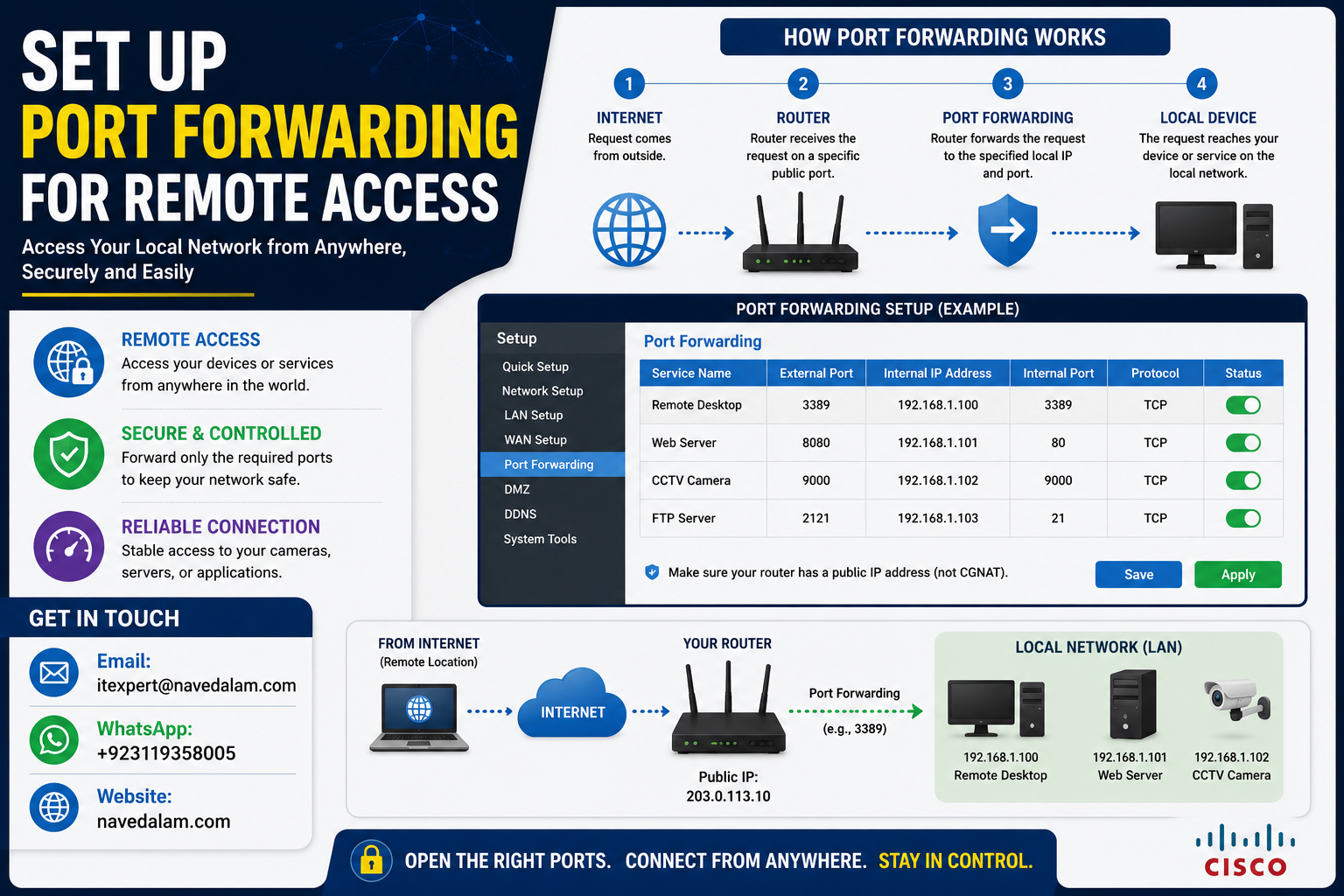
Understanding the mechanics makes port forwarding for remote access troubleshooting straightforward. Your ISP assigns one public WAN IP to your router. Every device inside your network gets a private LAN IP. When a device makes an outbound request, NAT records the session and routes the reply back correctly.
Inbound traffic — a smartphone connecting to your Hikvision DVR from outside — has no session table entry. Port forwarding for remote access creates a permanent static entry: all inbound traffic arriving on WAN port 8000 must be forwarded to LAN IP 192.168.1.100 port 8000.
How Port Forwarding for Remote Access Works:

Internet (Remote User)
        |
        |  Connects to: 203.0.113.10:8000  (your public WAN IP)
        v
[Router / NAT Table]
        |
        |  Port forwarding rule: WAN 8000 --> LAN 192.168.1.100:8000
        v
[Hikvision DVR at 192.168.1.100]
        |
        |  Response travels back through the same NAT path
        v
Internet (Remote User receives live feed)Prerequisites: Static LAN IP and Network Preparation
Complete these prerequisites before creating any port forwarding for remote access rule. Skipping them is the most common reason port forwarding stops working after a router reboot.
Step 1 — Assign a Fixed LAN IP to Your DVR or Server
Port forwarding for remote access rules point to a specific LAN IP. If that IP changes after a reboot, the rule breaks silently. Two options:
Option A — DHCP Reservation: Find your DVR’s MAC address and add a reservation binding that MAC to a fixed IP such as 192.168.1.100.
Option B — Static IP on the device: Log into the DVR or server and set a manual static IP in its network settings. Choose an IP outside your router’s DHCP pool range.
Step 2 — Confirm Your WAN IP Is Public (Not CGNAT)
Log into your router admin panel and note the WAN IP. Then open whatismyip.com.
- IPs match: You have a real public IP. Proceed with port forwarding for remote access.
- IPs differ: You are behind CGNAT. Request a public static IP from your ISP, or use DDNS with a VPN tunnel.
CCTV Port Reference Table: DVR and NVR Port Numbers
Using wrong port numbers is the second most common port forwarding for remote access failure. Verify these on the device itself before creating any router rule.
| Brand / System | Port | Protocol | Purpose |
|---|---|---|---|
| Hikvision DVR/NVR | 8000 | TCP | SDK / iVMS-4200 desktop client |
| Hikvision DVR/NVR | 8200 | TCP | Hik-Connect mobile app |
| Hikvision DVR/NVR | 80 / 8080 | TCP | HTTP web browser access |
| Hikvision DVR/NVR | 554 | TCP | RTSP live stream |
| Dahua DVR/NVR | 37777 | TCP | Video stream / SmartPSS / gDMSS |
| Dahua DVR/NVR | 37778 | UDP | Dahua UDP video data |
| Dahua DVR/NVR | 80 / 8080 | TCP | HTTP web browser access |
| CP Plus / Generic DVR | 34567 | TCP | Video stream / uPStore app |
| Universal RTSP | 554 | TCP | RTSP stream via VLC / NVR |
| Windows RDP | 3389 | TCP | Remote Desktop Protocol |
| Web Server HTTP | 80 | TCP | HTTP web access |
| Web Server HTTPS | 443 | TCP | HTTPS secure web access |
Step-by-Step Port Forwarding Setup Guide
The steps below cover setting up port forwarding for remote access using the TP-Link Archer series — the most common router in Pakistan. The logic is identical on all routers; only the menu labels differ.
Phase 1: Log Into Your Router Admin Panel
# Find your default gateway (router IP) on Windows:
ipconfig
# Look for:  Default Gateway . . . . . : 192.168.1.1

# On Linux or macOS:
ip route | grep default
# Expected:  default via 192.168.1.1 dev eth0
Phase 2: Locate the Port Forwarding Section
- TP-Link Archer: Advanced → NAT Forwarding → Virtual Servers
- D-Link / Tenda: Advanced → Port Forwarding
- MikroTik RouterOS: IP → Firewall → NAT (add a dst-nat rule)
- Cisco RV series: Firewall → Single Port Forwarding
- ZTE (ISP-supplied): Application → Port Mapping
Phase 3: Create the Port Forwarding Rule for Remote Access
| Field | Value to Enter |
|---|---|
| Service Name | Hikvision-SDK |
| External Port (WAN) | 8000 |
| Internal Port (LAN) | 8000 |
| Internal IP Address | 192.168.1.100 |
| Protocol | TCP |
| Status | Enabled |
http://your-wan-ip:8080.Phase 4: Disable UPnP
UPnP lets devices auto-create port forwarding for remote access rules without your knowledge, including compromised devices. Disable UPnP under Advanced settings and manage all NAT rules manually.
Phase 5: Save Settings and Reboot the Router
Some routers require a reboot before new port forwarding for remote access rules take effect. Verify the rule still shows active after the reboot before testing externally.
Hikvision DVR/NVR Port Forwarding Configuration
Hikvision is the most widely deployed CCTV brand in Pakistan. Before setting up port forwarding for remote access, confirm the actual port numbers on the DVR: Configuration → Network → Basic Settings → Port.
# Hikvision complete port forwarding for remote access ruleset:
Rule 1:  WAN 8000  -->  LAN 192.168.1.100:8000  TCP   (iVMS-4200 SDK desktop client)
Rule 2:  WAN 8200  -->  LAN 192.168.1.100:8200  TCP   (Hik-Connect mobile app)
Rule 3:  WAN 8080  -->  LAN 192.168.1.100:80    TCP   (HTTP web browser - avoids ISP block)
Rule 4:  WAN 554   -->  LAN 192.168.1.100:554   TCP   (RTSP stream - optional)
Dahua DVR/NVR Port Forwarding Configuration
Dahua devices use different default ports to Hikvision. Confirm the TCP port on the DVR: Main Menu → Setup → Network → TCP/IP.
# Dahua complete port forwarding for remote access ruleset:
Rule 1:  WAN 37777  -->  LAN 192.168.1.101:37777  TCP   (SmartPSS / gDMSS video stream)
Rule 2:  WAN 37778  -->  LAN 192.168.1.101:37778  UDP   (Dahua UDP video data)
Rule 3:  WAN 8080   -->  LAN 192.168.1.101:80     TCP   (HTTP web browser access)
Port Forwarding for Web Server and RDP Remote Access
Port forwarding for remote access to Windows Server RDP and web servers follows identical router steps. The most commonly forwarded ports are 80/443 for web servers and 3389 for Remote Desktop Protocol.
# Web server port forwarding for remote access:
Rule:  WAN 80   -->  LAN 192.168.1.50:80   TCP   (HTTP)
Rule:  WAN 443  -->  LAN 192.168.1.50:443  TCP   (HTTPS)

# RDP port forwarding for remote access to Windows Server:
Rule:  WAN 3389  -->  LAN 192.168.1.50:3389  TCP

# Verify RDP is listening:
netstat -an | findstr 3389
# Expected: TCP 0.0.0.0:3389 0.0.0.0:0 LISTENINGDDNS Setup for CCTV Remote Access (No Static WAN IP)
Most ISP connections in Pakistan assign a dynamic public IP that changes periodically. Port forwarding for remote access still works with a dynamic IP — but you need DDNS to maintain a stable hostname so your clients always connect successfully.
Option A: Built-in DDNS Client on Your Router
Most TP-Link, D-Link, and Tenda routers include a built-in DDNS client. Go to Advanced → Network → Dynamic DNS and register with No-IP or DuckDNS — the most reliable free options in Pakistan.
Option B: No-IP Manual DDNS Setup
1. Create a free account at https://www.noip.com
2. Create a hostname:  yoursite.ddns.net
3. In router DDNS settings:
   Service Provider:  No-IP
   Domain Name:       yoursite.ddns.net
   Username:          your No-IP email address
   Password:          your No-IP password
4. Enable the DDNS client and save

# Your port forwarding for remote access URL becomes:
Browser:   http://yoursite.ddns.net:8080
iVMS-4200: Device IP = yoursite.ddns.net  |  Port = 8000
Real-World Case Study: Retail Store CCTV Remote Access
A textile retail chain with three stores in DI Khan came to us after their CCTV installer told them they needed a paid static IP subscription — quoted at PKR 3,500 per month per location — to enable port forwarding for remote access. We audited the setup and found three configuration errors: no static LAN IP on the DVRs, port 80 blocked by the ISP, and UPnP creating conflicting NAT rules that overwrote manual port forwarding for remote access entries at every router reboot.
We resolved everything without any ISP upgrade. Each Hikvision DVR received a DHCP-reserved LAN IP. We changed the HTTP port on each DVR from 80 to 8080, forwarded external 8080 to internal 80, and forwarded port 8000 for iVMS-4200 SDK access. We disabled UPnP on all three TP-Link routers and configured No-IP DDNS on each with a unique hostname per store.
The store owner now views live footage from all three locations on one iVMS-4200 dashboard from his smartphone. Additional monthly cost: PKR 0. Setup time per location: approximately 40 minutes. The lesson: before paying for a static IP, verify the real problem is not a blocked port or a UPnP conflict.
Verification and Testing
After saving your port forwarding for remote access rules, always verify from outside your network — not from inside. Testing from the same LAN bypasses the router’s NAT entirely.
# External port test at canyouseeme.org:
1. Go to:  https://canyouseeme.org
2. Enter your forwarded port (e.g. 8000)
3. Click Check Port

Pass:  "Success: I can see your service on [your IP] on port 8000"
Fail:  "Error: I could not see your service on [your IP] on port 8000"

# Alternative: use mobile data (disable WiFi) and navigate to:
http://[your-WAN-IP]:8080
# Should display the DVR web login page
# Windows — verify device is listening on the correct port:
netstat -an | findstr LISTENING
# Confirm your port appears as LISTENING
# Linux:
ss -tlnp | grep 8000
# Expected: LISTEN 0 128 0.0.0.0:8000 *:*Troubleshooting: Port Forwarding Not Working
Port forwarding for remote access failures fall into five categories. Work through them in order — the first three cover 90% of all cases.
Issue 1: Port Shows Closed After Adding the Rule
Root cause: The device is not listening on that port, the LAN IP in the port forwarding for remote access rule is wrong, or the router needs a reboot to activate new NAT rules.
# Step 1: Verify the DVR LAN IP in router DHCP client list

# Step 2: Verify internal reachability
ping 192.168.1.100

# Step 3: Verify port is open internally
telnet 192.168.1.100 8000

# Step 4: Reboot the router, then retest
Issue 2: CGNAT — WAN IP Does Not Match whatismyip.com
Root cause: The ISP is using Carrier-Grade NAT. Port forwarding for remote access rules on the customer router cannot punch through the ISP’s NAT layer above it.
# If router WAN IP starts with 10.x or 100.64.x --> CGNAT confirmed

# Solutions:
# Option 1: Request a public static IP from your ISP
# Option 2: Use WireGuard/OpenVPN tunnel to a VPS with public IP
# Option 3: Use cloud relay (Hik-Connect, DMSS cloud)
Issue 3: Port Forwarding Breaks After Every Reboot
Root cause: The DVR picked up a different DHCP IP after reboot. Port forwarding for remote access rule still points to the old IP.
# Fix: Add DHCP reservation for the DVR MAC address
# TP-Link: Advanced --> Network --> DHCP --> Address Reservation
# Bind DVR MAC address to 192.168.1.100
# Save and reboot router
Issue 4: ISP Blocking the Forwarded Port
# Instead of:  WAN 80  -->  LAN 192.168.1.100:80
# Use:         WAN 8080 -->  LAN 192.168.1.100:80

# Port forwarding for remote access URL:
http://your-wan-ip:8080/
Issue 5: Two Devices Competing for the Same WAN Port
# Solution: Use different external ports for each device
# DVR 1: WAN 8000  -->  LAN 192.168.1.100:8000  TCP
# DVR 2: WAN 8001  -->  LAN 192.168.1.101:8000  TCP
# In iVMS-4200, add DVR 2 with port 8001
Best Practices for Port Forwarding
Security Best Practices
Change all default device passwords before enabling port forwarding for remote access. A DVR with default credentials exposed via a forwarded port is a serious incident. Automated credential scanners run continuously against ports 8000 and 37777.
Use non-standard external ports for all port forwarding for remote access rules. Forwarding external port 3389 advertises “RDP server here” to every bot scanner. Map WAN 55001 to internal 3389 to reduce automated attack volume.
Keep firmware current on every device exposed by port forwarding for remote access. Hikvision and Dahua have had critical remote code execution vulnerabilities in older firmware. Update to the latest firmware version before any external exposure.
Add a source IP firewall rule where feasible. Restrict the forwarded port to specific known source IPs. This eliminates the majority of the external attack surface for your port forwarding for remote access rules.
Operational Best Practices
Document every port forwarding for remote access rule. Record device name, LAN IP, MAC address, internal port, external port, protocol, and date created.
Disable UPnP on every router. UPnP allows devices to auto-create port forwarding for remote access rules without your knowledge or approval.
Always test from a truly external connection. Use mobile data with WiFi disabled, or canyouseeme.org. Testing from the same LAN bypasses NAT entirely.
Configure DDNS even when you have a static IP. ISP changes can alter your static IP without warning. DDNS ensures all clients reconnect automatically after any port forwarding for remote access address change.
Security Considerations
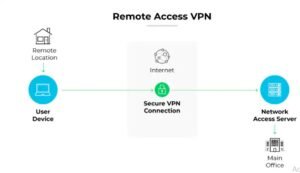
Port forwarding for remote access is the fastest path to external connectivity, but it is not the safest one. Every open port is a permanently active attack surface. For any business with sensitive data — a Remote Access VPN is the right architecture. A VPN eliminates the need to forward individual ports entirely. Authentication happens at the VPN endpoint before any traffic can reach internal devices.
For businesses using Azure, an Azure Point-to-Site VPN Gateway provides secure remote access without exposing any ports to the public internet — far safer than port forwarding for remote access in enterprise environments.
For enterprise environments using Cisco ASA, port forwarding for remote access is implemented as a static NAT rule — the complete CLI syntax is in the Cisco ASA Configuration Guide. For broader network problems after any NAT change, the Network Troubleshooting Guide provides a systematic OSI-layer diagnostic method.
Security Checklist Before Any Port Forwarding for Remote Access
- ✅ Default password changed on every DVR/NVR and server
- ✅ Latest firmware installed on every exposed device
- ✅ UPnP disabled on the router
- ✅ External ports remapped away from defaults (not 80, not 3389)
- ✅ Source IP restriction added wherever feasible
- ✅ DDNS configured for stable hostname access
- ✅ External port test completed via mobile data or canyouseeme.org
Frequently Asked Questions
What ports do I need to forward for CCTV remote access?
For port forwarding for remote access to Hikvision DVR/NVR, forward port 8000 (TCP) for iVMS-4200 and port 8200 (TCP) for Hik-Connect mobile. For Dahua DVR/NVR, forward 37777 (TCP) and 37778 (UDP) for SmartPSS and gDMSS. For any brand, port 554 (TCP) enables RTSP live stream access. Use external port 8080 mapped to internal 80 for browser access since most Pakistan ISPs block inbound port 80.
Why is my port forwarding not working for CCTV?
The five most common port forwarding for remote access failures are: no static LAN IP on the DVR; ISP using CGNAT (router WAN IP is private 10.x or 100.64.x); ISP blocking the specific port; UPnP creating conflicting rules; or old DVR firmware with known external access bugs. Work through them in order — the first two cover most cases.
Is port forwarding for remote access safe for home security cameras?
Port forwarding for remote access is safe when implemented correctly: change all default device passwords, keep firmware current, and use non-standard external ports to reduce automated scan exposure. For businesses or any environment with sensitive data, a VPN is always safer — it authenticates users before any traffic can reach the camera system.
Do I need a static IP for port forwarding CCTV?
You need a static LAN IP for your DVR — free via DHCP reservation. You do not need a static WAN IP from your ISP. DDNS services like No-IP or DuckDNS give your connection a fixed hostname that updates automatically when your public IP changes. A paid static WAN IP is only necessary when CGNAT prevents port forwarding for remote access from working at all.
What is the difference between port forwarding and DDNS for remote access?
Port forwarding for remote access and DDNS solve different problems and are used together. Port forwarding tells your router which internal device to send inbound traffic to. DDNS gives your changing public WAN IP a stable hostname so remote users always know how to reach your router. You typically need both: port forwarding to route traffic correctly, and DDNS to maintain a reliable connection address.
Conclusion
Setting up port forwarding for remote access comes down to three verified steps executed in the right order: assign a static LAN IP to the target device, create the correct port forwarding for remote access rule with the right port numbers for your brand, and test from a genuinely external connection.
Static IP first, always. Every port forwarding for remote access failure that appears suddenly after weeks of working is almost always a changed LAN IP. Set the DHCP reservation before anything else.
Use the correct port numbers. Hikvision uses 8000 and 8200. Dahua uses 37777 and 37778. RDP uses 3389. Wrong port numbers in any port forwarding for remote access rule produce no error — the port simply never opens.
Check for CGNAT before anything else. If your router WAN IP does not match whatismyip.com, no port forwarding for remote access configuration will produce a working result. Diagnose CGNAT in 30 seconds before spending time elsewhere.
Security is not optional. An open port with default credentials is an active security incident. Change passwords and update firmware on every device exposed by port forwarding for remote access. For business environments, a Remote Access VPN is the right permanent architecture.
Need Expert Help Setting Up Port Forwarding for Remote Access?
I provide professional IT consulting and configuration services for CCTV remote access, port forwarding, VPN setup, and network infrastructure for businesses across Pakistan and internationally.
- CCTV DVR/NVR remote access configuration (Hikvision, Dahua, CP Plus)
- Port forwarding for remote access setup and troubleshooting
- DDNS configuration and static IP planning
- Remote Access VPN (Cisco IOS, ASA, Azure P2S)
- Network security hardening and firewall ACL setup
- Windows Server RDP and remote access infrastructure
Email: itexpert@navedalam.com
WhatsApp: +92 311 935 8005
Website: navedalam.com
Free 30-minute consultation — no obligation, no pressure
Naveed Alam is a certified Network and Cloud Engineer specialising in port forwarding for remote access, CCTV systems, VPN architectures, and enterprise networking for organisations across Pakistan and internationally. He holds CCNA, Microsoft Azure Fundamentals (AZ-900), and CompTIA A+ certifications and has completed 50+ infrastructure projects.
Specialisations: Network design and NAT configuration, port forwarding for remote access, VPN architecture, Cisco routing and switching, Azure cloud networking, Windows Server.
LinkedIn · navedalam.com · itexpert@navedalam.com