
Introduction
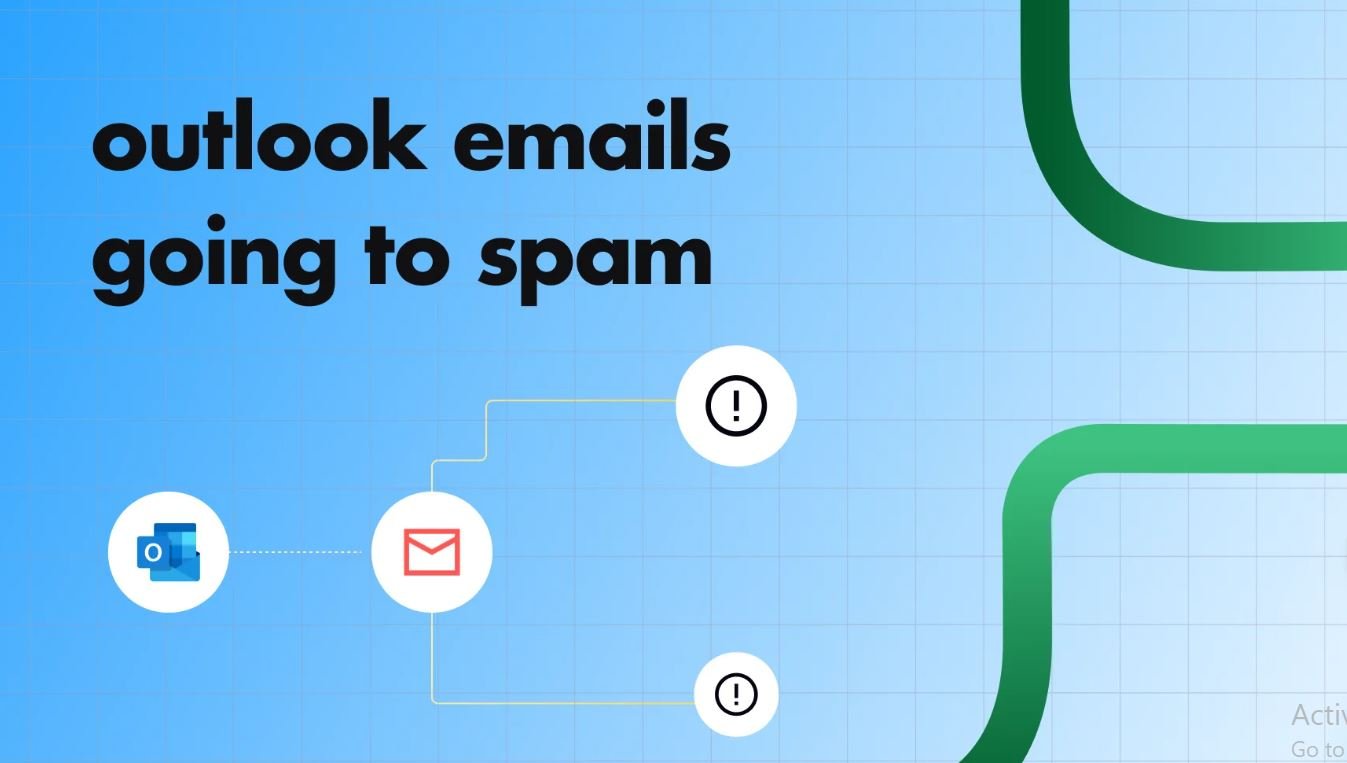
Spam reaching your Outlook inbox is more than an annoyance — it’s a security risk. Over 45% of global email traffic is spam, and a significant portion carries phishing links, ransomware attachments, or business email compromise (BEC) attempts. When your filters stop working, the root cause is almost never just one thing: it’s usually a combination of weak EOP policies, missing DNS authentication records (SPF/DKIM/DMARC), and Outlook clients left on default “Low” or “No Filtering” settings.
This guide covers every layer of the fix — from configuring Outlook’s local junk filter and Exchange Online Protection policies, to deploying DMARC and tuning anti-phishing rules for high-risk users like executives and finance teams.
Table of Contents
- Why Spam Filtering Matters
- How Outlook Spam Filtering Works
- Prerequisites and Planning
- Step-by-Step Fix Guide
- Exchange Online Configuration
- Real-World Enterprise Case Study
- Verification and Testing
- Common Issues and Fixes
- Best Practices
- Security Considerations
Why Spam Filtering Matters
Spam filter failures lead to: employees clicking phishing links and exposing credentials, ransomware entering via malicious attachments, productivity loss from inbox clutter, and compliance exposure if sensitive data is leaked via BEC. For Microsoft 365 users, Exchange Online Protection (EOP) is the first line of defense — but default settings leave significant gaps.
How Outlook Spam Filtering Works
Layer 1 — Exchange Online Protection (Cloud)
All inbound mail is processed by EOP before reaching your mailbox. EOP applies: connection filtering (IP reputation), anti-spam policies (Spam Confidence Level / SCL scoring), anti-malware attachment scanning, anti-phishing impersonation protection, and DMARC/DKIM/SPF validation.
Layer 2 — Outlook Client Junk Filter
After EOP processing, Outlook’s local filter applies. Key settings: Junk Email Protection Level (No Filtering, Low, High, Safe Lists Only), Safe Senders List, Blocked Senders List, Safe Recipients List.
Spam Confidence Level (SCL)
Every message gets an SCL from -1 to 9. SCL 5+ = Junk folder. SCL 9 = high-confidence spam. Understanding SCL values is essential for diagnosing why messages land in the wrong folder.
Prerequisites
- Microsoft 365 admin account with Exchange Administrator role
- Access to Microsoft 365 Defender portal (security.microsoft.com)
- Access to Exchange Admin Center (admin.exchange.microsoft.com)
- Outlook desktop client (Microsoft 365 Apps, 2019, or 2021)
- PowerShell with Exchange Online Management module:
Install-Module -Name ExchangeOnlineManagement
Step-by-Step Fix Guide
Phase 1: Check Outlook Junk Email Settings
- Open Outlook → Home → Junk → Junk E-mail Options
- On the Options tab, set protection level to High
- Ensure “Permanently delete suspected junk email” is unchecked (so you can review)
- Click OK
Phase 2: Configure Safe and Blocked Sender Lists
If legitimate emails land in junk, or known spam keeps breaking through, update your safe/blocked lists.
# Connect to Exchange Online
Connect-ExchangeOnline -UserPrincipalName admin@yourdomain.com

# View current Safe Senders for a user
Get-MailboxJunkEmailConfiguration -Identity "user@yourdomain.com" | Select-Object -ExpandProperty TrustedSendersAndDomains

# Add a trusted domain
Set-MailboxJunkEmailConfiguration -Identity "user@yourdomain.com" `
  -TrustedSendersAndDomains @{Add="trusted-partner.com"}
Phase 3: Review Exchange Online Anti-Spam Policies
- Navigate to security.microsoft.com
- Go to Email & Collaboration → Policies & Rules → Threat Policies → Anti-spam
- Edit the Default anti-spam inbound policy
Recommended settings: Spam → Move to Junk, High Confidence Spam → Quarantine, Phishing → Quarantine, Bulk email threshold → 5-6, Zero-hour Auto Purge (ZAP) → Enabled.
Set-HostedContentFilterPolicy -Identity "Default" `
  -HighConfidenceSpamAction Quarantine `
  -PhishSpamAction Quarantine `
  -HighConfidencePhishAction Quarantine `
  -BulkThreshold 6 `
  -ZapEnabled $true
Phase 4: Configure Anti-Phishing Policy
- In Threat Policies, click Anti-phishing
- Edit Office365 AntiPhish Default
- Enable Impersonation protection for executives and your domain
- Enable Mailbox intelligence (AI-based sender learning)
- Set Spoof intelligence action to Quarantine
- Enable “Show first contact safety tip”
Phase 5: Verify SPF, DKIM, and DMARC Records
Missing DNS authentication records are a top reason spam and spoofed messages bypass filters.
# Check SPF
Resolve-DnsName -Name "yourdomain.com" -Type TXT | Where-Object { $_.Strings -like "*spf*" }

# Check DMARC
Resolve-DnsName -Name "_dmarc.yourdomain.com" -Type TXT

# Check DKIM
Resolve-DnsName -Name "selector1._domainkey.yourdomain.com" -Type CNAME
Minimum required records:
- SPF:
v=spf1 include:spf.protection.outlook.com -all - DMARC:
v=DMARC1; p=quarantine; rua=mailto:dmarc@yourdomain.com - DKIM: Enable in Microsoft 365 Defender → Email Authentication Settings
Exchange Online Spam Filtering Configuration
For high-risk groups like finance and executives, create a custom stricter policy rather than relying on the default.
New-HostedContentFilterPolicy -Name "Strict-Executive-Policy" `
  -SpamAction Quarantine `
  -HighConfidenceSpamAction Quarantine `
  -PhishSpamAction Quarantine `
  -HighConfidencePhishAction Quarantine `
  -BulkThreshold 4 `
  -ZapEnabled $true `
  -EnableSafetyTips $true

New-HostedContentFilterRule -Name "Strict-Executive-Rule" `
  -HostedContentFilterPolicy "Strict-Executive-Policy" `
  -SentToMemberOf "Executives-DL@yourdomain.com" `
  -Priority 0
Real-World Case Study: Professional Services Firm
Situation: A 250-person professional services company was receiving 50-80 spam messages per user per day, including phishing attempts impersonating the CFO and HR. EOP was running on default settings only.
Root Causes Found:
- No DMARC record — anyone could spoof their domain
- DKIM was enabled but DNS CNAME records hadn’t been published
- Outlook junk filter set to “No Automatic Filtering” via a misconfigured Group Policy from years ago
- Finance team was being targeted with BEC attempts
Fixes Applied:
- Published SPF, DKIM, and DMARC with
p=reject - Created a custom strict anti-spam policy for Finance and Executive groups
- Configured anti-phishing impersonation protection for CEO, CFO, HR Manager
- Updated Group Policy to set Outlook junk filter to “High” across all machines
- Enabled ZAP for spam and phishing
- Deployed Microsoft Defender for Office 365 Plan 1 (Safe Links + Safe Attachments)
Results: Spam volume dropped 94% within 72 hours of DMARC publication. Zero successful BEC attempts in the following 6 months. IT helpdesk spam tickets reduced by 87%.
Verification and Testing
# Message trace for a specific recipient
Search-MessageTrace -RecipientAddress "user@yourdomain.com" -StartDate (Get-Date).AddDays(-1) -EndDate (Get-Date) | Format-Table Received, SenderAddress, Subject, Status -AutoSize

# View quarantined messages
Get-QuarantineMessage -RecipientAddress "user@yourdomain.com" | Select-Object ReceivedTime, SenderAddress, Subject, QuarantineTypes | Format-Table -AutoSize
Also check message headers: in Outlook go to File → Properties, look for X-Microsoft-Antispam: SCL:5 (SCL 5+ = spam) and Authentication-Results for SPF/DKIM/DMARC pass/fail status.
Common Issues and Fixes
Issue 1: Spam Still Reaching Inbox
# Check if a spam domain is in Safe Senders
Get-MailboxJunkEmailConfiguration -Identity "user@yourdomain.com" | Select-Object TrustedSendersAndDomains

# Remove incorrectly trusted domain
Set-MailboxJunkEmailConfiguration -Identity "user@yourdomain.com" `
  -TrustedSendersAndDomains @{Remove="spam-domain.com"}
Issue 2: Filter Stopped Working After Office Update
# Reset Outlook junk email filter registry settings
Remove-Item -Path "HKCU:SoftwareMicrosoftOffice16.0OutlookJunk Email" -Recurse -ErrorAction SilentlyContinue
# Then relaunch Outlook and reconfigure
Issue 3: Legitimate Email Going to Junk
# Add trusted partner domain to EOP allow list
Set-HostedContentFilterPolicy -Identity "Default" `
  -AllowedSenderDomains @{Add="trusted-partner.com"}
Issue 4: Phishing Emails Bypassing Filters
Enable impersonation protection and spoof intelligence in the anti-phishing policy. Enforce DMARC with p=reject. Consider upgrading to Microsoft Defender for Office 365 Plan 1 for Safe Links and Safe Attachments.
Issue 5: Bulk Marketing Mail in Inbox
# Lower bulk complaint level threshold (stricter = lower number)
Set-HostedContentFilterPolicy -Identity "Default" -BulkThreshold 5 -BulkSpamAction MoveToJmf
Best Practices
- Implement DMARC with p=reject — the single most impactful change. Start with p=none to monitor, move to p=quarantine, then p=reject
- Enable DKIM for all sending domains in Microsoft 365 Defender
- Keep ZAP enabled — retroactively removes spam delivered before EOP updated signatures
- Set Outlook junk filter to High via Group Policy across all machines
- Never add entire TLDs (like @gmail.com) to Safe Senders — this disables filtering for that source
- Review quarantine weekly for false positives
- Deploy Microsoft Defender for Office 365 Plan 1 for Safe Links + Safe Attachments
- Train users to report phishing via the Report Message add-in — feeds into Microsoft’s global intelligence network
- Audit third-party connectors — misconfigured connectors that bypass EOP are a common spam delivery path
Security Considerations
- Enforce MFA for all mailboxes — compromised accounts are a top source of outbound spam
- Use Conditional Access to restrict mail access from unmanaged devices
- Enable audit logging for all mailbox actions
- Configure DLP policies to prevent sensitive data exfiltration via email
- Retain email records per compliance requirements (HIPAA, PCI-DSS, SOX)
Conclusion
Fixing Outlook spam is a multi-layer problem. A single change like setting the junk filter to High will help, but it won’t hold without also configuring EOP policies, deploying DMARC/DKIM/SPF, and keeping filters trained. DMARC is the highest-leverage fix — implement it first. Then create custom policies for high-risk groups and educate users to report phishing.
For related infrastructure topics, see our guides on Google Workspace to Microsoft 365 migration and Active Directory replication troubleshooting.
Professional Consulting Services
Need help configuring EOP, deploying DMARC, or hardening your Microsoft 365 email environment? I provide professional email security consulting and deployment worldwide.
Contact: itexpert@navedalam.com | WhatsApp: +92 311 935 8005 | Free 30-minute consultation
About the Author
Naveed Alam is a Network & Cloud Engineer with 8+ years of experience in Microsoft 365 administration, Exchange Online security, Azure cloud networking, and enterprise IT. CCNA, AZ-900, and CompTIA A+ certified. Has completed 50+ security and cloud migration projects for organizations across Pakistan and internationally.
References: Microsoft — Anti-spam protection in EOP | DMARC.org